
You can access the Manage Contacts page by opening the Contacts Dashboard. This dashboard displays a list of all contacts with key details such as Name, Type, Mobile Number, Email, Job Title, Address, and Phone Number.
When you scroll to the far right, you’ll find options to Manage Contact or Delete Contact. Clicking Manage Contact opens the contact’s detailed information page—also referred to as the Contact Card.
The Contact Card includes five tabs:
- Contact Information
- Activities
- Projects
- Payment History
- Payment Methods
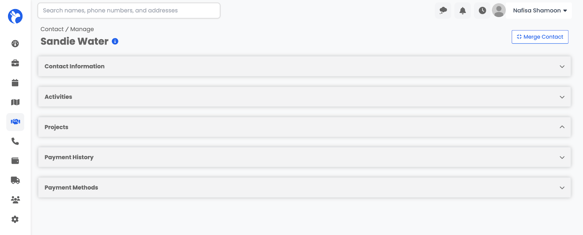
Each tab provides a detailed view of the contact’s data and related activity.
Contact Information
This section includes all the details entered when the contact was created, such as:
- Name and Job Title
- Type (e.g., Customer, Referrer, Adjuster)
- Address and Organization
- Phone Number and Email
- Referral Source
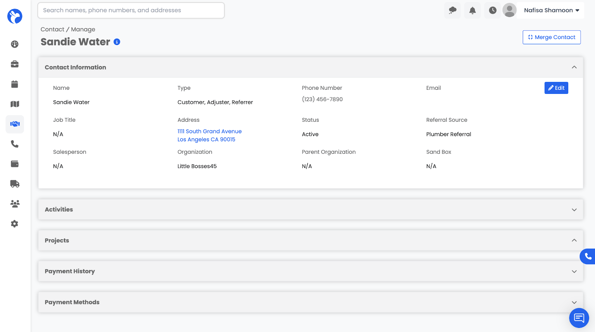
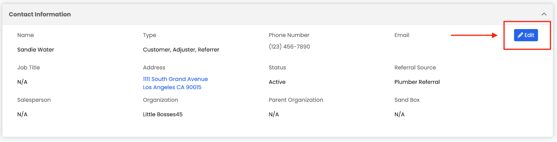
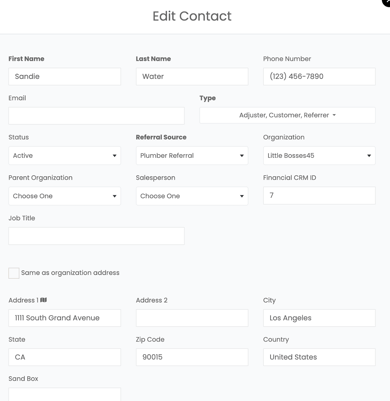
You can click the Edit tab to open the contact’s edit form. From here, you can review and update any contact information as needed. Once you’ve made your changes, click Save to apply the updates.
Activities
The Activities tab displays all activities linked to this contact—such as notes, emails, and follow-ups.
- You can view existing activities or click Add Activity to create a new one, this will open the Activity form
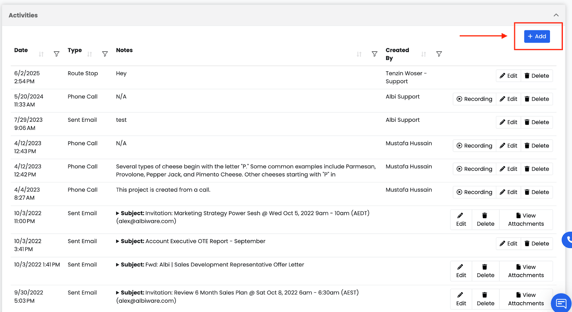
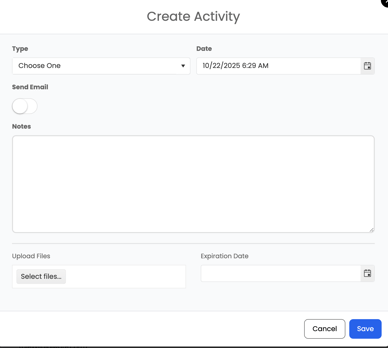
- When creating an activity, you can log notes, attach files, or toggle Send Email to send the note directly as an email.
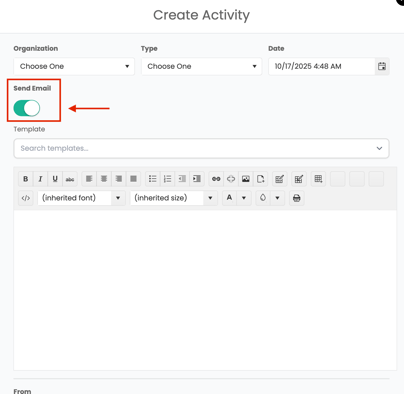
When the Send Email toggle is turned on, you’ll also have access to email templates. These templates help you send consistent, pre-written emails without needing to type the same content each time. You can choose these from your company’s custom templates.
If the contact has a relationship with an organization, any activities logged under that contact will also appear in the organization’s Activities tab, ensuring that all related communication is visible at both the contact and organization level.
Projects
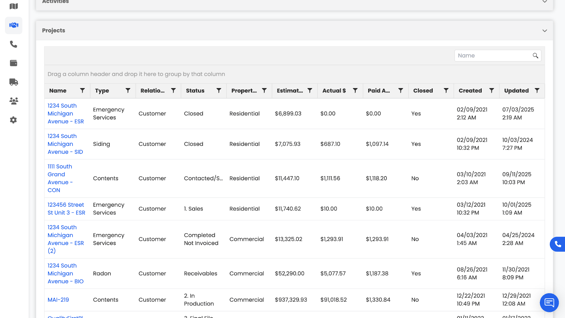
The Projects tab lists all projects the contact has been added as a relationship to. Each entry includes the Project Name, Status, and other details, giving you a full picture of how this contact is connected to ongoing or past work.
Payment History
The Payment History tab displays all payments linked to the contact. Each record includes the Date, Project Name, Status, Payment Method, and Amount.
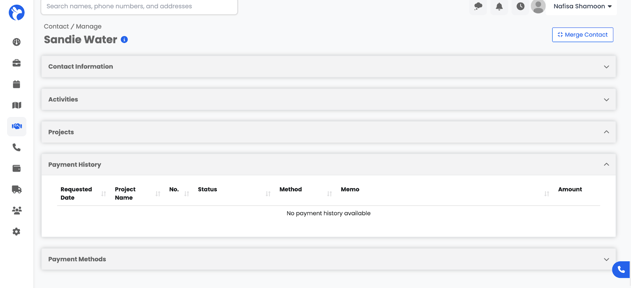
📘 Note: Payment History is tied specifically to Albi Pay. If your company is not connected to Albi Pay, this section will appear blank.
Payment Methods
The Payment Methods tab shows the saved payment options used through Albi Pay—such as credit cards or bank accounts. If no methods appear, it means the company or contact is not currently connected to Albi Pay.

Merge Contact
The Merge Contact feature lets you combine two contact records into one. This is useful if duplicate contacts were created or if two records need to be joined together.
When you merge:
- All projects and activities linked to the current contact will be transferred to the contact you choose to merge into.
- Basic information (like name, phone number, email, address, etc.) will not be transferred. Because of this, always merge into the contact with the most complete basic information filled out.
- Once the merge is complete, the contact you merged will be deleted.
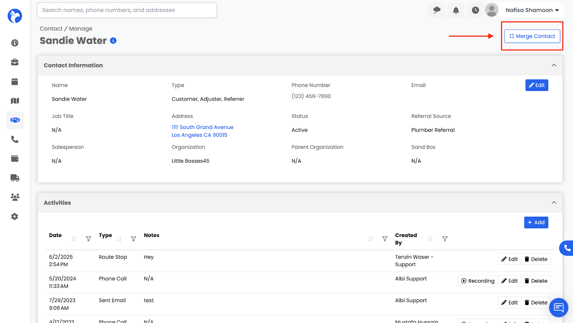
You can find the Merge Contact option in the top-right corner of the Manage Contact page.
Example:
If you have two records for the same person—one with complete contact details and another with recent project activity—you should merge the second into the first. This ensures you keep all important information while combining related work and activity history.