
Filtering the Project Status Dashboard
The dashboard offers powerful filtering tools to help you quickly find specific projects.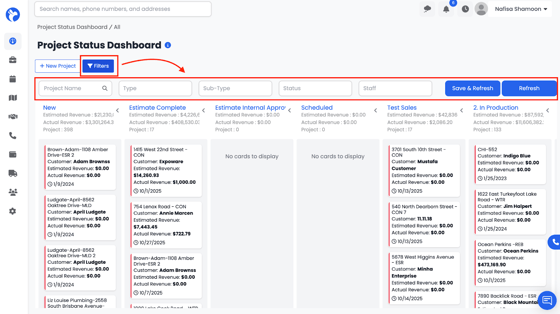
You can filter by:
- Project Name
- Project Type
- Subtype
- Status
- Assigned Staff
- Created Date
- Referral Source
- Property Type
Using filters helps you narrow down projects when your dashboard contains a large volume of jobs. Once filters are applied, you can also refresh the view to update results or save a particular filter set as needed.
Customizing the Dashboard View
To keep the dashboard clean and focused, you can hide or collapse status panels.
How to Hide Panels
- Click the arrow icon between two status columns to collapse or hide a column.
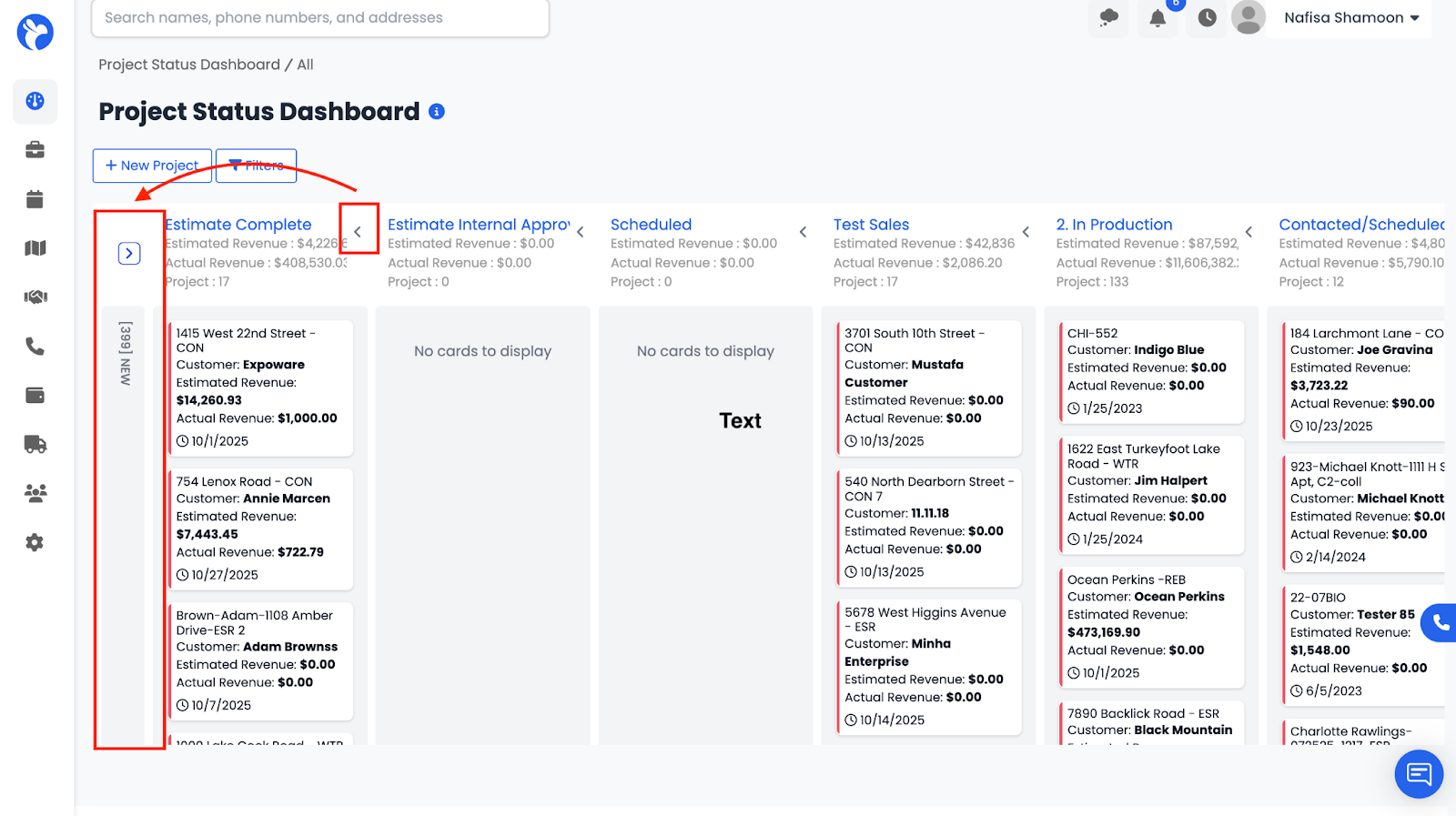
- Collapsed columns will display a summary count (e.g., “356 New Projects”, “22 In Production”).
- Click the arrow again to expand the panel back to full view.
This is useful when you want to focus only on specific statuses or remove clutter from the dashboard.