
Progress
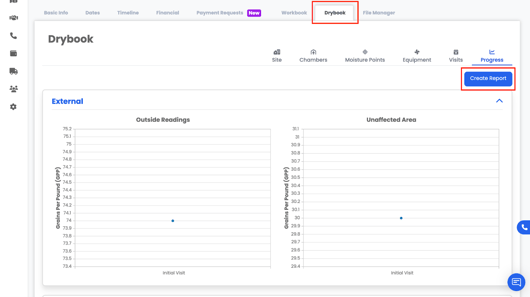
The Progress tab is where you generate drying reports based on the data entered in Drylog.
These reports can be used for:
- Insurance documentation
- Internal QA
- Customer updates
- File audits
Creating a Report
-
Go to the Progress tab.
-
Click Create Report.
-
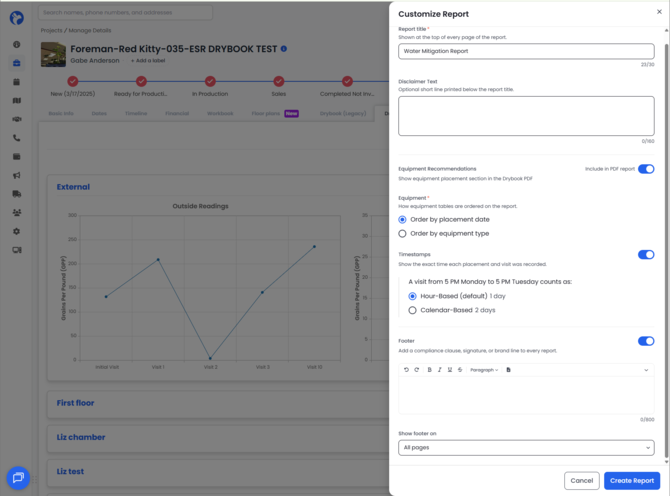
The Customize Report panel opens, pre-filled from your company's DryLog settings. You can change any of the following for this one report:
- Report title (required) — printed at the top of every page of the report. Up to 30 characters.
- Disclaimer Text (optional) — a short line printed below the report title. Up to 160 characters.
- Equipment Recommendations — a toggle. On, the recommendation sections are included in the PDF. Off, they are left out.
- Equipment (required) — how the equipment tables are ordered: Order by placement date or Order by equipment type.
- Timestamps — a toggle. On, the report prints the exact time each placement and visit was recorded, not just the date.
- Visit calculation — appears under Timestamps when it is on. A visit from 5 PM Monday to 5 PM Tuesday counts as 1 day on Hour-Based, the default, or 2 days on Calendar-Based.
- Footer — a toggle with its own text editor. Add a compliance clause, signature or brand line to every report, up to 800 characters. Show footer on controls which pages it prints on.
- Show footer on — which pages the footer prints on.
- Which visits to include
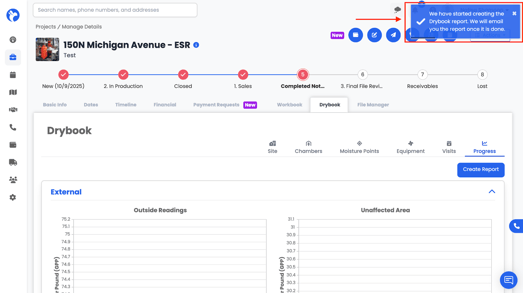
- Once you’ve set your preferences, click Create.
Company Drylog Settings
Report options that previously had to be set on every single report now have a company-level default. Your company decides once how its Drylog PDFs should look, and every report starts there.
On web, go to Settings, then Project, then Drylog.
| Setting | What it does | Default |
|---|---|---|
| Equipment recommendations | Shows or hides the equipment recommendation sections in the generated PDF. Reads Include in PDF report or Excluded from PDF report. | Included |
| Equipment | How the report's equipment tables are ordered: by placement date, or by equipment type. | Placement date |
| Timestamps | Whether the report prints the time each placement and visit was recorded, not just the date. | On |
| Visit calculation | Appears under Timestamps when they are on. Hour-Based reads elapsed hours, so 5 PM Monday to 5 PM Tuesday is 1 day. Calendar-Based counts the days a visit touched, so the same visit is 2 days. | Hour-Based |
Note: Nothing needs setting up. Every company starts on the defaults above, which produce exactly the reports you were getting before. You will see no change until someone edits the settings.
Note: The settings section that used to be called Moisture Content Material Types is now called Drylog, and the material types grid sits inside it as its own sub-section. Nothing about material types themselves changed — they moved down one level.
Defaults and One-Off Changes
| Change made in | Affects | Persists |
|---|---|---|
| Settings, Project, Drylog | Every report generated from then on | Yes, company-wide |
| The Create Report window, or the mobile report sheet | The single PDF being generated | No |
Changing an option while generating a report applies to that one PDF. It does not write back to the company setting, so you can hold a company standard and still produce a one-off report differently without the two interfering.
Leaving Equipment Recommendations Out of the Report
Some companies do not want recommendation figures in a customer-facing report. Setting Equipment recommendations to Excluded from PDF report omits the recommendation content while keeping the full record of the work that was done.
| Left out of the PDF | Still in the PDF |
|---|---|
| The chamber Dehumidification block, including the LGR requirement, the calculation breakdown and the placed dehumidifier list | The equipment placement table, with each unit's added on, removed on and duration |
| The room Air Mover Calculation block | The chamber rooms table itself, with names, areas and class |
| The AMs Req'd and AMs Placed columns in the chamber rooms table | Readings, moisture points, visits, photos and every other section |
With the recommendations off, the chamber rooms table returns to the same four-column layout it already uses for a chamber that has no recommendations, so the report does not read as broken or half-filled.
Note: The switch only affects the PDF. The recommendation tiles in the app and on web are unchanged.
The report will contain:
- Outside vs. inside readings
- Unaffected vs. affected area readings
- Moisture point trends over visits
- Chamber and room data
- Equipment usage over time, with each unit's added on, removed on and duration
- Equipment recommendations, unless your company has set them to be excluded
- Visit notes and progress details
The placed figures in the recommendation sections are the most equipment that was on site at one time, not a live reading. The chamber's dehumidifier list sits under a "Max equipment placed (N)" heading, and the AMs Placed column in the chamber rooms table is marked (max). For what that figure counts and why, see the What Drylog Equipment Tracks.
Note: The report is a snapshot. It prints what the Drylog holds at the moment it is generated, so a PDF made mid-job keeps that day's figures, and a change to the settings does not alter an already-generated PDF. Generate a new report to pick up new settings.
Frequently Asked Questions
I changed the settings but an existing PDF still looks the same.
The settings are defaults for reports generated from then on. An already-generated PDF is a fixed document. Generate a new report to pick up the new settings.
I picked a different option when generating a report and it did not save to the company settings.
By design. Anything changed in the Create Report window or the mobile report sheet applies to that single PDF. Company defaults are changed in Settings, Project, Drylog.
Where did Moisture Content Material Types go?
Still in Project Settings, now nested inside the Drylog section. Expand Drylog and it is there, unchanged.
The recommendations switch is off but the equipment table is still in the report.
Expected. The switch only removes the recommendation content: the dehumidification block, the air mover calculation block, and the two AMs columns. The record of what equipment was placed, and for how long, stays in the report.
The mobile report sheet is showing an old setting.
It loads the company settings when it opens. Close and reopen it. If the device is offline it falls back to the standard defaults rather than blocking the sheet.
The report says 5 air movers placed, but the job is finished and nothing is on site.
The figure is the most equipment that was on site at one time during the job, not a live reading. It is labelled (max) in the rooms table and "Max equipment placed" over the dehumidifier list. See the What Drylog Equipment Tracks article for how it is worked out.
Does our company have to set anything up for this?
No. Every company starts on the defaults, which match how reports were produced before.