Progress
The Progress tab is where you generate drying reports based on the data entered in DryBook.
These reports can be used for:
- Insurance documentation
- Internal QA
- Customer updates
- File audits
6.1 Creating a Report
-
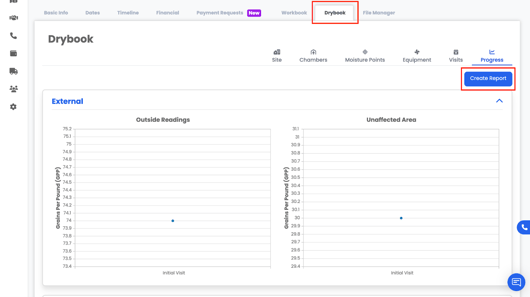
Go to the Progress tab.
-
Click Create Report.
-
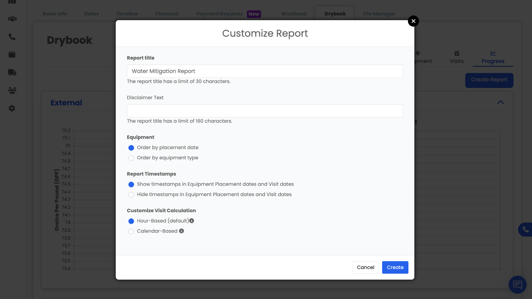
A form will open where you can configure:
-
Report Title
-
Equipment Options (which equipment to include)
-
-
-
Sort / Order By:
-
Place (location-based)
-
-
-
-
-
Equipment type
-
-
-
-
Report Timestamps:
-
Hour-based or
-
-
-
-
-
Calendar-based
-
-
-
-
Which Visits to include in the report
-
4. Once you’ve set your preferences, click Create.
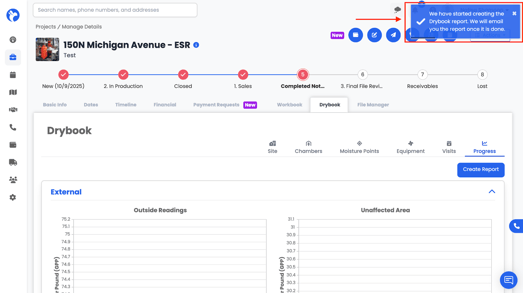
Albi will generate the report and email it to you. A copy of the report will also automatically populate in the Reports folder within the File Manager.
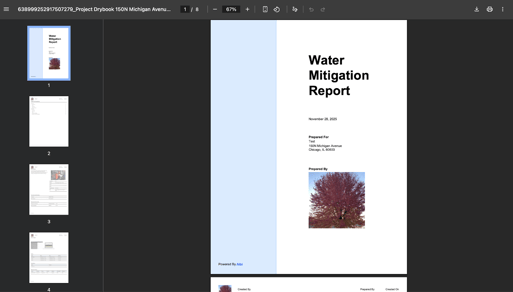
The report will contain:
- Outside vs. inside readings
- Unaffected vs. affected area readings
- Moisture point trends over visits
- Chamber and room data
- Equipment usage over time
- Visit notes and progress details