
How to Create a New Contact
To add a new contact under an organization:
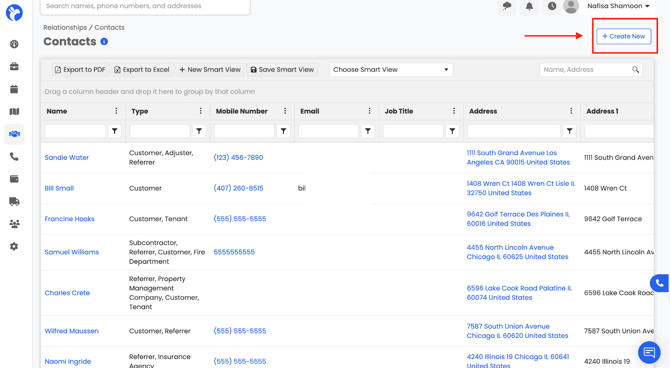
- Go to Relationships → Contacts. In the top-right corner, select Create New Contact.
- First Name (required)
- Last Name (required)
- Referral Source (required)
- Email Address
- Phone Number
- Address
- Type (e.g., Referrer, Customer, Adjuster, etc.)
📘Note: Certain fields that are bolded as seen in the form below —such as First Name, Last Name,Type and Referral Source—are required for the contact to be saved.
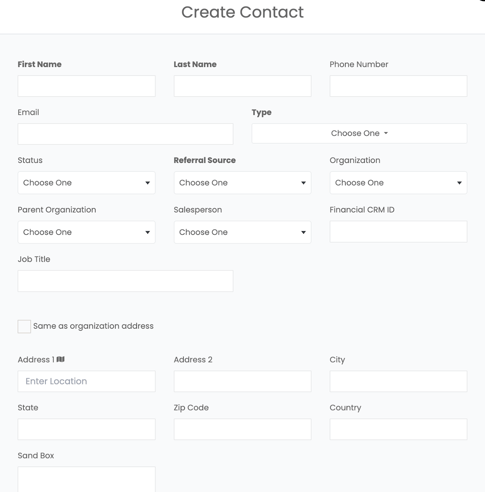
3. Once you’ve filled in the form, click Save to add the contact.
Once created, the contact will appear in the organization’s contact list and can be used for activities, emails, and projects linked to that organization.
Creating Contact Within Manage Organization
You can also create a contact directly from within the Manage Organization page. To do this:
- Go to Relationships → Organizations.
- Open the organization you want to add a contact to by clicking its name or selecting Manage Company on the far right.
- Inside the organization’s profile, navigate to the Contacts tab.
- Click Create New Contact in the top-right corner.
- Fill in the contact form with all required details and click Save.
The Contacts tab stores all the contacts associated with the organization—like customers, referrers,vendors etc.
You can Edit or Remove contacts directly from this list.
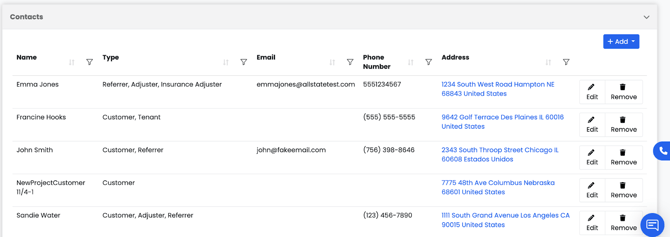
- Use the Add button to either create a new contact or associate an existing contact with the organization:
- Create a new contact (entering name, phone, email, address, and type)
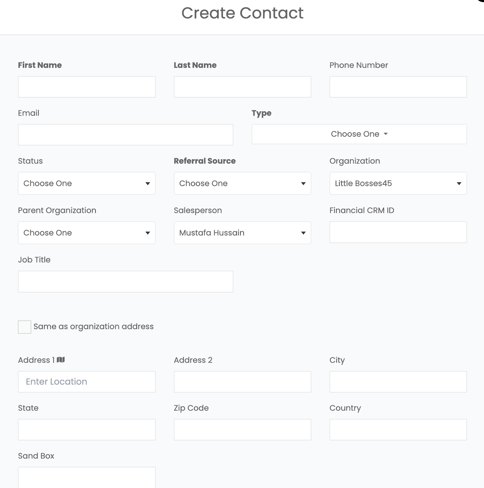
-
Associate an existing contact already in the system.
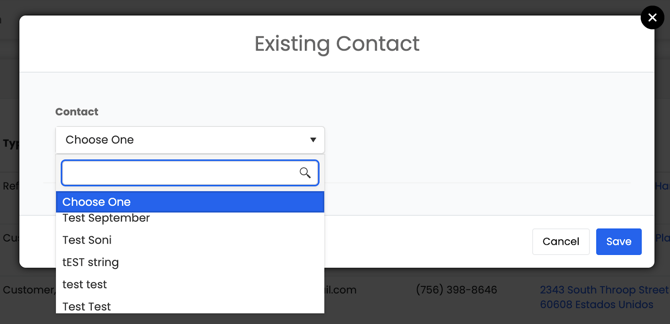
The new contact will now appear both under the organization’s Contacts tab and in the main Contacts Dashboard. This ensures the contact is automatically linked to the correct organization for easy tracking and communication.