
How to Create a New Event
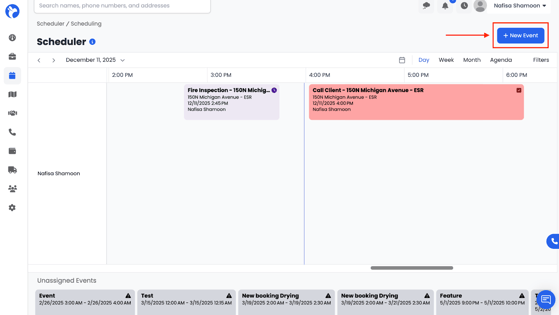
- Click the + New Event button at the top-right corner of the scheduler.
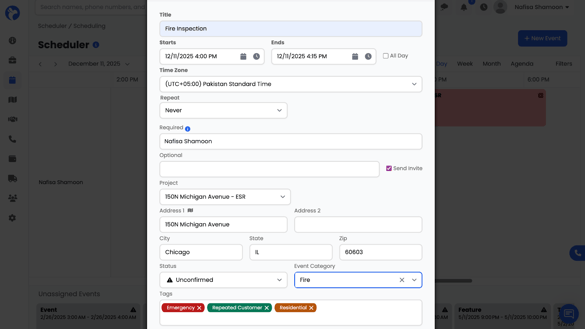
- A form will open where you can enter all event details, including:
- Title
- Start & End time
- Time zone
- Repeat settings
- Required Staff Member (this is the main assigned user)
- Title
-
- Optional Staff Members
- Project (link the event to any project)
- Optional Staff Members
-
- Address (auto-fills from project)
- Status (Unconfirmed, Confirmed, In Progress, Complete, Hold)
- Address (auto-fills from project)
-
- Event Category
- Tags (e.g., Emergency, Residential, Repeated Customer)
- Event Category
- After entering the required information, click Save.
What Happens After You Save
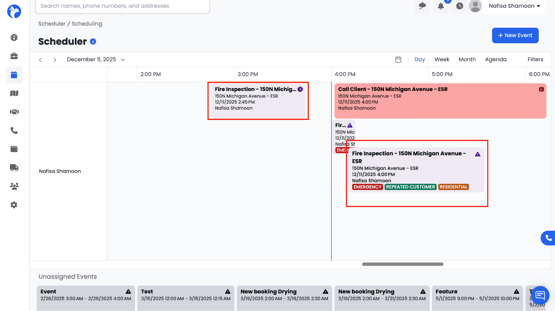
- The event appears directly on the calendar in the correct time slot.
- The assigned Required staff member receives an email notification with the event details.
- Tags and category colors will display on the event tile so it’s easy to identify at a glance.
📝 Note:
If recipients accept the event from their email invitation, a follow-up email will be sent that allows them to add the event to an external calendar (such as Google Calendar or Outlook). This follow-up is known as an iCal invite.
Albi does not sync directly with external calendars. The iCal invite simply allows recipients to add a one-time copy of the event to their personal calendar. Any future changes made to the event in Albiware will not automatically update external calendars.