
The Add (+) button is used to create new records in the Albi mobile app. It allows you to quickly add information without having to search through different parts of the app.
You can find the Add (+) button on the Home screen. It appears as a blue plus (+) icon.
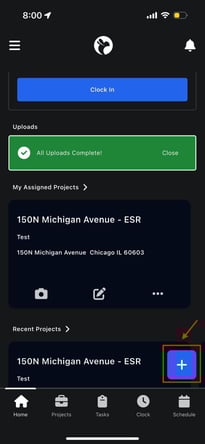
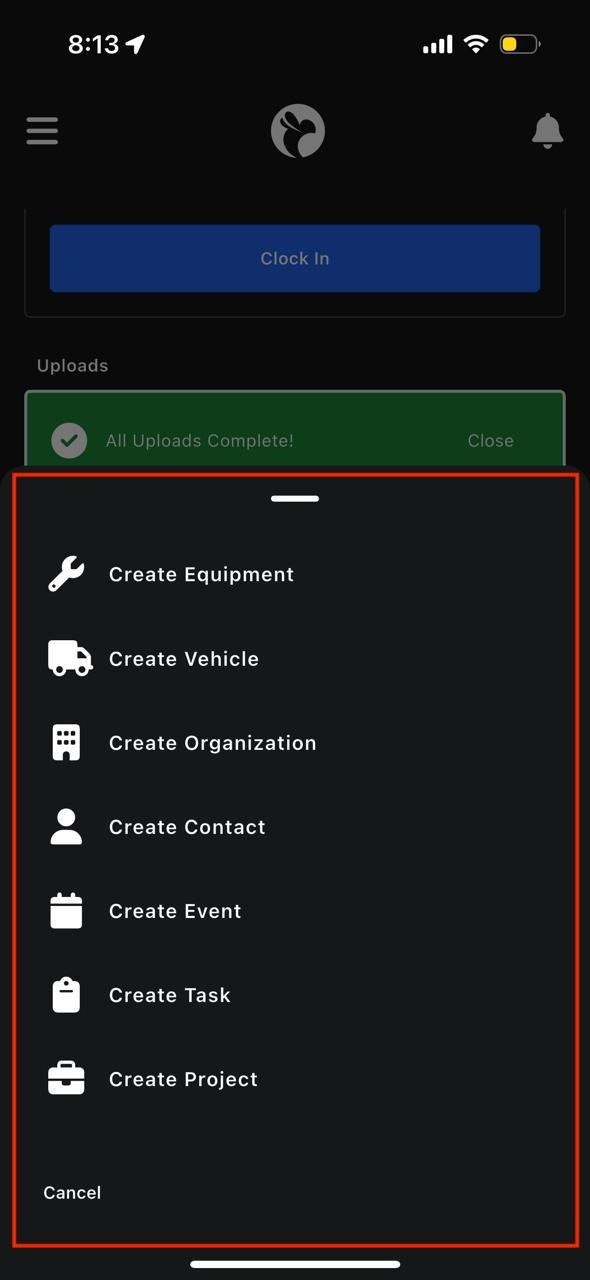
When you tap this button, a menu opens showing all the different items you can create.
Each option opens a form where you enter information step by step.
What is an Event?
An Event is used to schedule something that happens at a specific time, such as an inspection, meeting, site visit, or appointment.
How to create an event
- Tap the Add (+) button
- Select Create Event
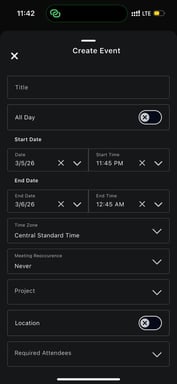
- Enter an Event Title
- Choose whether the event is All Day or has a start and end time
- Select:
- Start date and time
- End date and time
- Time zone
- Set recurrence if the event repeats
- Optionally link the event to a Project
- Turn on Location if the event has an address and enter address details
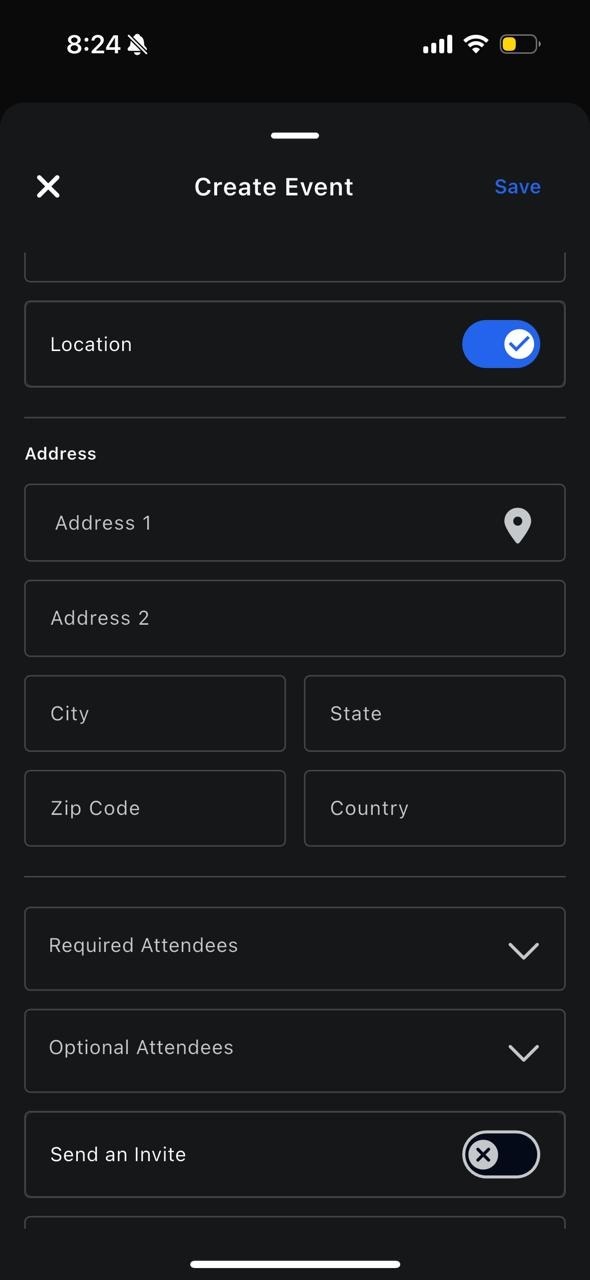
9. Add Required Attendees and Optional Attendees
10. Choose whether to Send Invites
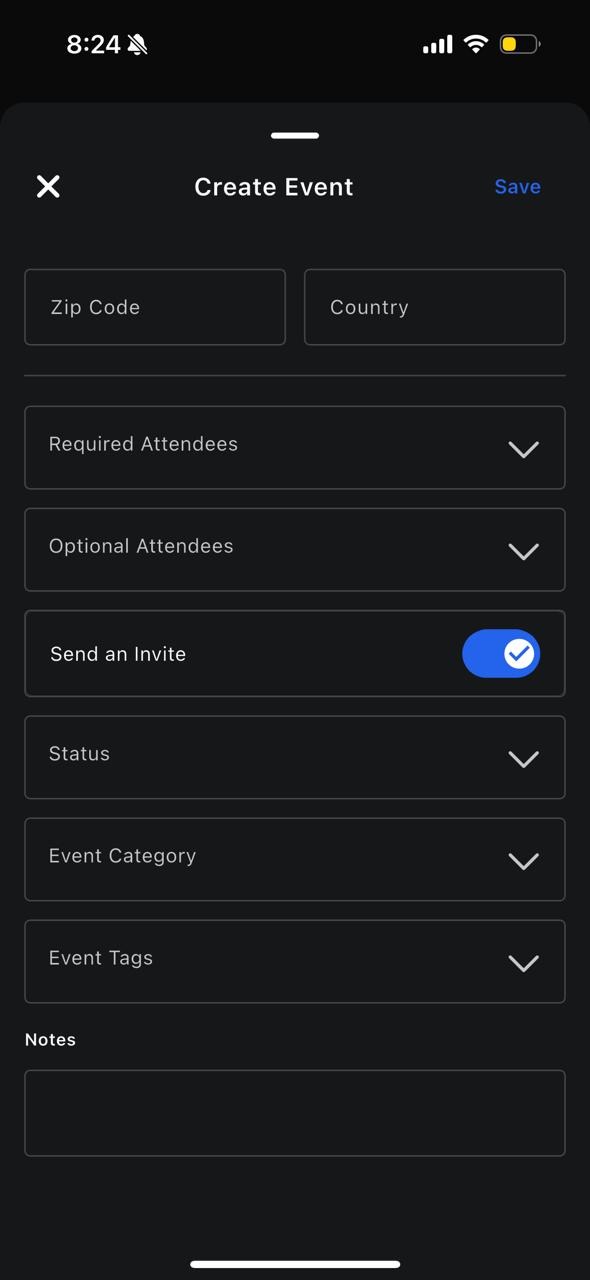
12. Tap Save