
How to Create a Purchase Order
Step 1: Create a Work Order
Before you can create a Purchase Order, you must first create a Work Order within the project. Purchase Orders are always generated from existing Work Orders.
Step 2: Convert the Work Order to a Purchase Order
Once the Work Order is created:
- Open the Work Order
- Click Actions
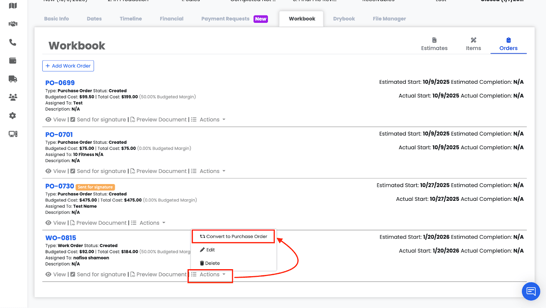
3. Select Convert to Purchase Order
4. A confirmation window will appear
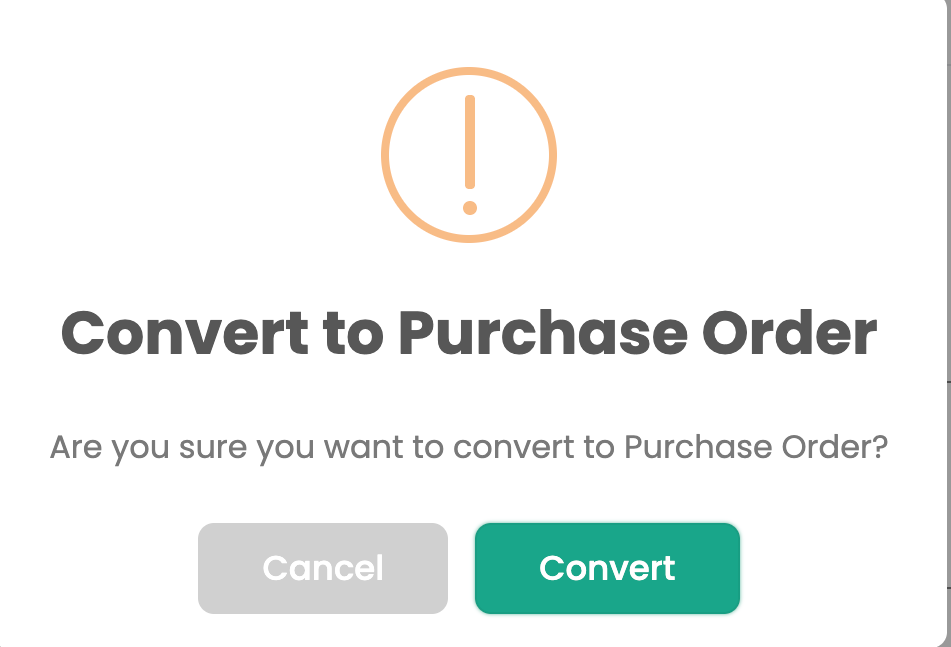
Once confirmed, Albi will generate a Purchase Order using the same data from the Work Order.
⚠️ Important:
After a Work Order is converted to a Purchase Order, it cannot be converted back.
Automatic Purchase Order Document Creation
When a Purchase Order is saved, Albi automatically generates a PDF version of the document.
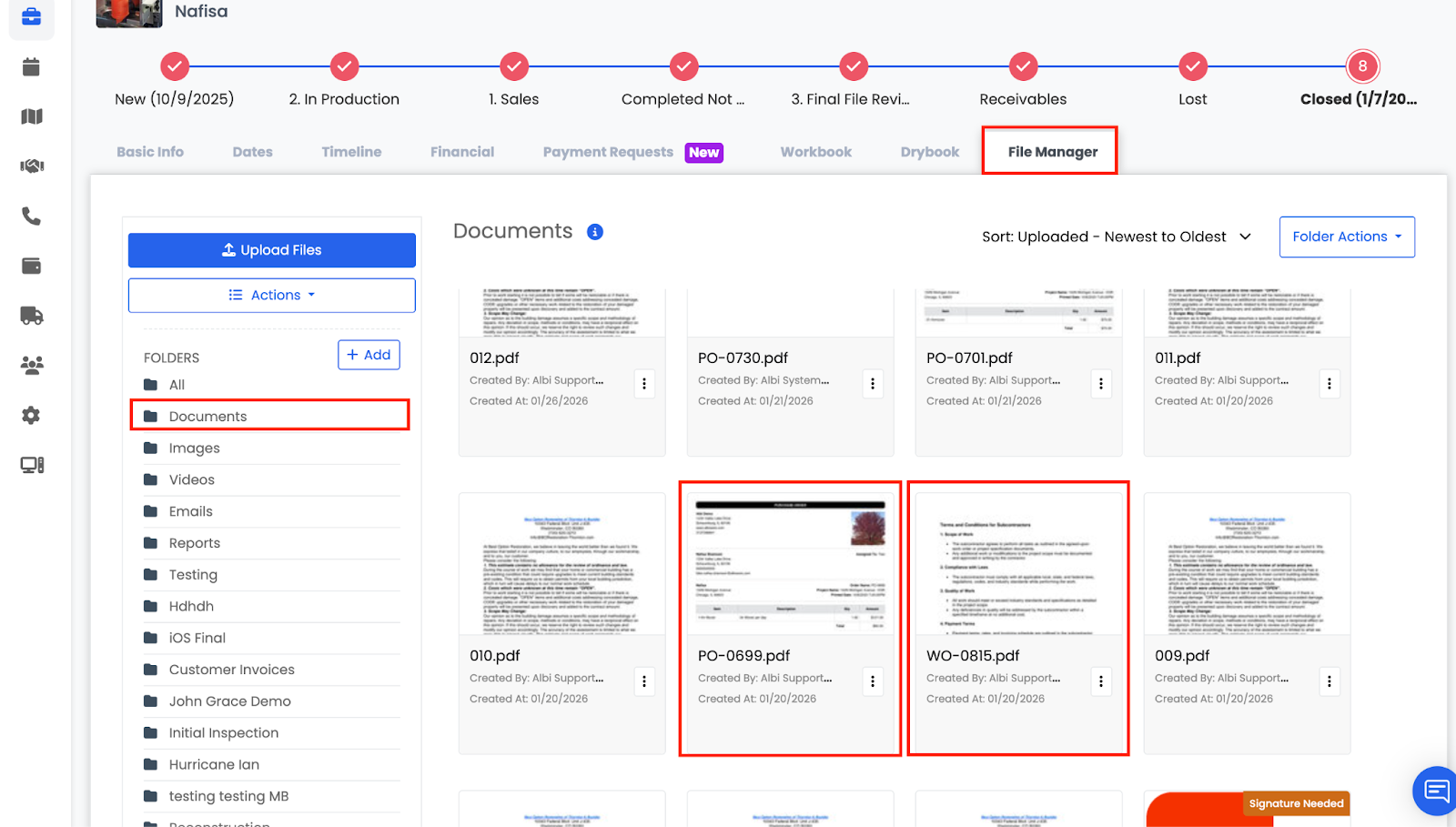
- The PDF is saved to the File Manager
- The file reflects the current state of the Purchase Order, including:
- Item list
-
- Section layout
-
- Totals and section totals (if enabled)
- Totals and section totals (if enabled)
- The document can be:
- Viewed
-
- Downloaded
-
- Shared externally
-
- Used for documentation and record-keeping
- Used for documentation and record-keeping
This applies whether or not the Purchase Order has been sent for signature.
Important Item Behavior (WO / PO Rules)
Once items are added to a Work Order (WO) or Purchase Order (PO), they cannot be deleted from the Items list.
- This rule still applies even if new estimates are later pulled in and replace existing items
- Any item associated with a WO or PO will appear greyed out in the Items list
- This indicates the item is locked and tied to an order