
The Add (+) button is used to create new records in the Albi mobile app. It allows you to quickly add information without having to search through different parts of the app.
You can find the Add (+) button on the Home screen. It appears as a blue plus (+) icon.
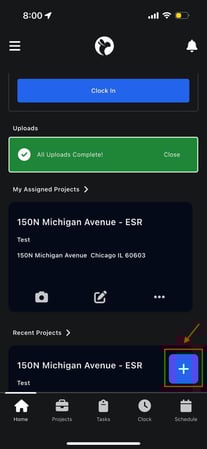
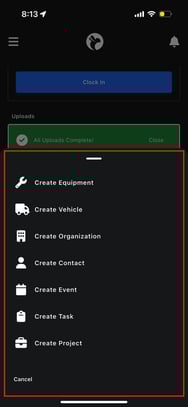
When you tap this button, a menu opens showing all the different items you can create.
Each option opens a form where you enter information step by step.
What is a Project?
A Project represents a job or case your team is working on. This could be emergency services, mitigation, mold remediation, rebuild work, or similar services.
Projects act as the central place where all related information is stored.
Step 1: Linking a Contact or Organization
When creating a project, you must link it to at least one of the following:
- A Contact
- An Organization
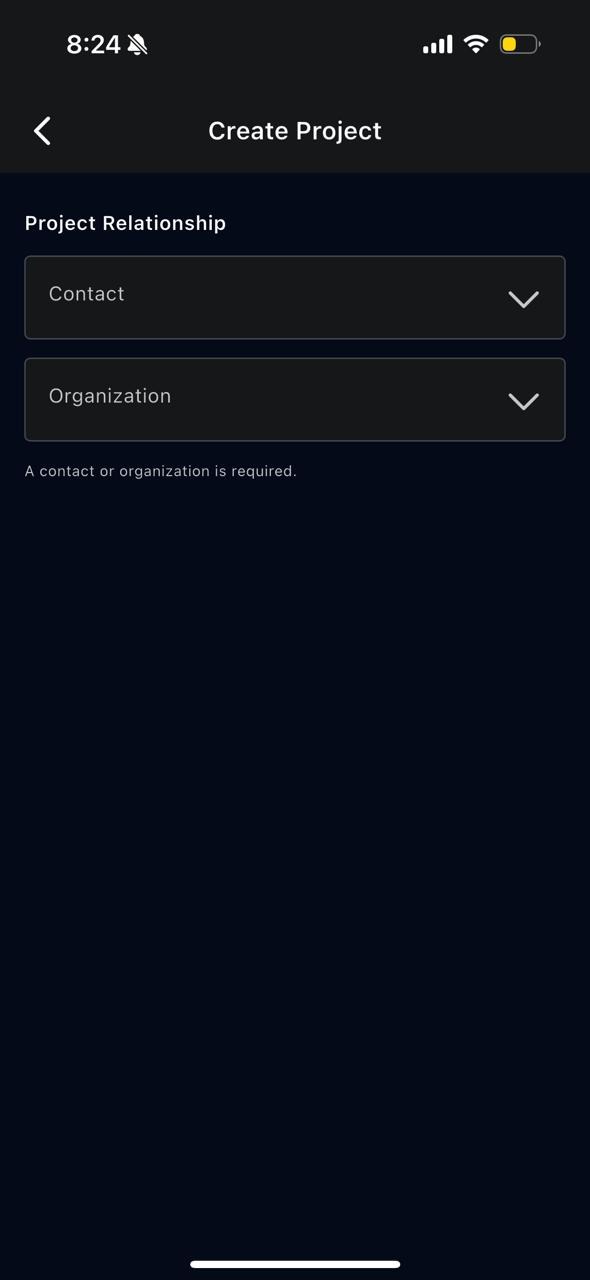
This ensures the project is connected to the correct customer or company.
Step 2: Project Information
In the Project Information section, you define what kind of job this is.
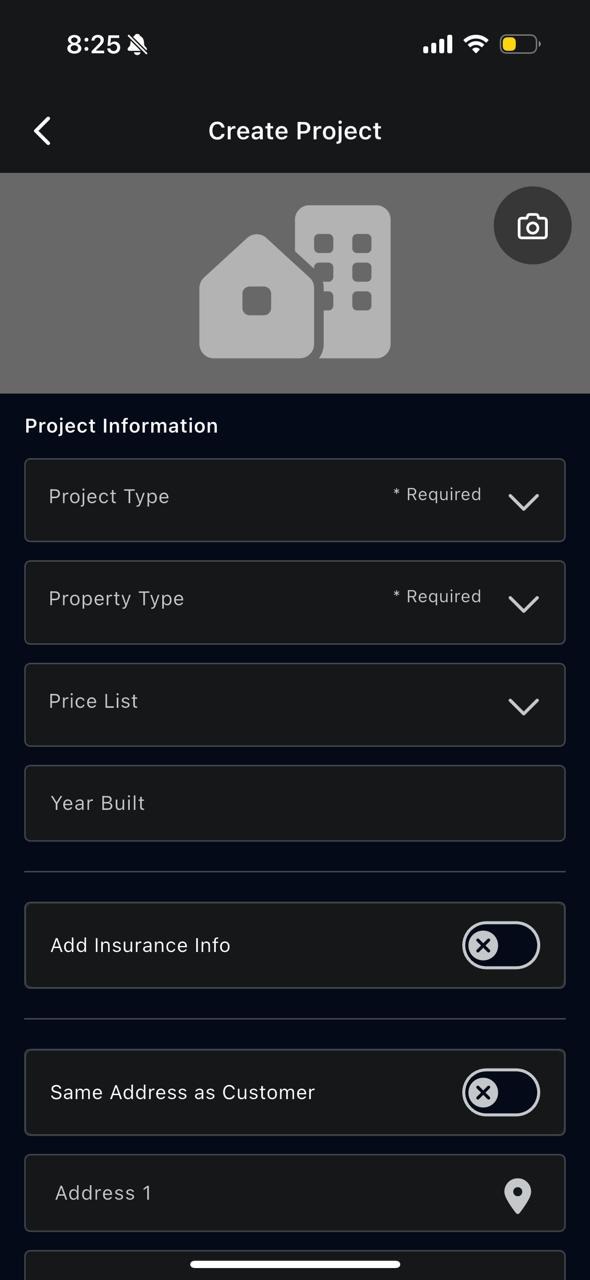
This includes:
- Project Type (for example: Emergency Services, Mitigation, Mold)
- Property Type (Residential or Commercial)
- Price List (if applicable)
- Year Built
These details help categorize the project correctly.
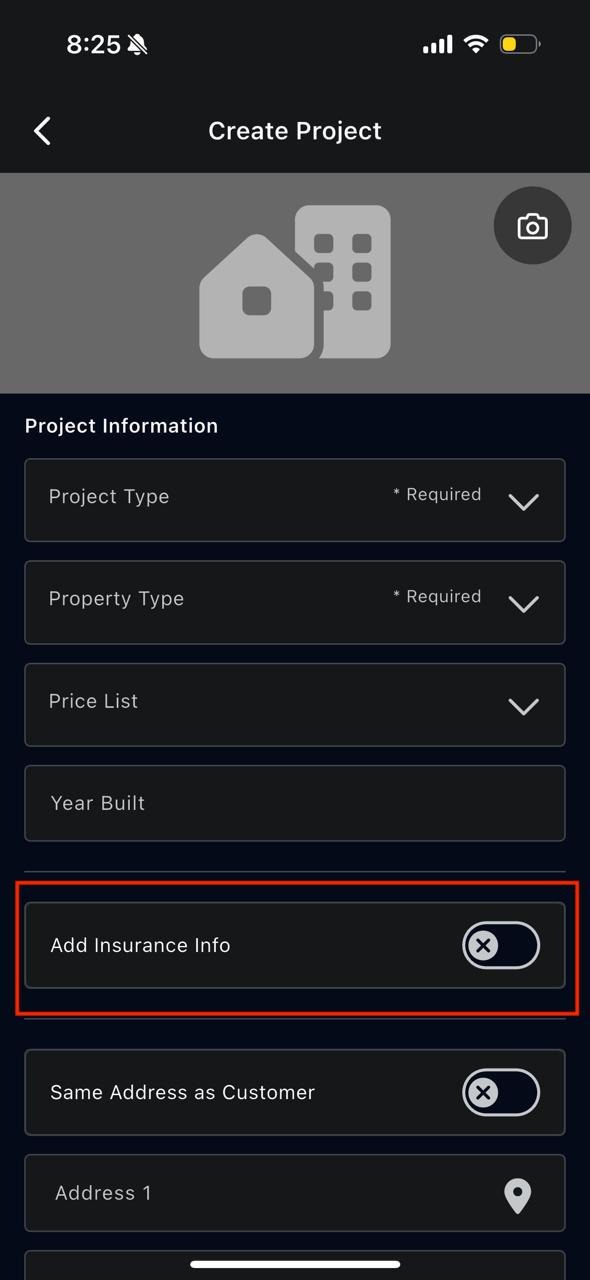
Step 3: Insurance Information
 .
. 
If the project involves insurance:
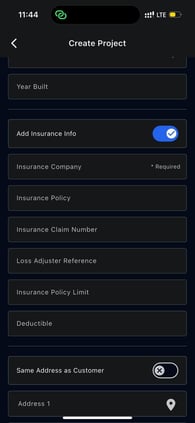
- Enable the Insurance Info toggle
- Enter the required insurance-related details
If insurance is not involved, this section can be left off.
Step 4: Project Address
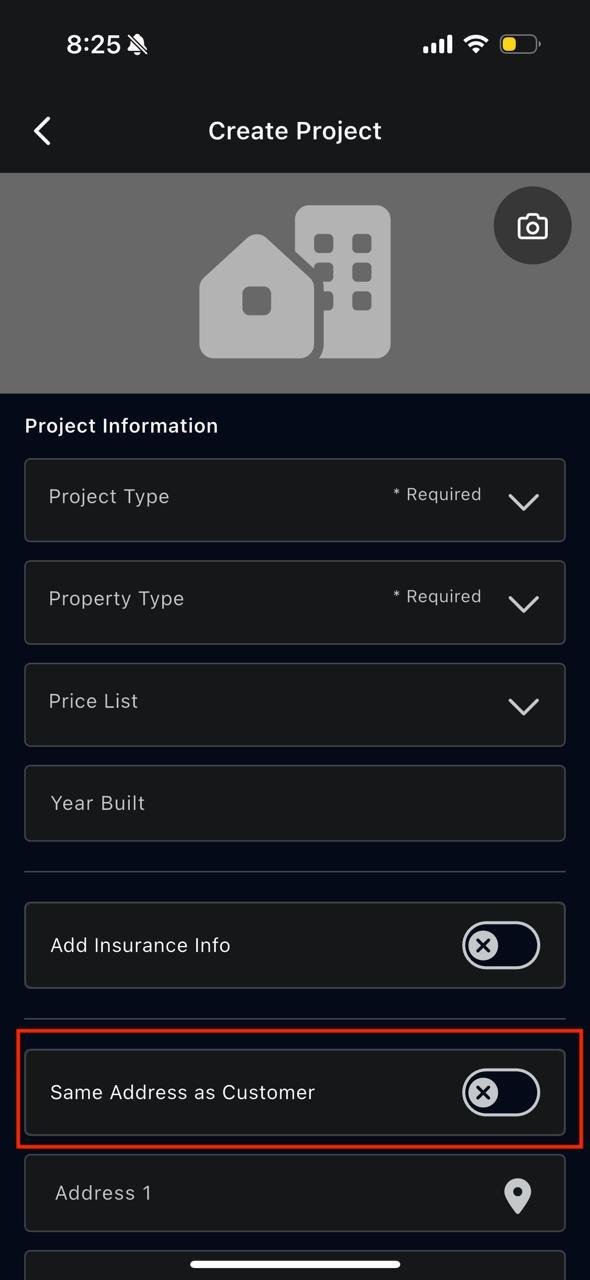
You can choose whether the project address is:
- The same as the customer’s address, or
- A different address
If it is different, you will need to enter the full project address.
Step 5: Internal Details
What are Internal Details?
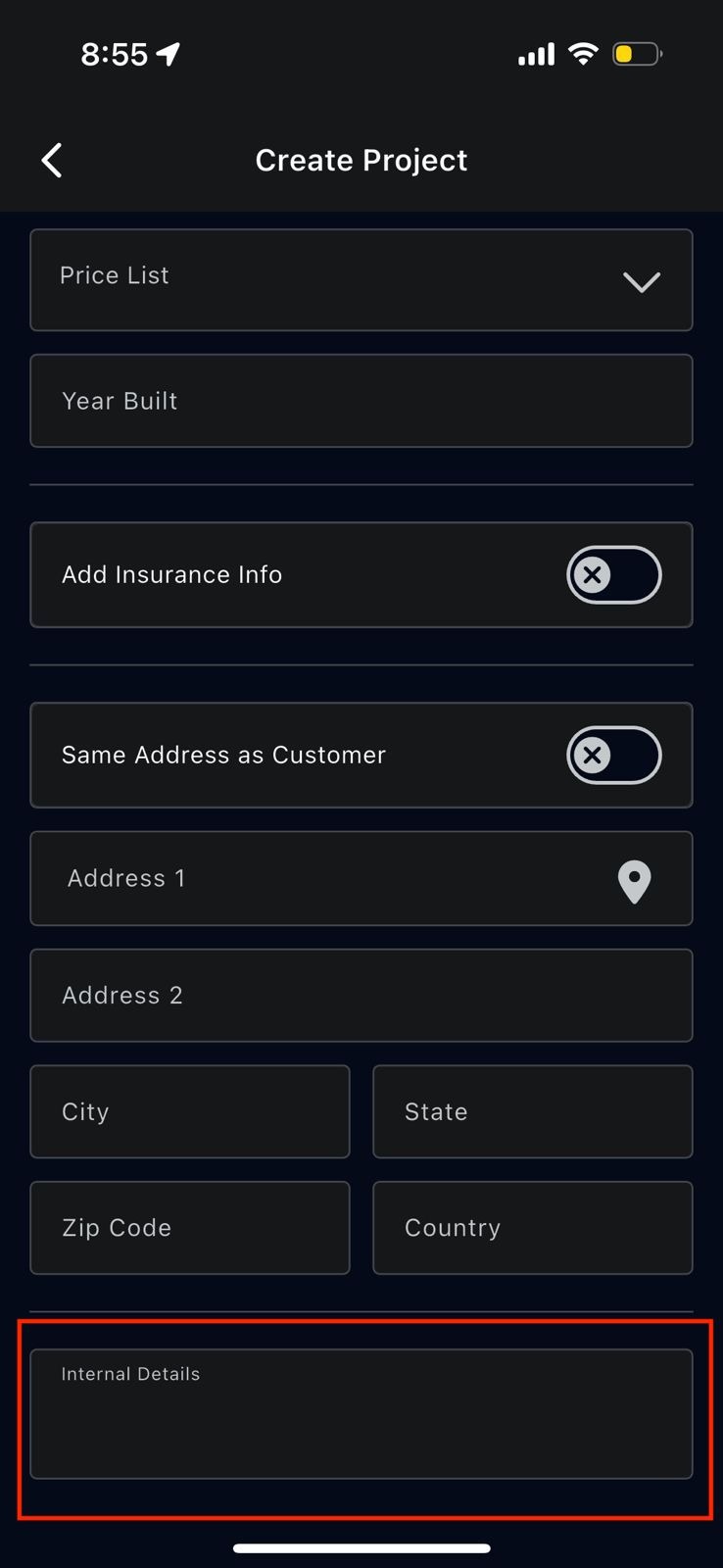
Internal Details is a private notes section used to store important internal instructions for your team. This is one of the most important parts of a project.
It acts as a shared internal notebook for anything staff should know before arriving on-site.
What should be written in Internal Details?
This section should include any information that helps staff work safely, efficiently, and without confusion, such as:
- Entry instructions (door codes, gate codes, lockbox info)
- Pets in the property and how to handle them
- Notes taken while speaking with the client
- How to access certain areas (attic, crawlspace, basement)
- Areas to avoid or handle carefully
- Safety or setup instructions
- Anything that would normally be explained verbally
Examples of Internal Details
- “Front door code is 2847. Dog in the backyard—do not open the rear gate.”
- “Attic access is through the hallway closet on the second floor.”
- “Client requested a call before arrival.”
Why Internal Details is important
Using Internal Details helps:
- Prevent delays on arrival
- Reduce phone calls for basic information
- Ensure technicians are prepared
- Improve communication between office and field staff
Step 6: Saving the Project
Once all required information is entered:
- Review the details
- Tap Save
The project is now created and ready to be worked on.