
How to Create a New Project
- Click the + Add New Project button at the top of the dashboard.
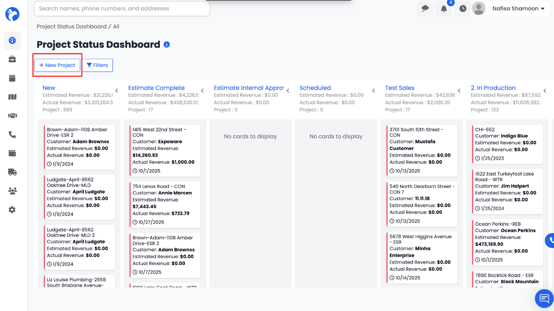
- You will be prompted to choose:
- Create New Project, or
-
- Add Existing Project (if the customer or organization already exists)
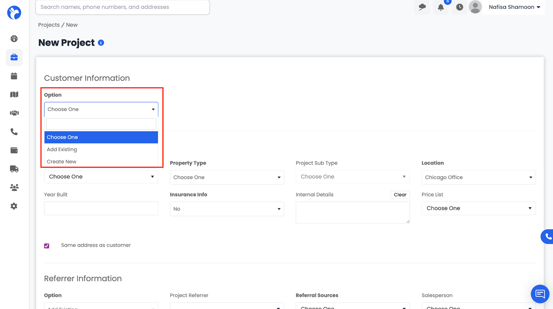
4. Fill in the required fields (bolded), such as:
-
- Property type, Project type, Location, Price list (optional), Referrer information, Staff assignment, Contacts and organizations
- Property type, Project type, Location, Price list (optional), Referrer information, Staff assignment, Contacts and organizations
5. Click Save once you have completed the form.
After saving, the system will take you directly into the new project, where you can continue adding details.