
Copy to Price List
Copy to Price List allows you to copy existing items into another price list.
How it works:
- Select one or multiple items from your Price List Dashboard.
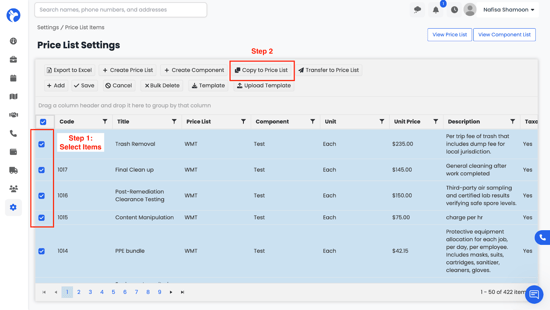
2. Click Copy to Price List.
3. Choose the Price List you want to copy the items to.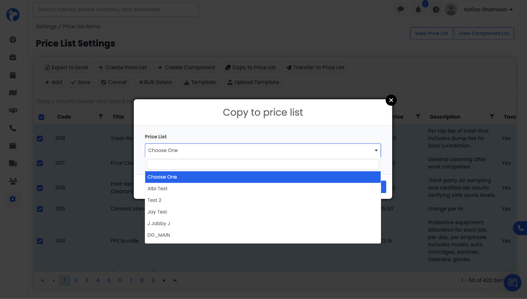
The selected items will be duplicated into the chosen Price List.
Transfer to Price List
Transfer to Price List moves items from one price list to another (instead of copying).
To use it:
- Select the items you want to transfer on the Price List Dashboard.
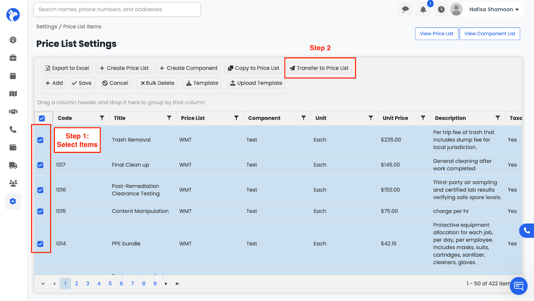
- Click Transfer to Price List.
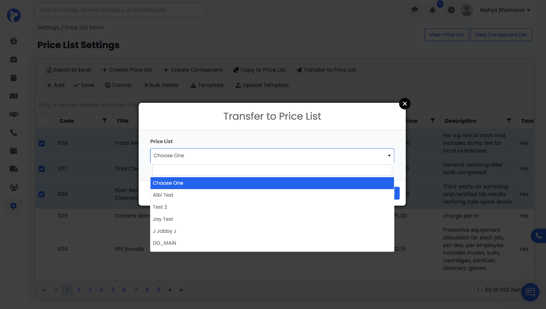
- Select the target Price List.
- Confirm the transfer.
Bulk Delete
To delete multiple items at once:
- Select several items on the dashboard.
- Click Bulk Delete
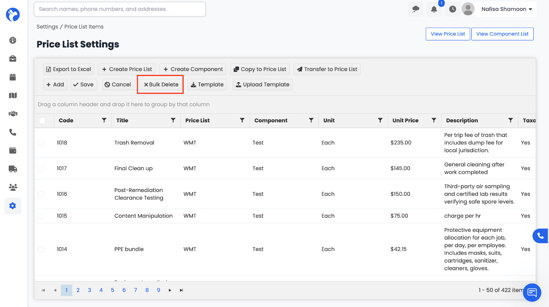
3. Confirm deletion.