
How to Clock In on a Project
You can clock in to a project directly from the top of your screen. On the top-right corner of any dashboard, you’ll see the Clock icon.
- Click the Clock icon.
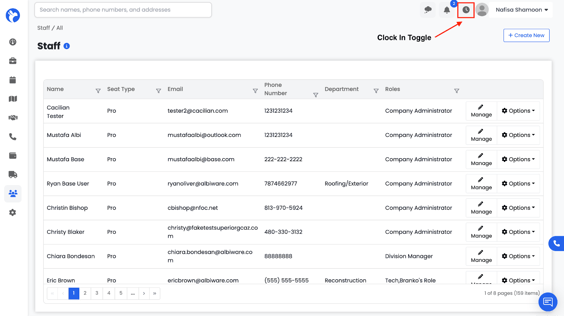
- A time-tracking form will open.
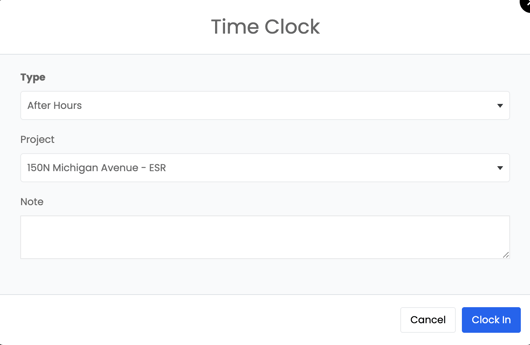
- Select the Type of Hours (e.g., Regular, Overtime, After Hours, Emergency, etc.).
- Choose the Project you are clocking into from the dropdown list.
- (Optional) Add a Note describing what you’re starting work on.
- Click Clock In to begin tracking time for that project.
Your hours will now be recorded and will appear in the project’s Timesheet and your Staff Timesheet dashboard.
Taking a Break
While clocked in, staff can choose Take Break.
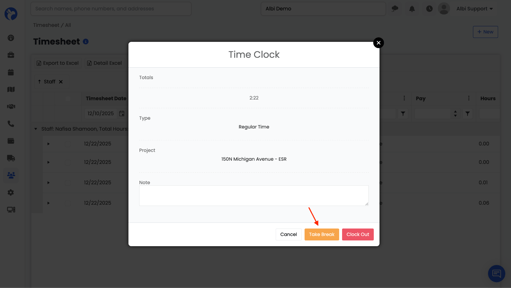
How breaks work:
- Break duration is controlled by your company’s settings (for example, 30 minutes)
- Once a break starts, the staff member cannot clock back in until the full break duration is completed
- After the break time ends, the system allows the staff member to clock back in and resume work
This ensures break time is tracked accurately and follows company policies.
How to Clock Out on a Project
When the staff member is finished working on the project:
- Click Clock Out
- The system records the total working time
- The Timesheet entry is finalized and saved
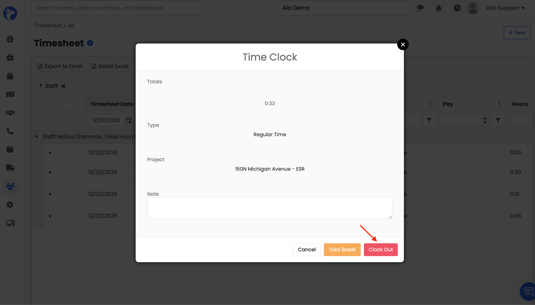
Once clocked out:
- The Ongoing status is removed
- The completed entry appears in the Timesheet Database with:
- Clock-in and clock-out times
-
- Total hours worked
-
- Break hours
-
- Project and time type
- Project and time type
Timesheet Status Visibility
- Ongoing — The staff member is currently clocked in
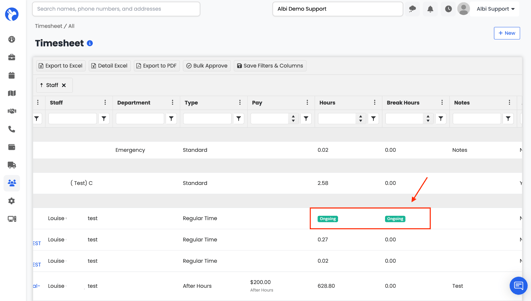
This makes it easy for managers to see who is actively working and which timesheets are ready for review and approval.