
Starting a Signature Request
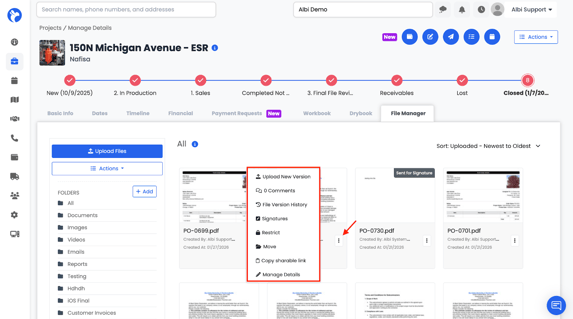
- Click the file’s ⋯ menu
- Select Signatures
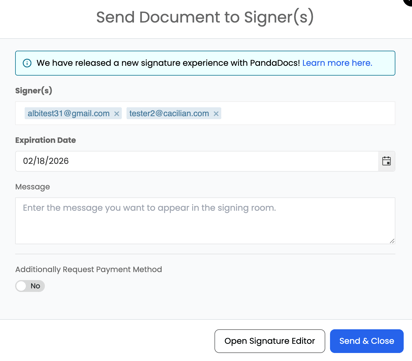
- Enter a valid email address for each signer
- Names alone will not work
- Add one or more signers
- All recipients must be signers (no view-only access)
- Set an expiration date (required)
- Defaults to 90 days
- (Optional) Add a message
- Choose:
- Send and Close, or
- Open Signature Editor (to place signature fields)
Adding New Recipients
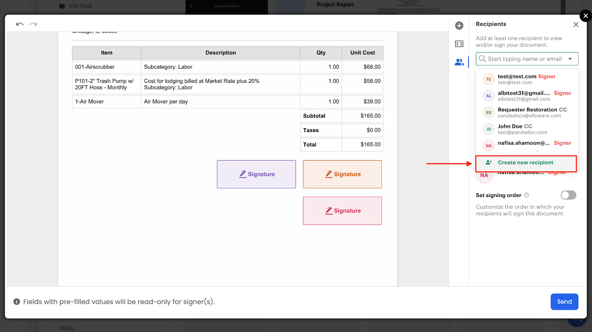
To add a new signer or recipient:
- Click the People icon.
- Start typing the person’s name or email address.
- If the person already exists in your contacts, they will appear automatically.
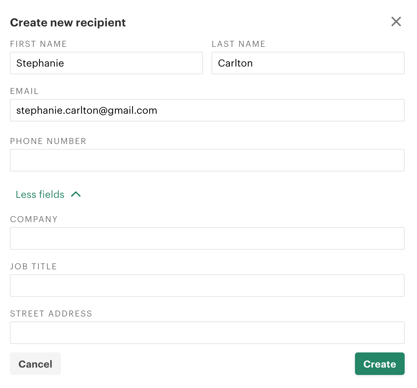
When creating a new recipient, you can enter:
- First name
- Last name
- Email address
- Phone number
Click More Fields to add optional details:
- Job title
- Company
- Street address
Once created, the recipient will appear in the list and can be assigned as a signer.
Reorder the Signing Sequence
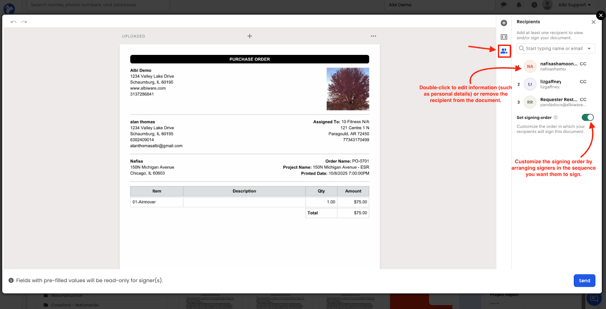
To change the signing order:
- Click the People icon.
- Drag signer names up or down to adjust the signing sequence (first signer, second signer, etc.).
The document will follow this order when sent for signature.