
When creating or editing a Work Order, Albi provides multiple ways to add and organize items using section toggles. These options allow you to control how items are grouped and how they are added to the Work Order, depending on your workflow and level of detail.
You can switch between different section types to add items one at a time, by group, by subcategory, or using fully custom sections.
Flat List (All Items in One List)
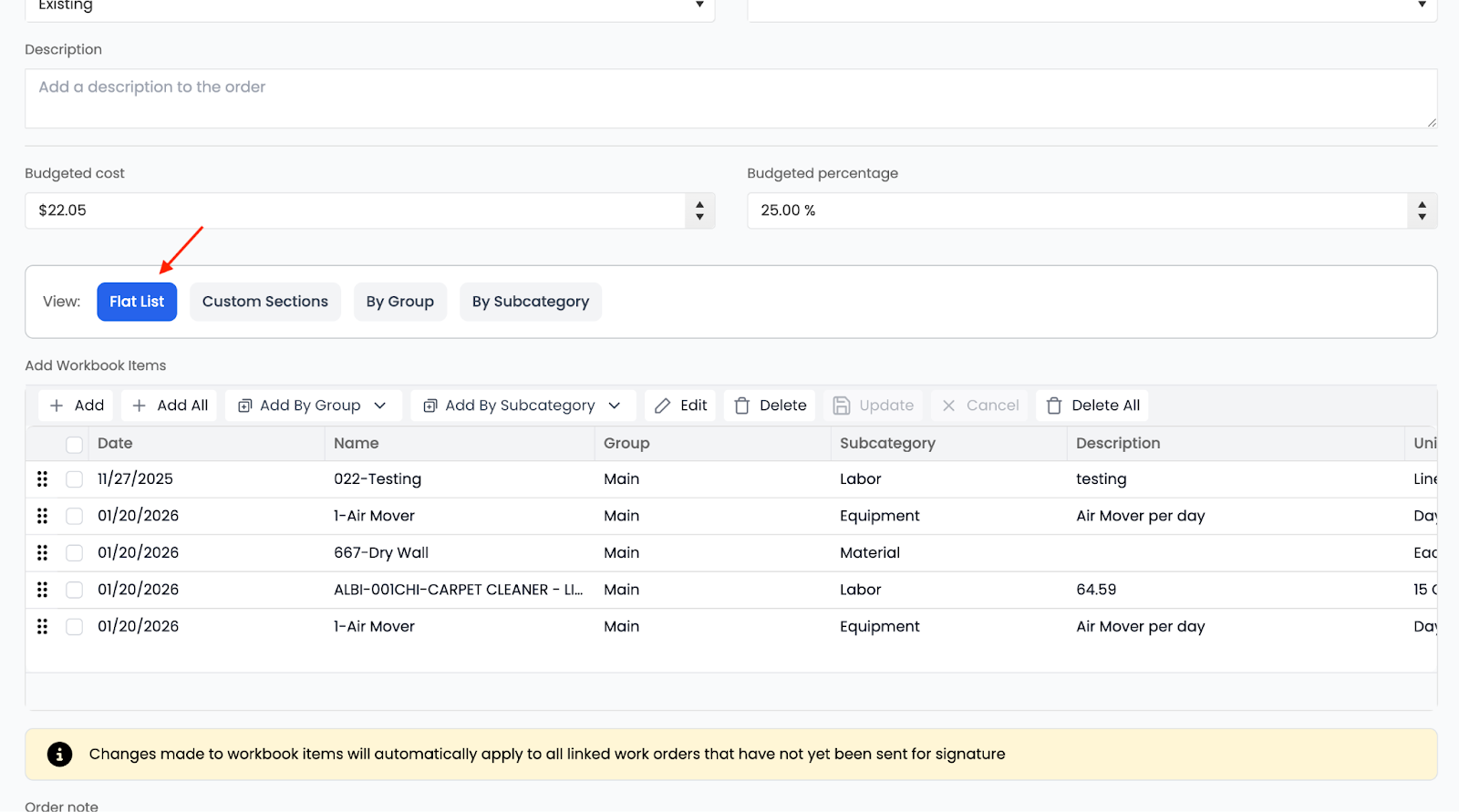
The Flat List option displays all items in a single, continuous list.
- This mirrors the original Work Order behavior
- Items are listed without sections
- You can add:
- All items at once
-
- Items by group
-
- Items by subcategory
-
- Individual items
This option is best when sectioning is not required and all items should appear together.
Custom Sections
Custom Sections allow you to manually create and name sections within a Work Order.
How Custom Sections Work
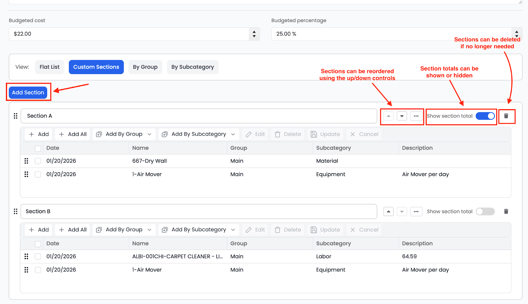
- Click Add Section
- Enter a custom section name (for example: Demo, Drying, Reconstruction, Section A, Section B)
- Sections can be reordered using the up/down controls
- Section totals can be shown or hidden
- Sections can be deleted if no longer needed
Adding Items to Custom Sections
Within each custom section, you can:
- Add individual items one at a time
- Move items between sections
- Reorder items within the section
Custom Sections are ideal when you want full control over how work is broken down and labeled.
Group-Based Sections
The Group toggle automatically organizes the Work Order into sections based on item groups from the Workbook.
How Group Sections Work
- Each group becomes its own section
- Section names match the group names (for example: Main, Kitchen, Basement)
- Items are organized automatically based on their assigned group
Adding Items Using Group toggles
From Group sections, you can:
- Add all items from a group
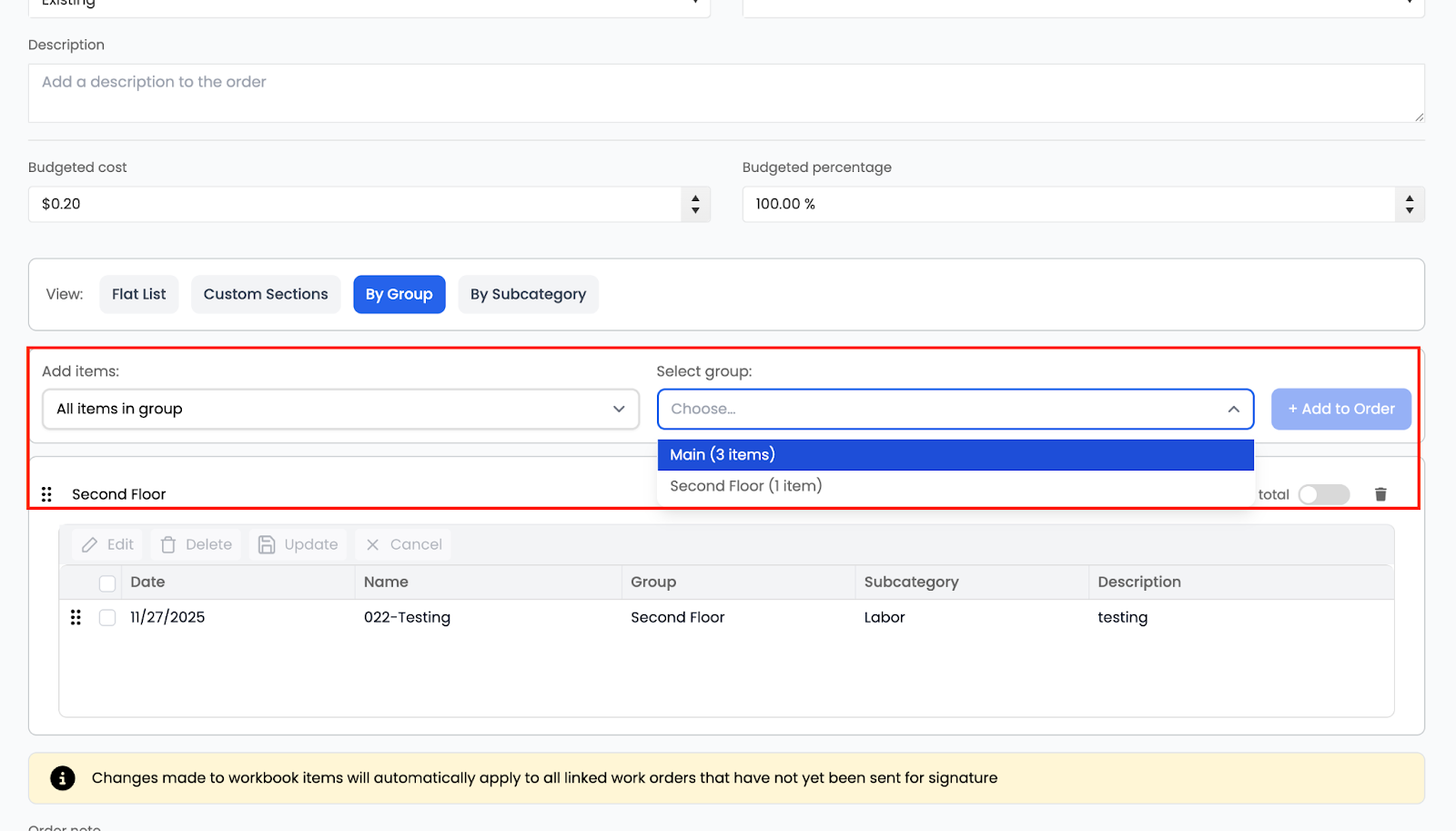
- Add one item at a time
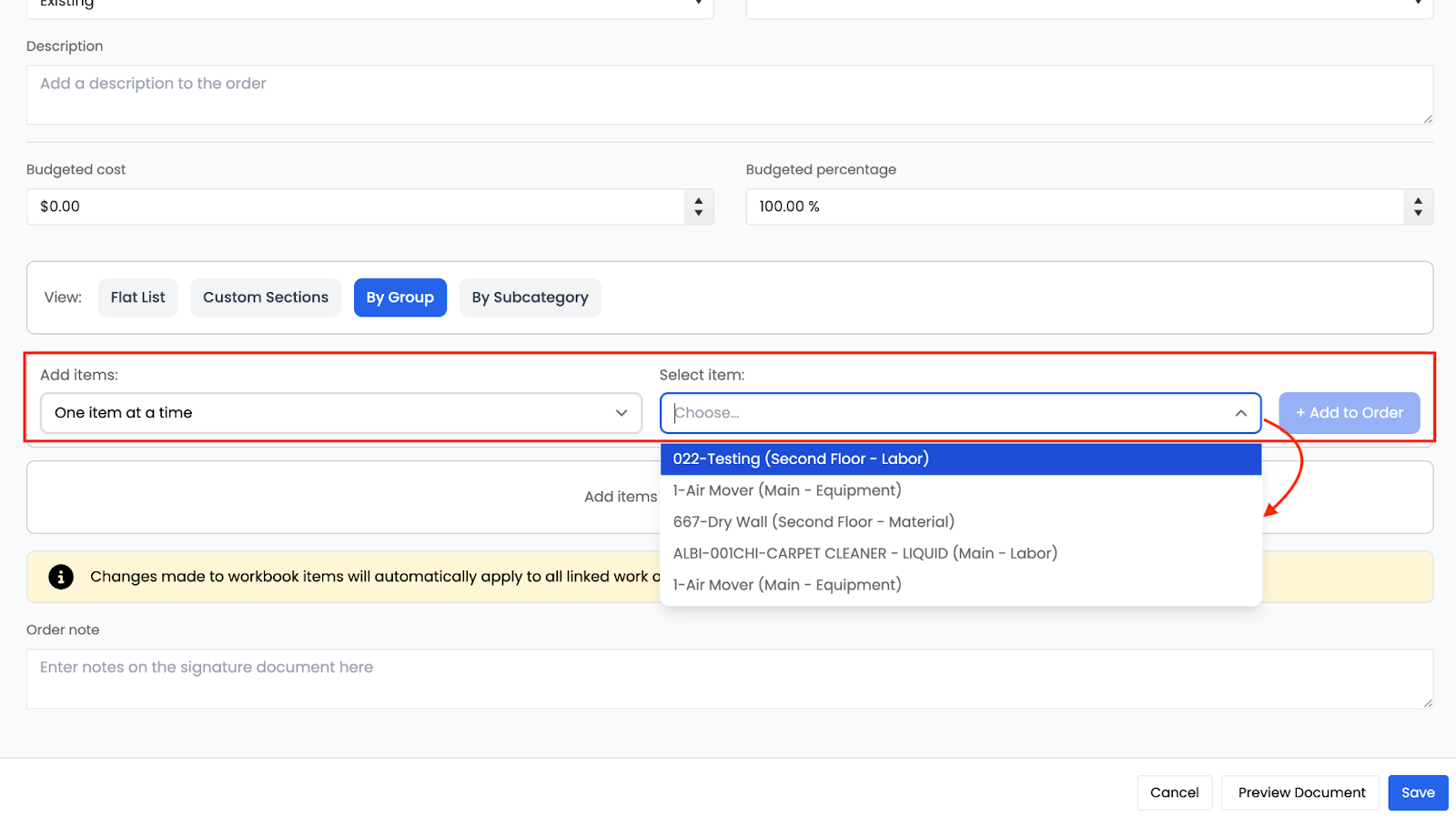
- Add all items from a subcategory
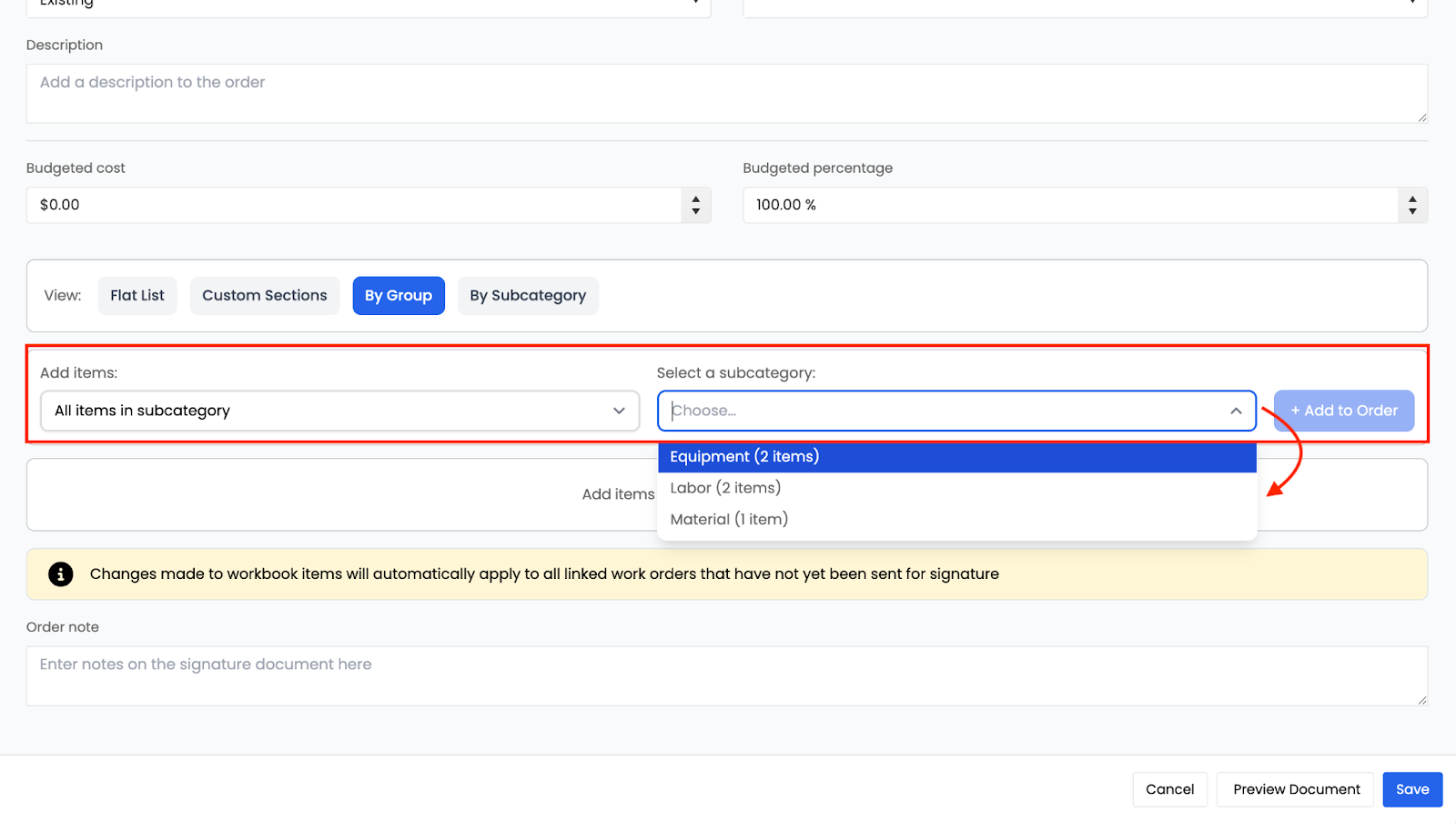
This allows you to selectively include only the groups or items needed for the Work Order.
Subcategory-Based Sections
The Subcategory toggle organizes the Work Order into sections based on item subcategories.
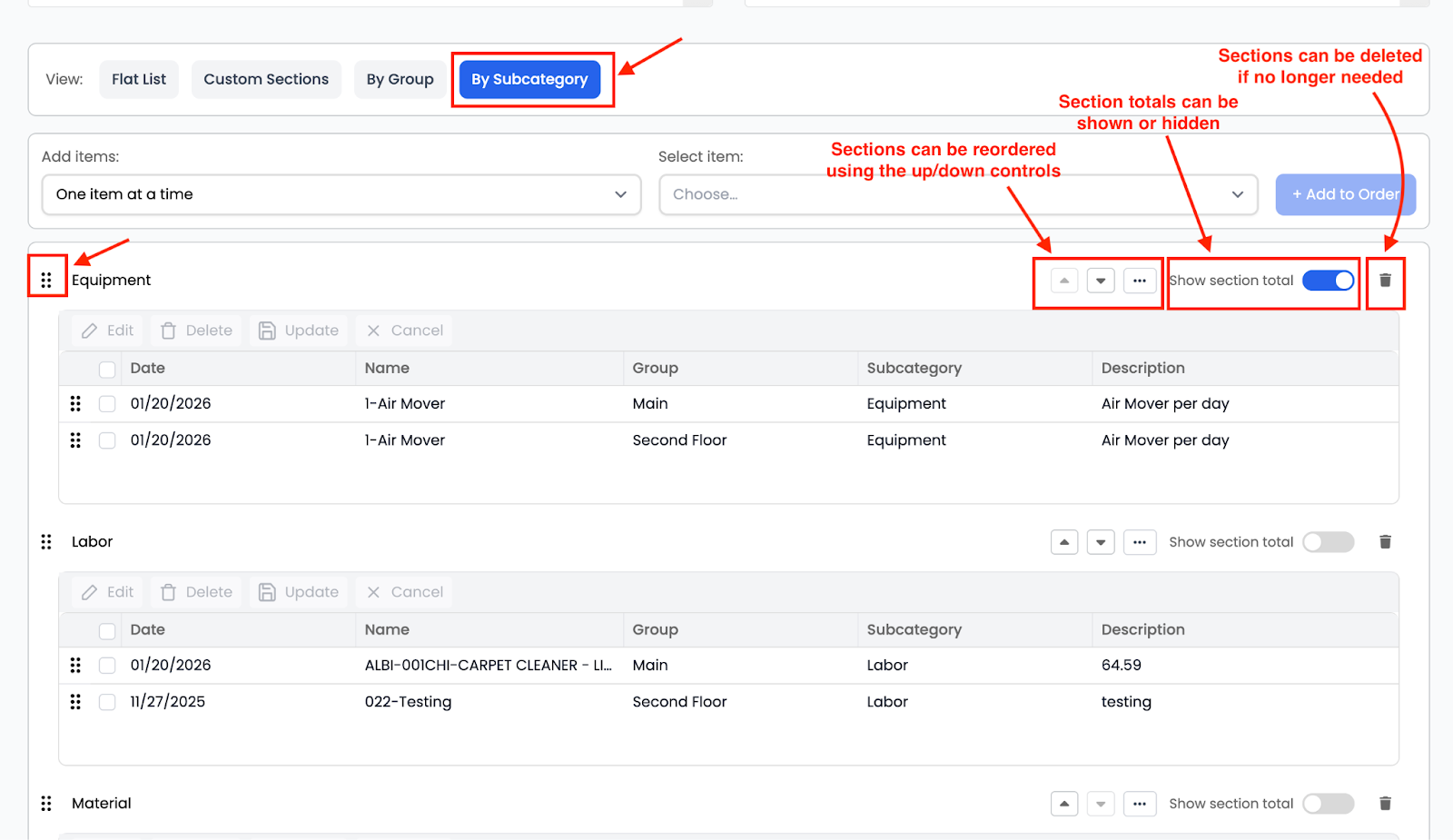
How Subcategory Sections Work
- Each subcategory becomes its own section
- Common examples include Labor, Material, Equipment, or room-based subcategories
- Items are grouped automatically under their assigned subcategory
Adding Items Using Subcategory Sections
From Subcategory sections, you can:
- Add all items from a specific subcategory
- Add individual items one at a time
- Select only the subcategories you want to include
If no items are selected, no items will be added, allowing you to control exactly what enters the Work Order.
Selecting Items When No Items Are Preselected
If no items are selected by default:
- You can manually select items from:
- A group
-
- A subcategory
-
- The flat list
- The flat list
- Only selected items will be added to the Work Order
- This prevents unintentionally adding unnecessary items
This behavior applies across Flat List, Group, Subcategory, and Custom Section views.
Reordering Sections and Items
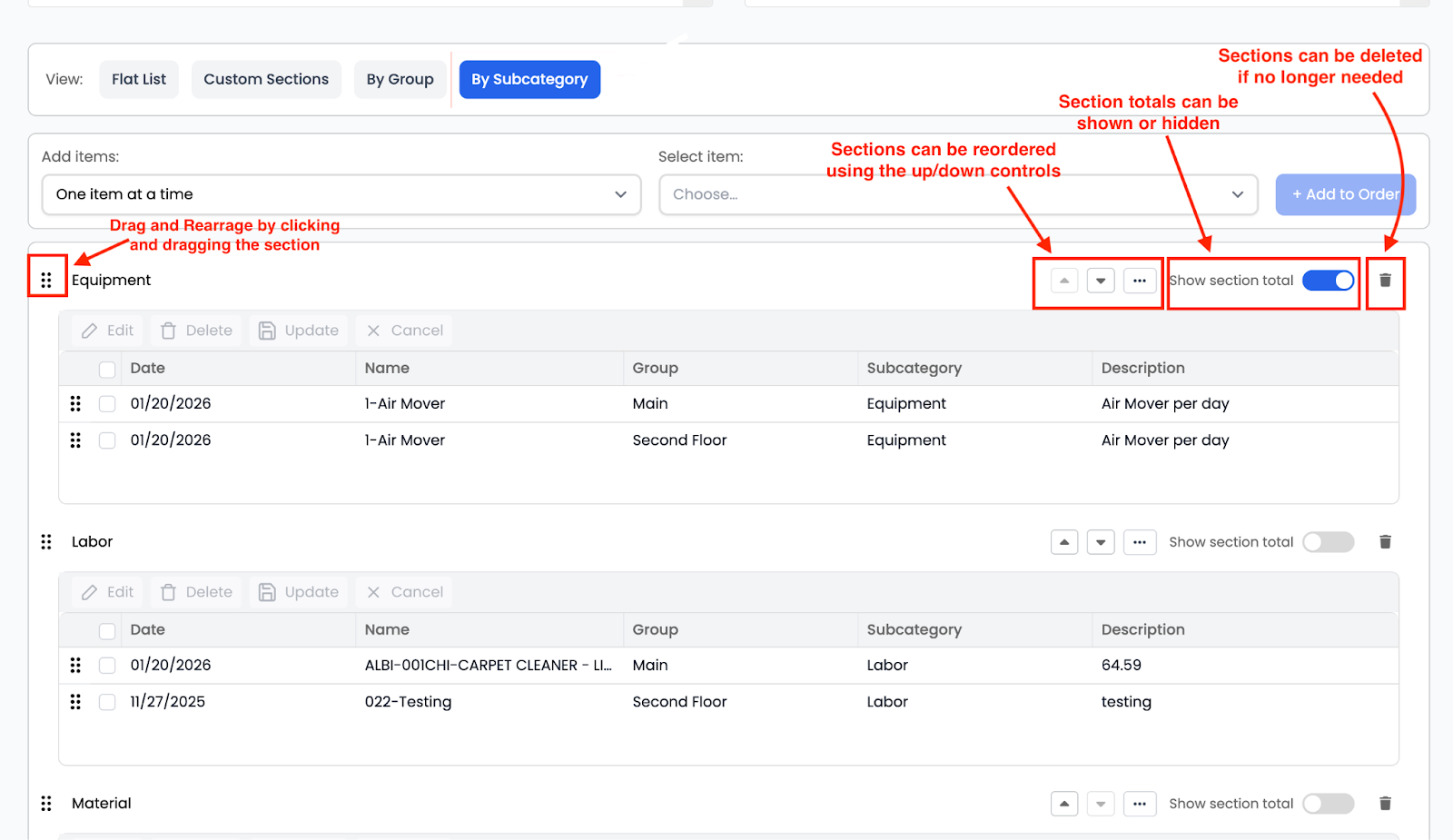
Across all section types, you can:
- Move sections to the top or bottom of the Work Order
- Reorder items within a section
- Control how the final Work Order appears to recipients
These tools allow you to organize work orders without changing item data.