
How to Find the Vehicles Dashboard
To access the Vehicles Dashboard in Albiware:
- Go to the Assets tab from the main menu.
- You’ll see two options: Equipment and Vehicles.
- Click on Vehicles.
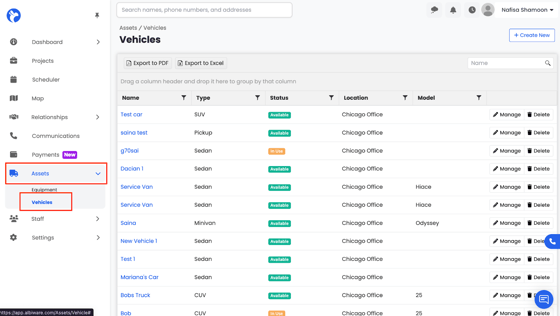
This will open the Vehicles Dashboard, where you can view, add, and manage all your company vehicles in one place. From here, you can check vehicle availability, see which vehicles are assigned to projects and keep your fleet information up to date.
How to Create New Vehicle
To add a new vehicle in Albiware:
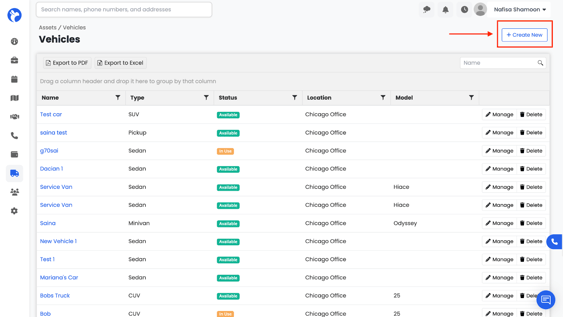
- Open the Vehicles Dashboard.
Go to the Assets tab from the main menu, then click Vehicles to open the Vehicles Dashboard. - Click “Create New.” in the top-right corner of the Vehicles Dashboard, click the Create New button. This will open a form where you can enter your vehicle details.
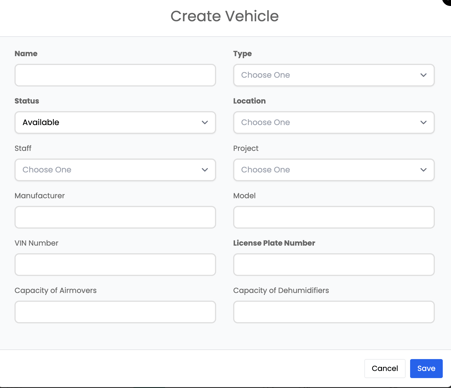
- Fill in the required fields.
The following fields are bolded and must be filled out:
- Name/Vehicle ID – Enter a unique ID for your vehicle (for example, “VH-001” or your company’s naming convention).
- Type – Select the type of vehicle (for example, Truck, Van, Car, Trailer, etc.).
- Status – Choose the current status of the vehicle:
- Available - Ready for use
In - Use - Currently being used
Broken - Not functional
Repair – Under repair
4. Location – Indicate where the vehicle is located (for example, Chicago Office, Denver Office, etc.).
5. Save your new vehicle.
Once all the necessary information is entered, click Save to add the new vehicle to your list. It will now appear in the Vehicles Dashboard, where it can be tracked, managed, and assigned to projects.
How to Manage/Delete Vehicle
Once you’re on the Vehicles Dashboard, you’ll see a list (or database) of all your vehicles on the right-hand side of the screen. From here, you can manage or delete any vehicle record.
- Locate the vehicle you want to manage or delete from the list.
- Click the Manage button next to that vehicle.
- This will open the vehicle details in a card-style view, where you can review and update the information as needed.
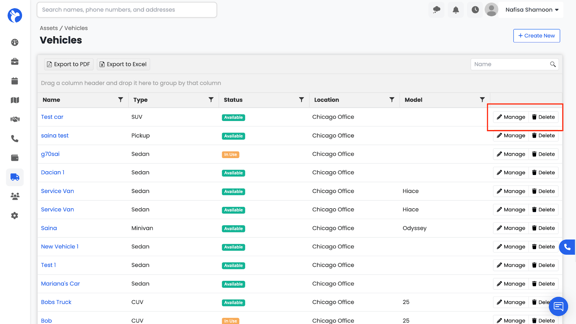
Managing vehicles allows you to easily update details such as status, location, type, and model keeping your records accurate and up to date.
⚠️ Note: Deleting a vehicle is permanent and cannot be undone. Make sure the vehicle is no longer in use or assigned to a project before deleting.
How to Edit Vehicle Details
To edit existing vehicle information:
- Click Manage next to the vehicle you want to edit.
- This will open the vehicle details in a card view.
2. On the right-hand side of the vehicle card, click the Edit button.
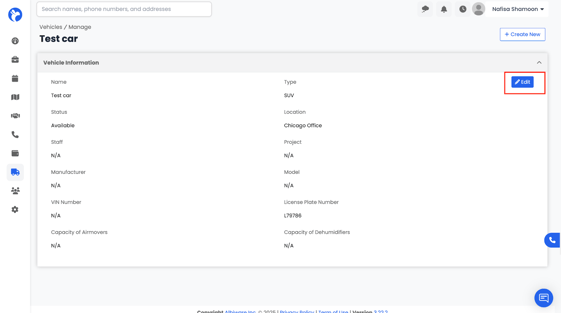
3. A form will appear where you can update any information for that vehicle, such as its status, location, type, or other details.
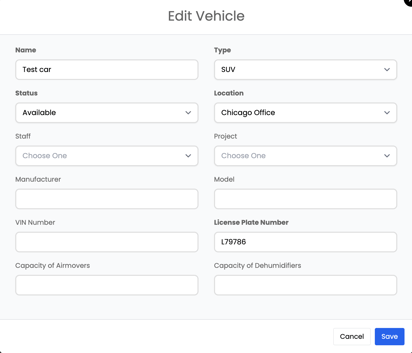
4. Once you’ve made your changes, click Save to update the record.
📘Note:
A vehicle that is already in use on another project cannot be assigned to a new project.
To assign the vehicle to a different project, it must first be marked as Available (meaning it’s no longer assigned elsewhere). This ensures that the same vehicle isn’t double-booked across multiple projects.
This makes it easy to keep your vehicle information accurate and up to date at all times.