
Locations
The Locations card lets you manage all office locations for your company — including branches, franchises, or satellite offices.
To add a new company location:
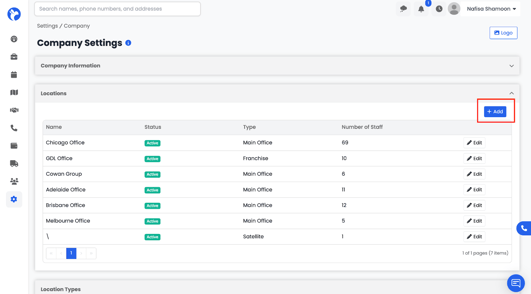
- Click the Add (+) button in the top-right corner of the Locations card.
-
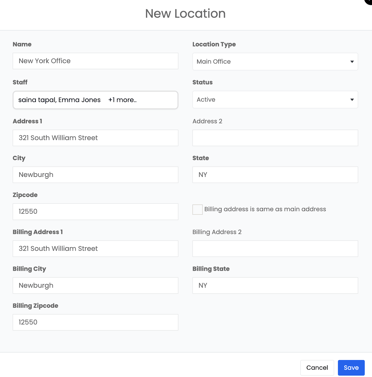
- Name – Enter the location name.
-
- Location Type – Choose from available options such as Main Office, Branch, Franchise, or Satellite Office.
-
- Staff – Assign one or multiple staff members to the location.
- Status – Select whether the location is Active, Inactive, Pending, or Cancelled.
-
- Address & Billing Address – Enter the address details; Albi will autofill the address fields once selected.
📝 Note:
If staff members are assigned to a location, that same location must also be added to their staff profile. You can update this by going to Staff → Manage → Locations. Staff will only appear and function correctly at locations that are assigned to them in their profile.
Location Types
The Location Types card allows you to define and manage different types of company locations.
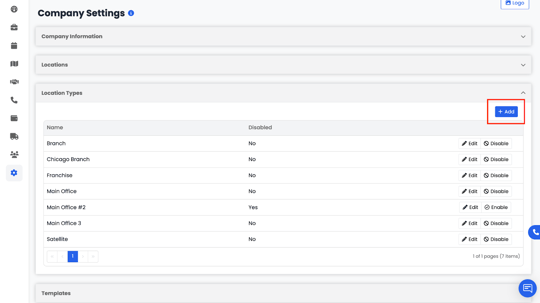
For example:
- Main Office
- Franchise
- Branch
- Satellite Office
To add a new location type, click the Add (+) button in the top-right corner.
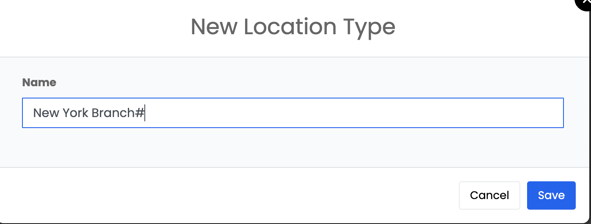
Enter the location type name, and click Save.
You can also edit or disable existing location types as your organization evolves.