How to Access the Project Status Dashboard
You can access the Project Status Dashboard directly from the main sidebar.
Steps:
- Go to the left-hand sidebar.
- Click Dashboard.
- A dropdown menu will appear.
- Select Statuses.
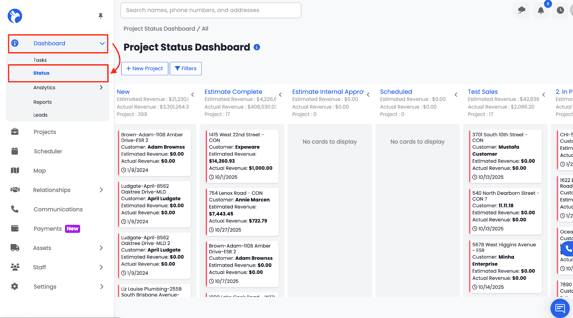
This will open the full Project Status Dashboard where you can view all project status columns and manage your projects.
What the Project Status Dashboard Shows
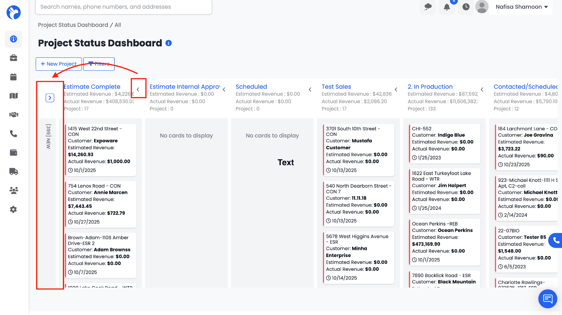
The dashboard is organized into distinct status columns, each representing a stage in your project pipeline. Projects automatically appear and move into these columns based on their assigned status threshold.
Within each column, projects are automatically sorted by their most recent activity date.
Projects with the oldest activity appear at the top, and projects with the most recent activity appear at the bottom of the column.
This ordering helps you quickly identify projects that have not had recent updates and may need attention.
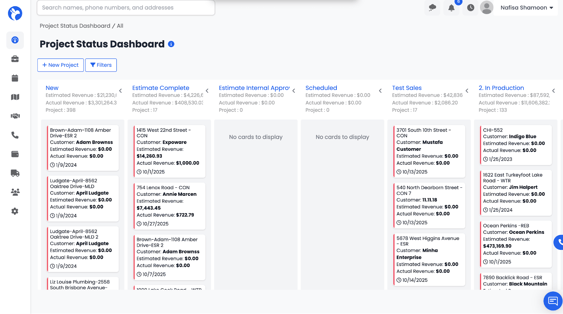
Common status columns include:
- New
- Estimate Complete
- Scheduled
- In Production
- Closed
- Lost
- (Additional statuses depending on your company’s setup)
Each project appears as a project card containing important project details at a glance, such as the project name, type, assigned staff, and dates.
The column allows you to:
- See the total number of projects in each status
How to View Project Cards
Every project in the dashboard appears as a card within the status column it belongs to.
Project Card Features
A project card typically shows:
- Project name
- Project type
- Assigned staff
- Subtype (if applicable)
- Property type
- Created date
- Status indicators
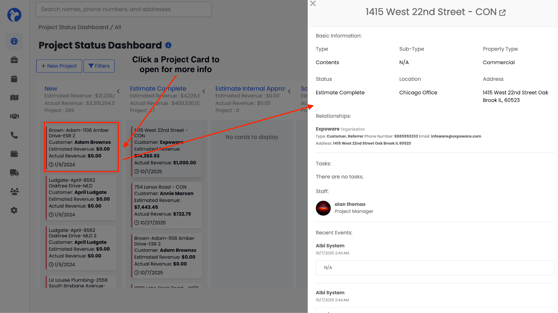
When you click on a project card, a detailed preview appears. This preview includes:
- Key project details
- Assigned staff
- Contacts and organizations
- Recent timeline activity
- Basic financial overview (depending on visibility)
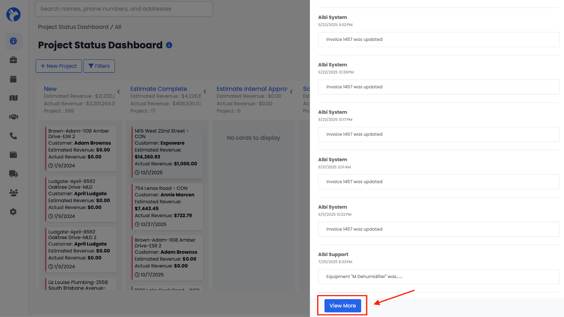
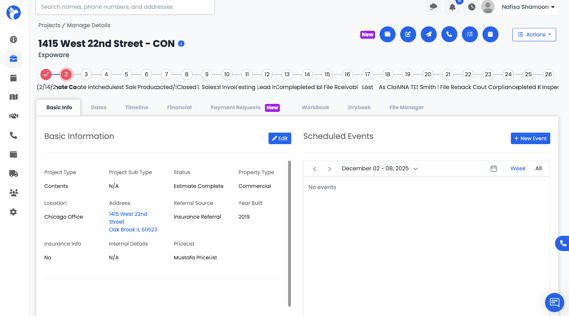
At the bottom of this preview, click View More to open the full project and access all tabs (Basic Information, Timeline, Financials, Workbook, DryBook, Files, etc.).