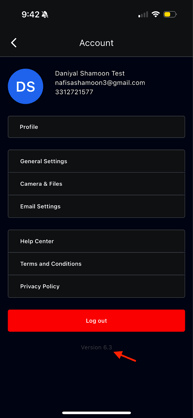
The Profile & Settings section in the mobile app allows you to manage your personal information, app preferences, camera behavior, email connections, and account details.
How to Access Profile & Settings
- Open the mobile app
- Tap the hamburger menu (☰) on the left-hand side
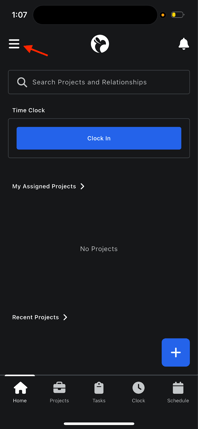 .
. 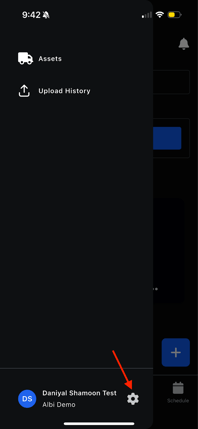
3. At the bottom of the menu, tap the Settings (gear icon)
4. This opens the main Settings menu.
Settings Menu Overview
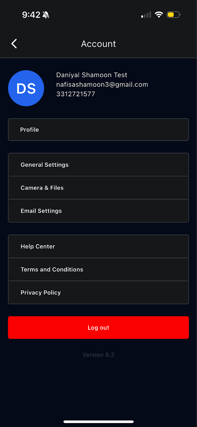
From the Settings menu, you can access:
- Profile
- General Settings
- Camera & Files
- Email Settings
- Help Center
- Terms & Conditions
- Privacy Policy
You can also log out and view your app version from this screen.
Profile
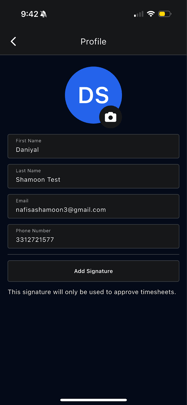
The Profile section displays your personal information, including:
- First name
- Last name
- Email address
- Phone number
You can also add a signature in this section.
Note:
The signature added here is used only for approving timesheets.
General Settings
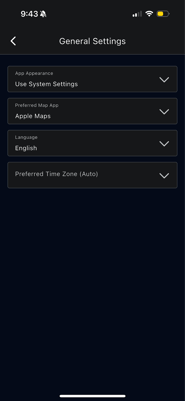
The General Settings section allows you to customize how the app behaves and appears.
You can manage:
- App Appearance
- Use system settings (light mode / dark mode)
- Use system settings (light mode / dark mode)
- Preferred Map
- Choose Google Maps or Apple Maps
- Tapping an address in the app will open it in your selected map app
- Choose Google Maps or Apple Maps
- Language
- Preferred Time Zone
Camera & Files
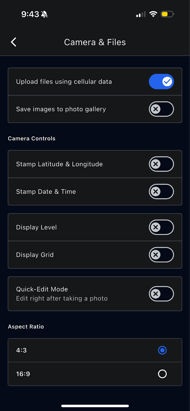
The Camera & Files section controls how photos and files are handled in the app.
Settings include:
- Upload files using cellular data
- Save images to photo gallery
- Stamp date and time on photos
- Stamp latitude and longitude on photos
- Display camera grid
These settings help standardize photos and control data usage.
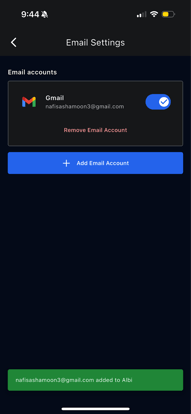
Email Settings
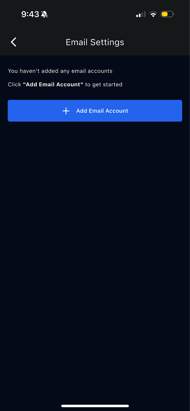
In Email Settings, you can connect one or more email accounts to the app.
- Tap Add Email Account
- You will be redirected to your email provider’s login screen
- Once connected, the email account will appear in this section
- Multiple email accounts can be added
This allows emails sent from the app to be linked to your connected accounts.
 .
. 
App Version & Logout
At the bottom of the Settings screen, you can:
- Log out of the app
- View the current app version
You can use the version number to:
- Check whether your app is up to date
- Compare it with the latest version available in the App Store or Play Store
- Update the app if needed