
The Payment Requests feature in Albi allows you to request payments directly from customers within a project. You can request payments via Credit Card / ACH or request Check Deposits, track request statuses, resend or cancel requests, and link payments to invoices — all from one place.
How to Access Payment Requests
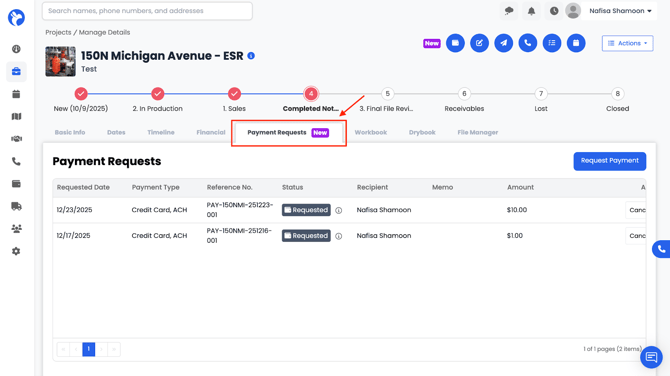
- Open the Projects Dashboard.
- Click on the project you want to work on.
- Navigate to the Payment Requests tab inside the project.
Once opened, you will see:
- A list of previous payment requests
- Their current status (sent, paid, expired, canceled, etc.)
- Options to create new requests, resend, or cancel existing ones
Creating a New Payment Request
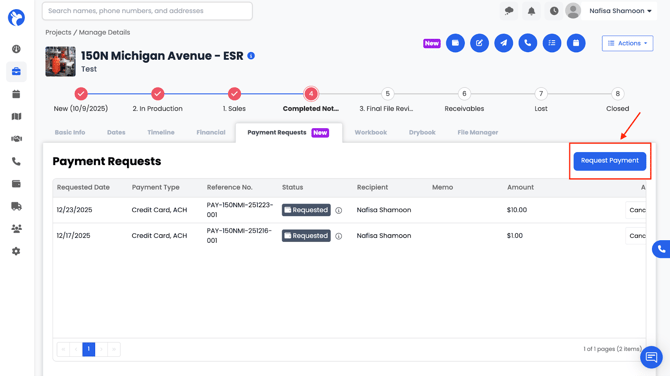
- Inside the Payment Requests tab, click Request Payment.
2. A pop-up will appear with two options:
-
- Request Payment
- Request Check Deposit
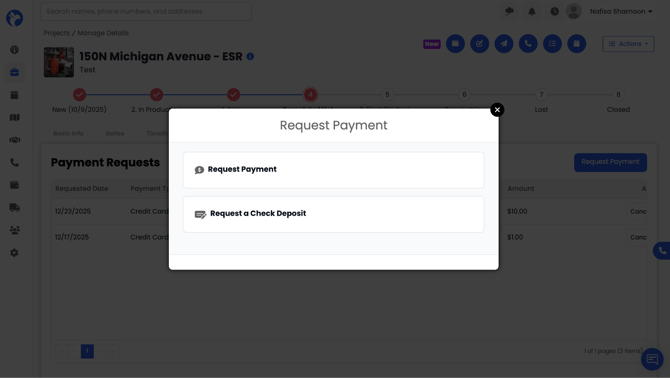
Select the option based on how you want to collect payment.
Option 1: Request Payment (Credit Card / ACH)
This option allows customers to pay electronically using Credit Card or ACH (direct bank transfer).
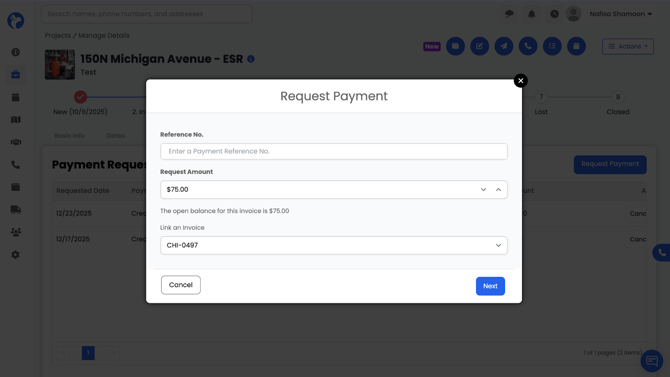
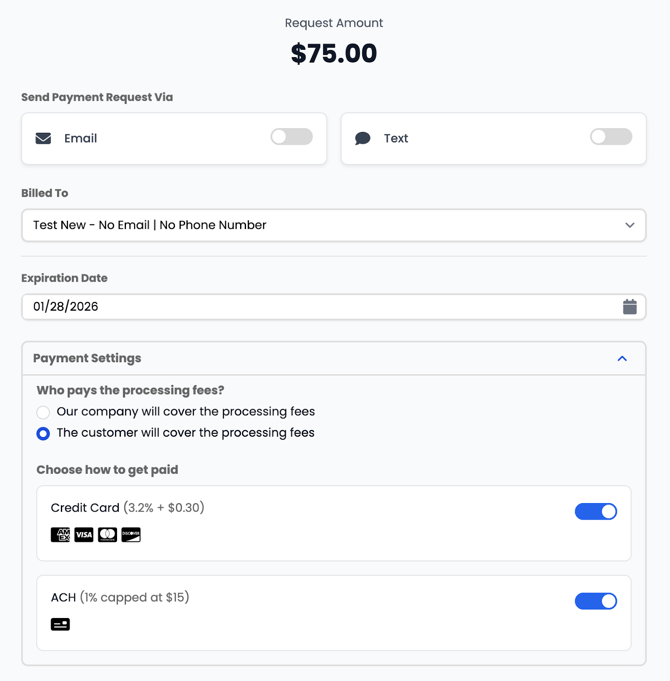
Request Payment Form Fields
When you select Request Payment, a form will open where you can:
- Link an Invoice (Optional)
- Selecting an invoice will automatically pull the unpaid invoice amount into the request.
- Enter a Reference Number
- Useful for internal tracking or customer reference.
- Enter the Requested Amount
- Select Payment Method
- Credit Card
- ACH (Bank Transfer)
- Choose Who Covers the Processing Fee
- Company pays the fee
- Customer pays the fee
- Select an Expiration Date
- After this date, the payment request will expire.
Send Payment Request
You can send the request via:
- Email
- Enter the customer’s email address.
- Text Message (SMS)
- Enter the customer’s phone number.
Once sent, the customer will receive a secure payment link to complete the transaction.
After Sending a Payment Request
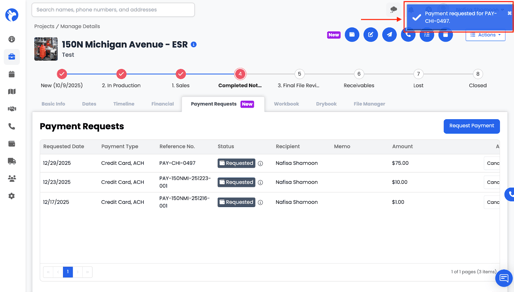
- The request will immediately appear in the Payment Requests tab.
- You can:
- View request status
- Cancel the request
- Resend the request if needed
- Once paid, the payment is recorded against the project automatically.
Important Note:
Payment requests with a status of Requested will not appear in the Payments Dashboard. A payment will only display in the Payments Dashboard after its status changes from Requested to another status (such as Processing, Completed, or Failed).
While a payment is still in the Requested state, it can be viewed from the project’s Payments tab, not the main Payments Dashboard.
Option 2: Request Check Deposit
This option allows you to request physical check payments from customers while still tracking them digitally in Albi.
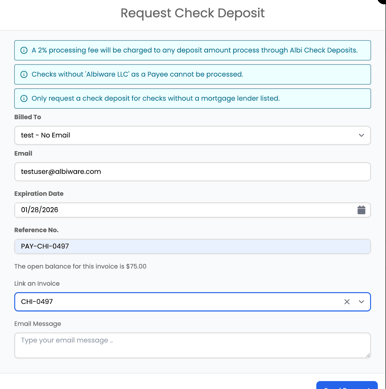
Request Check Deposit Form Fields
When you select Request Check Deposit, you will be prompted to:
- Select Who the Check Is Billed To
- Enter Customer Email
- Set an Expiration Date
- Add a Reference Number
- Link an Invoice (Optional)
- Send an Email Request
- The customer will receive instructions for submitting the check.
Important Note:
Payment requests with a status of Requested will not appear in the Payments Dashboard. A payment will only display in the Payments Dashboard after its status changes from Requested to another status (such as Processing, Completed, or Failed).
While a payment is still in the Requested state, it can be viewed from the project’s Payments tab, not the main Payments Dashboard.