
How to Access the Tasks Dashboard
To access your Tasks Dashboard:
- Go to the Staff tab from the main menu.
- Click on the Tasks option.

This will open the Tasks Dashboard, where you can view all tasks, filter by staff or project, and manage their progress.
How to Create a New Task
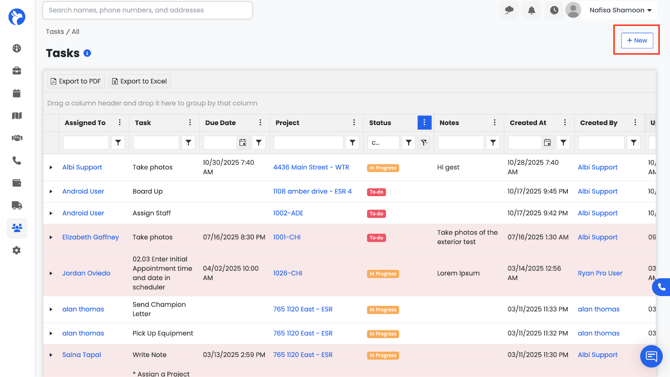
- On the Tasks Dashboard, click the Create New button in the top-right corner.
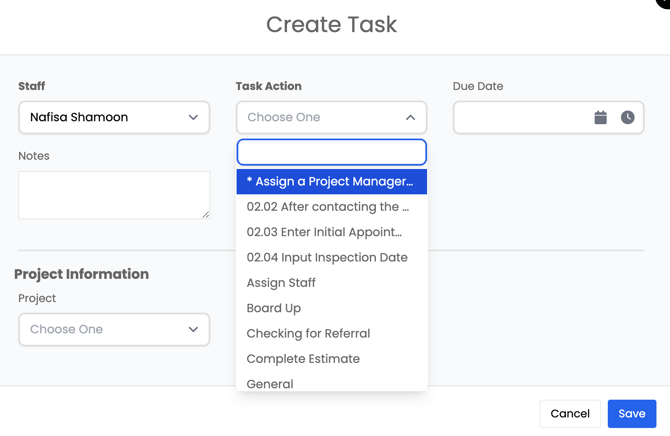
-
- Task Action
- Assigned Staff
- Due Date
- Task Action
4. Once all details are entered, click Save to create the task.
Your new task will now appear in the Tasks Dashboard and can be tracked or edited as needed.
📝 Note:
Once a task is created and assigned to a staff member, Albi will automatically send them a notification letting them know a new task has been assigned. This ensures the assignee is immediately aware of their responsibility and can take action promptly.
Edit, Delete, and Mark Tasks Complete
On the far right side of the Tasks Dashboard, you’ll see three options next to each task:
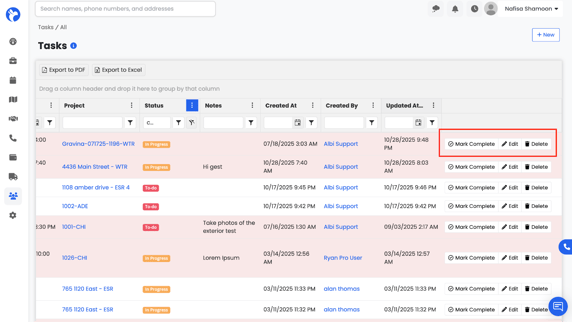
- Edit – Opens the task form, allowing you to update fields such as status, due date, or notes. After editing, click Save to update the task.
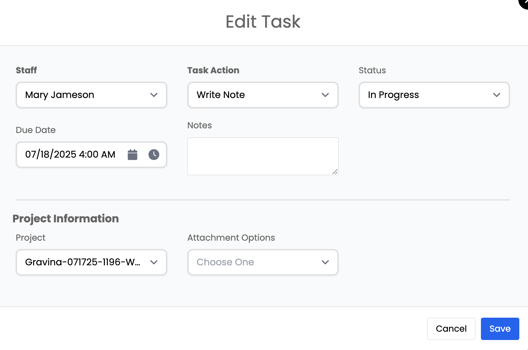
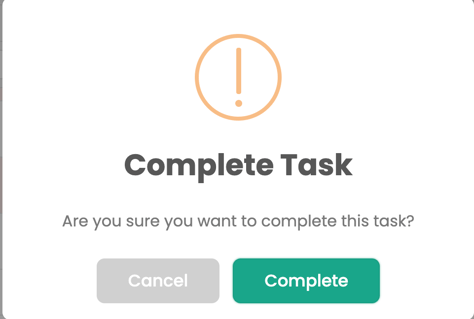
- Mark Complete – Marks the task as finished. When clicked, a confirmation message will appear (“Are you sure you want to complete this task?”). Confirm to mark it as complete.
- Delete – Permanently removes the task from your dashboard.