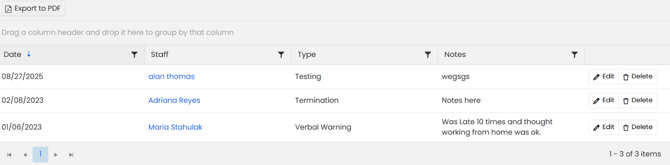
How to Access the Staff Notes Section
To access the Staff Notes section in AlbiWare:
- Go to the Staff tab from the main menu.
- Click on the Staff Notes tab.
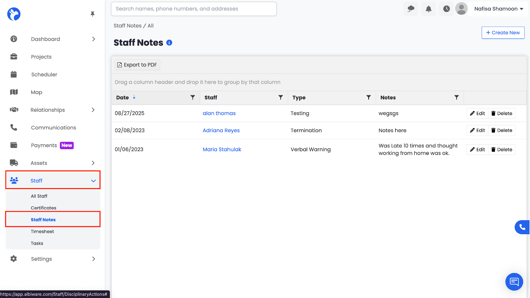
This will open the Staff Notes Dashboard, where you can view, create, and manage all notes linked to your staff members.
How to Create Staff Notes
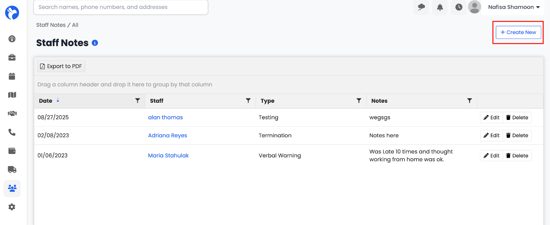
- Open the Staff Notes section.
- Click the Create New button in the top-right corner.
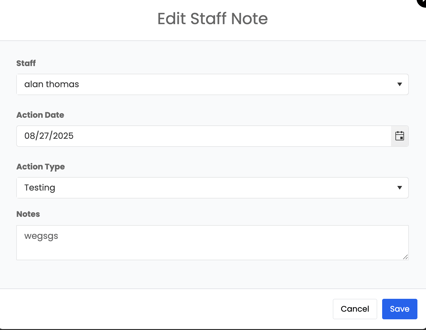
3. A form will appear where you can can choose an action eg. warning, suspension etc. and enter your note details .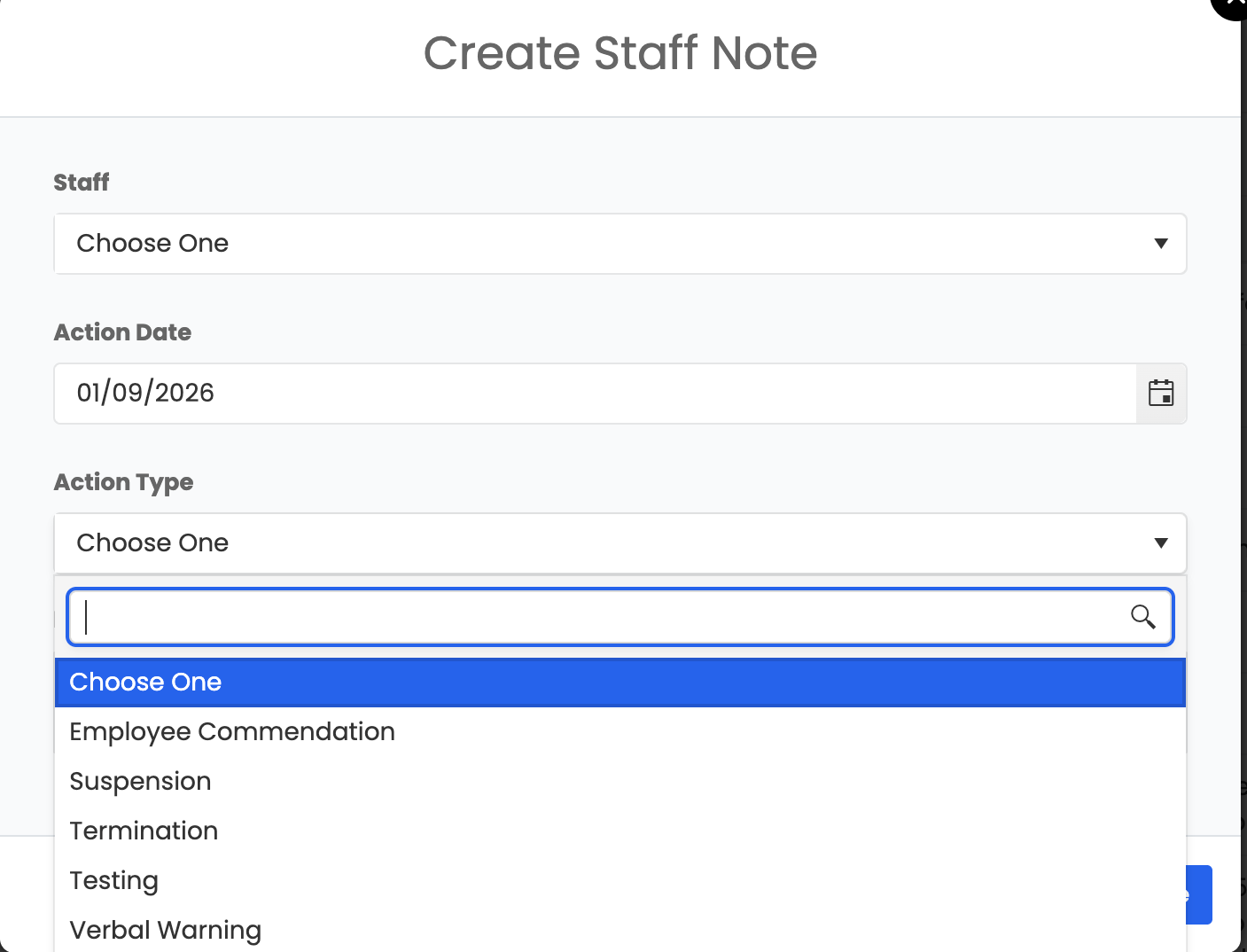
4. Fill out all required (bolded) fields.
5. Once done, click Save to create the staff note.
Your note will now appear in the Staff Notes Dashboard, linked to the respective staff member.
Edit and Delete Notes
- To edit a note, click Edit next to the record. You can update the action taken, note details, or any other information.
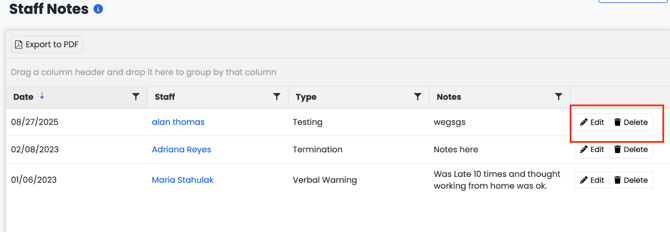
To delete a note, click Delete. This will permanently remove it from the staff record.
Save to PDF
Click Save to PDF to export your staff notes. The system will generate a downloadable PDF containing all note details, which can be stored, printed, or shared for recordkeeping.
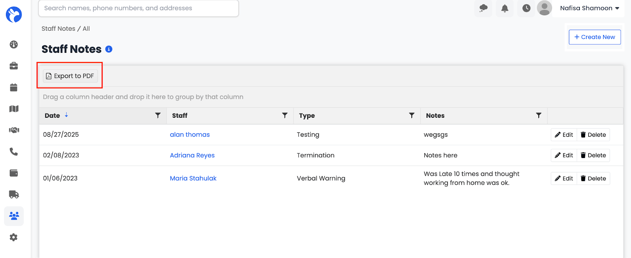
The Exported PDF document will look like: