
How to Access All Staff
To access your staff list in AlbiWare:
- Go to the Staff section from the main menu.
- Click the dropdown menu.
- Select All Staff.
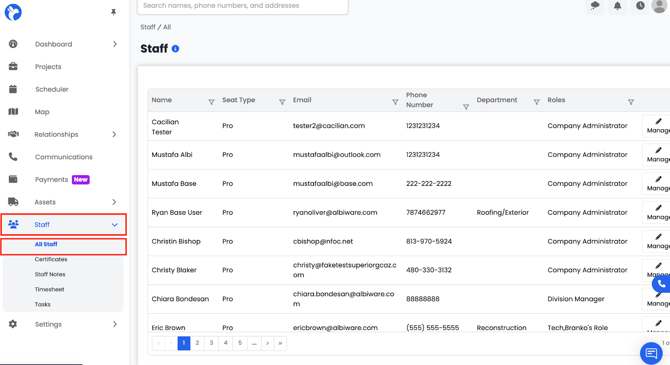
This will open the All Staff Dashboard, where you can view, manage, and edit information for all team members in your organization.
How to Create New Staff
To add a new staff member in AlbiWare:
- Open the All Staff Dashboard.
- In the top-right corner, click the Create New button.
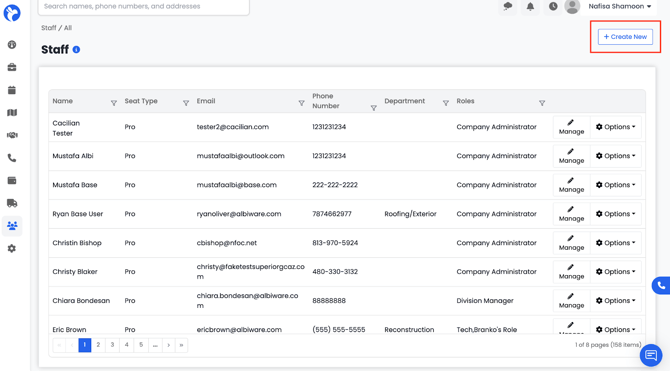
3. A Staff Information form will appear, where you can enter details for your new staff member.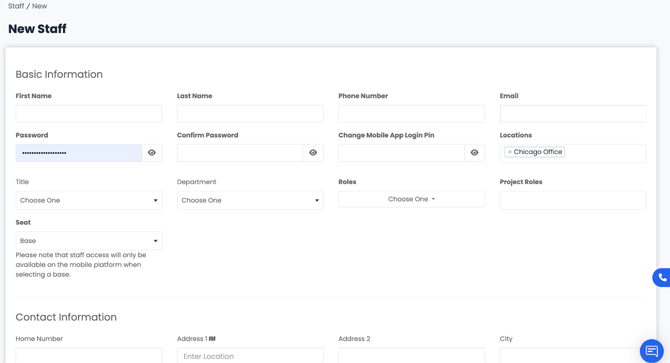
4. Fill out all required (bolded) fields — these must be completed before you can save the record.
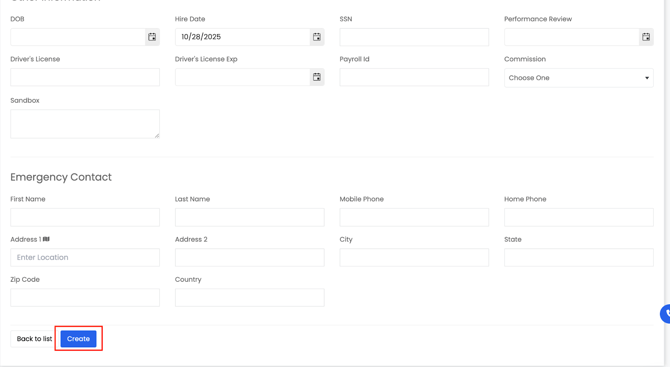
After saving, the new staff member will appear in your All Staff Dashboard, where you can manage and edit their information as needed.
How to Manage and Edit Staff Information
To manage or edit staff details in AlbiWare:
- Open the All Staff Dashboard.
- Click on the staff name or on the right-hand side, click the Manage or Options button next to the staff member you want to update.
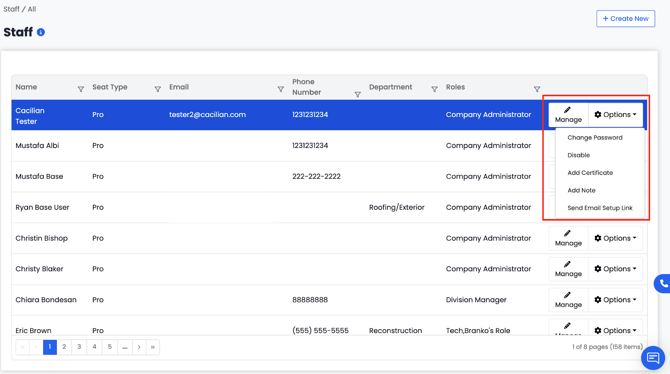
This will open a detailed view with six information cards:
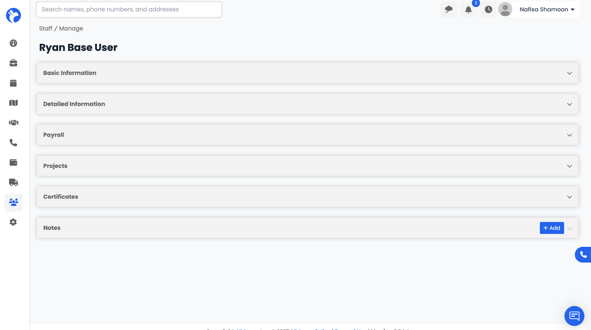
1. Basic Information
Contains the staff member’s general details such as first name, last name, phone number, email, and other contact information.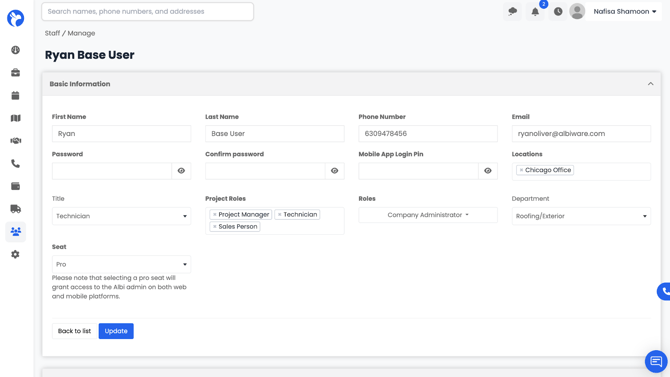
2. Detailed Information
Includes additional details such as address, emergency contacts, and other relevant personal information.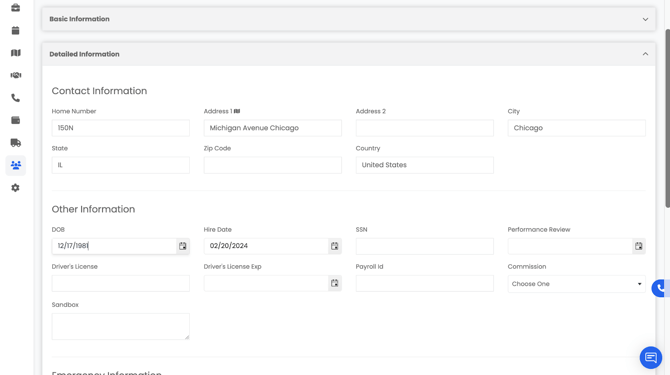
3. Payroll
Tracks the staff member’s working hours and pay details based solely on their rates
- You can add payroll entries by selecting the Add option

- Choose from the dropdown options such as Regular Time, Overtime, etc.
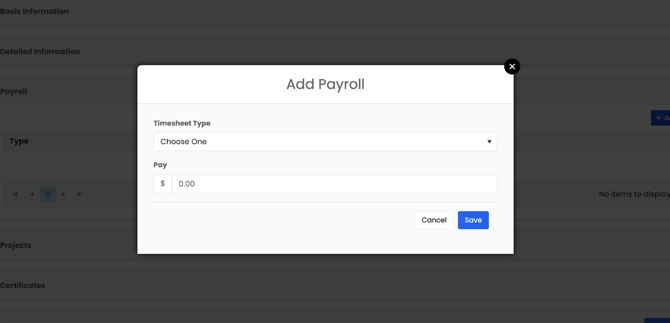
- Enter the amount and click Save to record the entry.
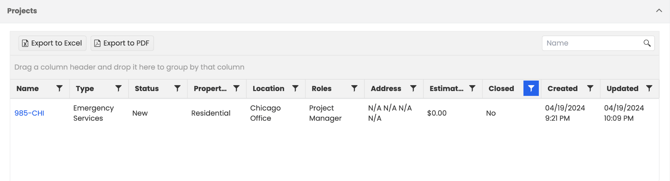
4. Projects
Displays all projects that the staff member is linked to. This section helps you track which jobs or tasks each staff member is assigned to.
5. Certificates
Allows you to add and manage certifications for the staff member.
- Enter the certificate name and expiration date.
- Upload a file for proof of certification.
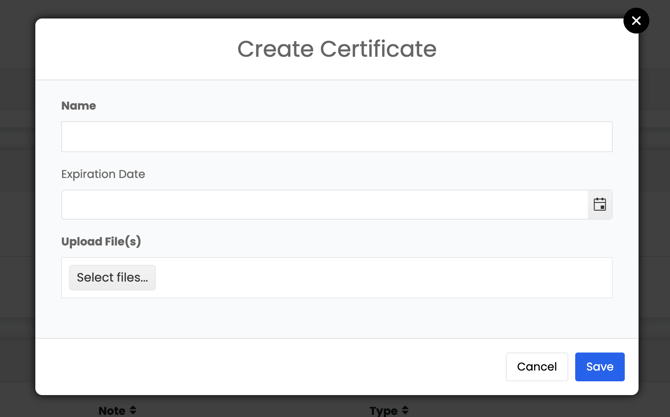
- Click Save to attach it to the staff record.
6. Notes
Used to record staff-related notes such as verbal warnings, written warnings, suspensions, or terminations.
- Add a date and a description of the note.
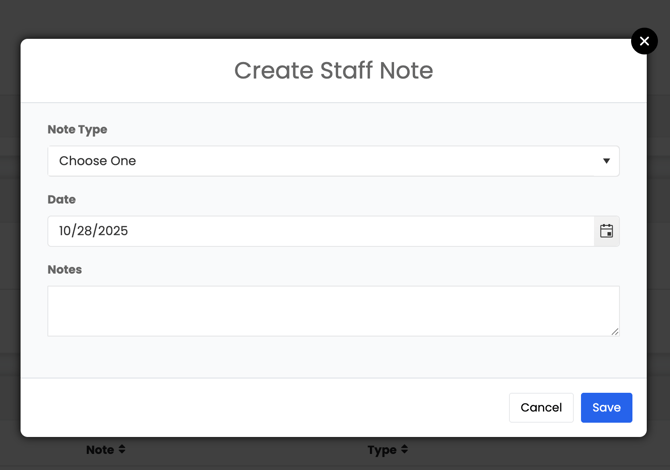
- Click Save to store it under the staff member’s record.