
How to Access Certificates
To access the Certificates Dashboard:
- Go to the Staff tab from the main menu.
- Click on the Certificates tab.
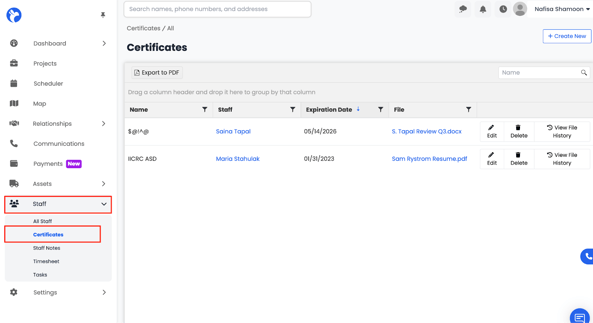
This will open the Certificates Dashboard, where you can view, manage, and organize all certificates linked to your staff.
How to Create Certificates
- In the top-right corner of the Certificates Dashboard, click Create New.
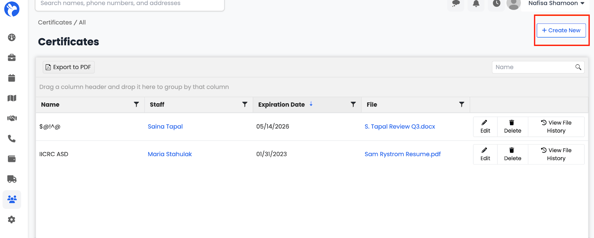
- A form will appear where you can enter certificate details.
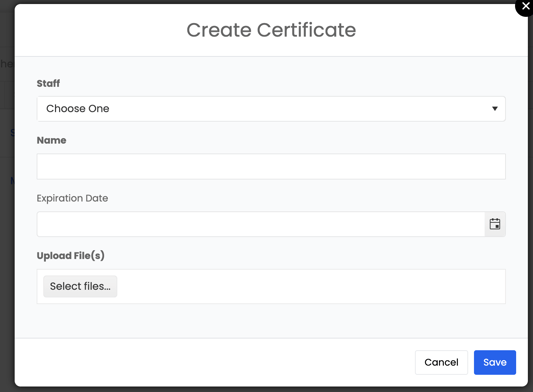
- Fill out the required fields:
Staff – Select the staff member the certificate belongs to.
Certificate Name – Enter the name of the certificate or qualification.
Expiration Date – Add the certificate’s expiry date to track renewals.
Upload File – Attach any relevant files or supporting documents. - Once all details are filled in, click Save to create the certificate.
Your new certificate will now appear in the Certificates Dashboard, linked to the selected staff member.
How to Edit, Delete, or View Certificate History
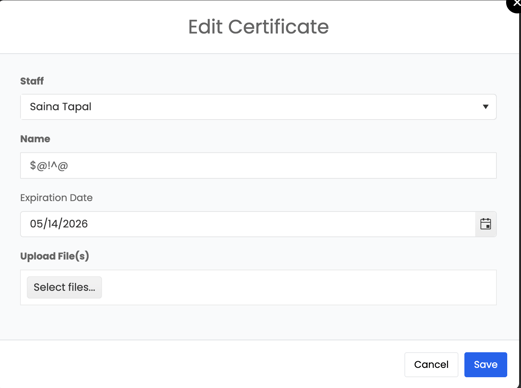
- To edit a certificate, click the Edit button next to the record.
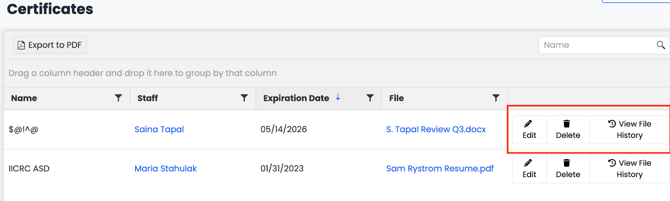
- This will open the certificate form, where you can update any details such as expiration date, name, or file attachments.
- To delete a certificate, click the Delete button next to the record.This will permanently remove the certificate from the staff profile.
To view file history, click the History icon (if available) to see any previous versions or uploaded files associated with that certificate.
Export and Search
- Click Export to PDF to generate a report containing all certificate information.
- The system will compile the certificate data into a PDF file, which you can download, share, or print for records.
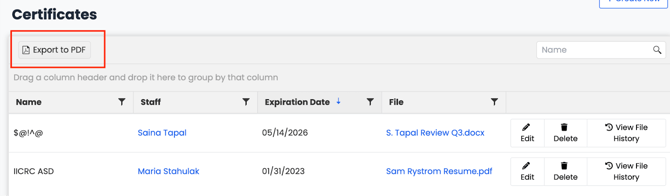
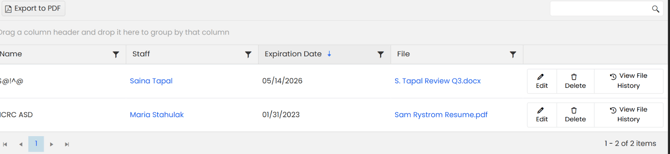
The exported PDF will look like the following:
Note:
Use the Search Bar in the top-right corner to quickly find certificates by staff name or certificate name.