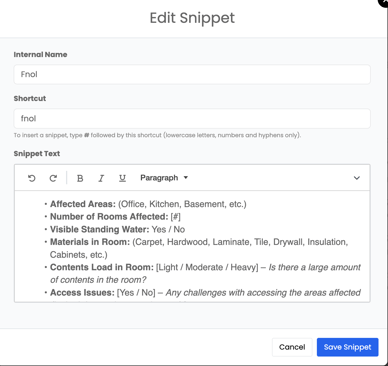
How to Access Snippets
To access your Snippets in AlbiWare:
- Go to the Settings tab from the left-hand menu.
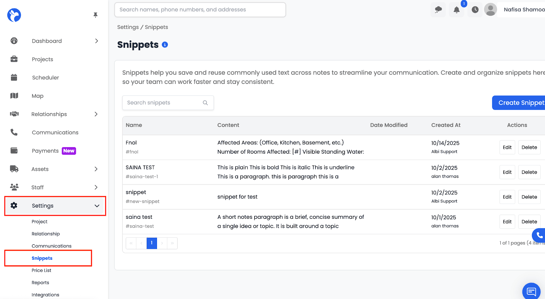
- Under the Software section, select Snippets.
- The Snippets dashboard will open, displaying all existing snippets and their internal names.
How to Create a Snippet
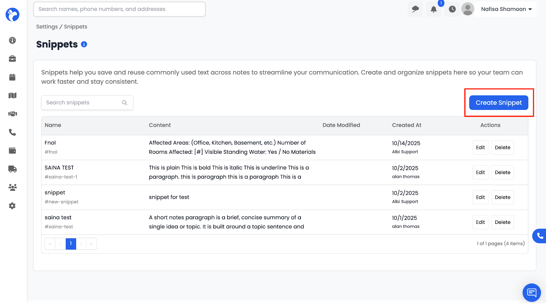
- From the Snippets Dashboard, click the Create Snippet button in the top-right corner.
- A form will appear with three main fields:
- Internal Name - The name of the snippet
- Shortcut – The code you’ll use to identify the snippet (for example, “#CustomerUpdate” or “#InspectionComplete”).
- Snippet Text – The text that will appear when the snippet is used.
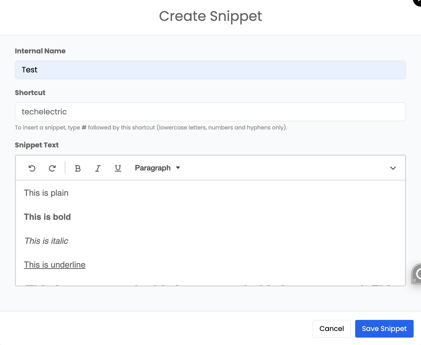
3. Once you’ve filled out the fields, click Save.
Your new snippet will now appear in the dashboard.
You can also edit or delete snippets from this page at any time, depending on your team’s needs.