
Folders
The Folders section allows you to organize and manage how your project files are stored within each project. This helps keep documents structured and easy to find across different jobs.
To add folders, follow these steps:
- Go to the Projects Dashboard.
- Open a specific Project.
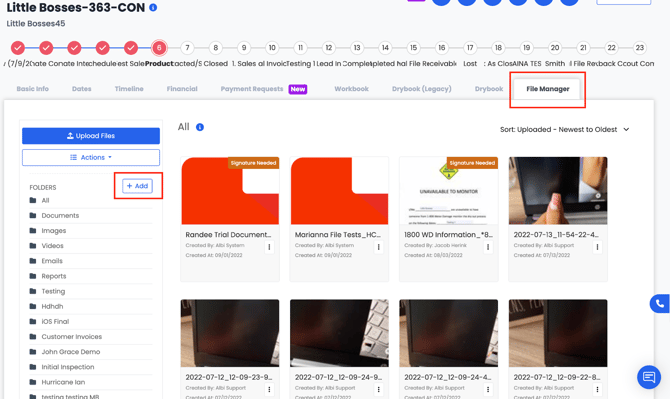
3. Inside the project, click on File Manager.
4. In the File Manager, click the Add (+) button.
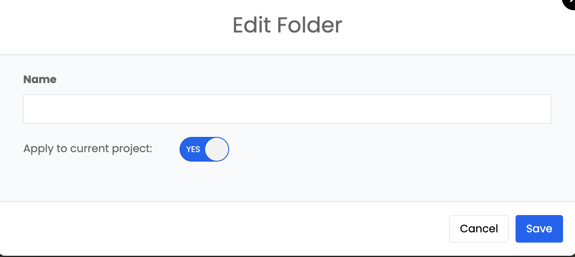
-
- If toggled to Yes, the folder will appear only in this project.
- If toggled to No, the folder will appear in all projects across your company.
6. Once you’ve filled out the form, click Save. - If toggled to Yes, the folder will appear only in this project.
The new folder will now appear in the project’s File Manager and will also reflect under Project Settings → Folders.
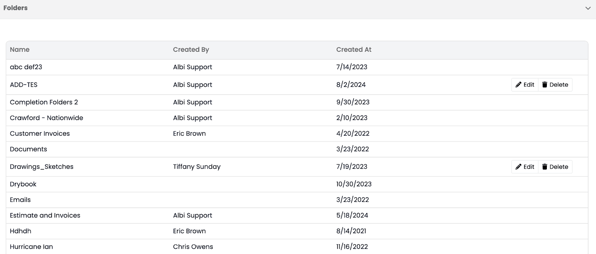
This setup allows you to create a consistent folder structure across all projects or customize it for individual ones, keeping your file organization flexible and efficient.
Note: Folders cannot be deleted or edited if any files are saved inside them in any project. You must remove or relocate all files before making changes to the folder.