
Files
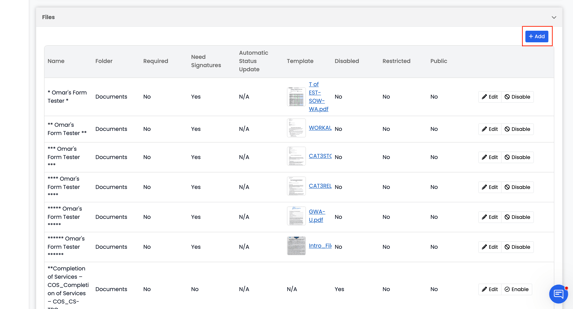
The Files tab under Project Settings allows you to manage all project-related documents and how they are stored, tracked, and updated. This section lets you control file requirements, visibility, and automatic updates — helping your team stay organized and consistent across projects.
How to Add a New File
- Go to Settings → Project Settings → Files.
- Click the Add (+) button in the top-right corner.
- A Create File form will open where you can set up file details.
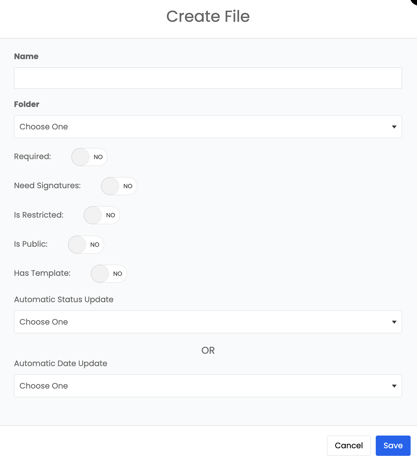
Fill out the form as needed:
- Name – Enter the file name.
- Folder – Choose which folder the file will be stored in.
- Required – Mark whether the file is mandatory for each project.
- Need Signatures – Specify if the file requires a client or staff signature.
- Is Restricted – Limit access to only certain users or roles.
- Is Public – Make the file visible to external users if needed.
- Has Template – Attach a template (e.g., PDF or form) to the file.
- Automatic Status Update – Choose a status that updates automatically when this file is uploaded or completed.
- Automatic Date Update – Optionally, link it to a date field so the date updates automatically when the file changes.
Once you’ve entered all the details, click Save. The new file will appear in the Files Dashboard with its configuration settings visible in columns (Name, Folder, Required, Needs Signature, Automatic Status Update, Template, Restricted, Public, etc.).
Note:
- For the file to appear on existing projects, users must go to the project → Actions → Stamp Project Files to pull it in.
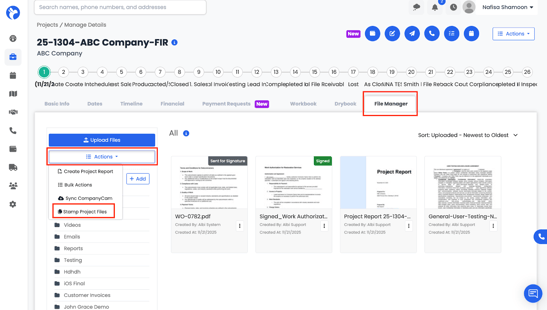
- The file will automatically appear on all new projects created after the file is added in this section.
Managing Files
- Edit – Click Edit next to a file to update its details or settings.
- Disable – Click Disable to deactivate a file type if it’s no longer in use.
- View – Use the dashboard to review all existing file templates and requirements.
These options make it easy to maintain consistency across all your projects while giving you control over which files are required, visible, or linked to automatic updates.