
Jobs not showing up in Google? Skip to Frequently Asked Questions at the end of this article.
What is Google Calendar Sync?
Google Calendar Sync sends the jobs you're assigned to in Albi to your own Google Calendar. When a job is added, rescheduled, moved to a new address, or deleted in Albi, your calendar updates on its own, usually within a minute.
Nothing is sent to anyone else. No invites or emails go out to customers, crews, or teammates. Each job simply appears in your own calendar.
- One way only: Albi updates Google. Changes you make to an event in Google are not sent back to Albi.
- Only your jobs: You'll see the jobs you're assigned to, not every job in your company.
- Your own account: Each person connects their own Google account.
Before you start
- Availability: Google Calendar Sync must be turned on for your company. If you don't see a Calendar tab under Manage Profile, contact Albi Support.
- After it's turned on: Log out of Albi and log back in. The Calendar tab won't appear until you do.
- Web app: Connect your calendar from the Albi web app. Jobs you create or change in the mobile app still sync to Google.
Connecting Google Calendar
- Go to Manage Profile, then the Calendar tab.
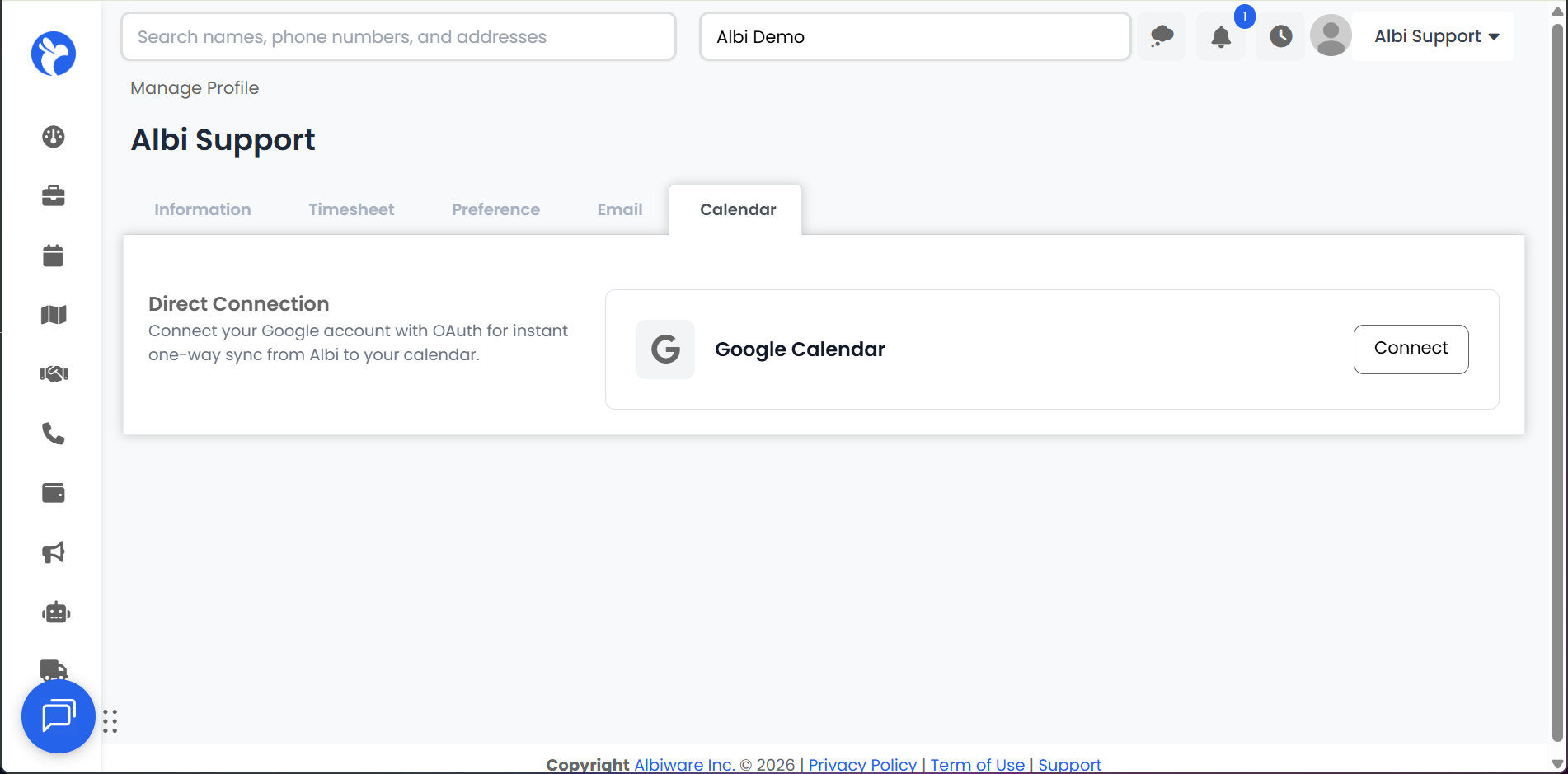
- Next to Google Calendar, click Connect.
- Sign in with the Google account you want to use.
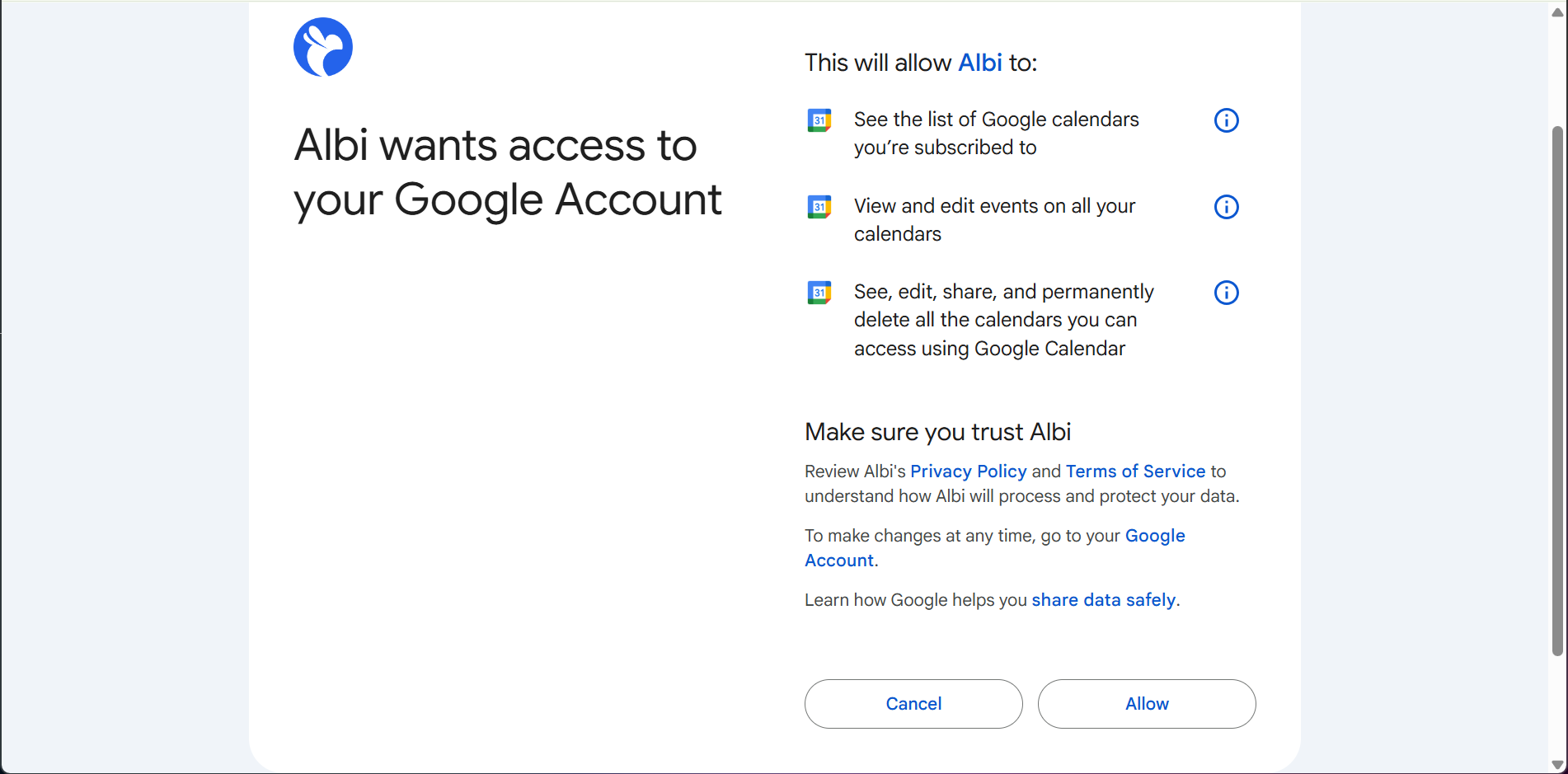
- Google shows a permissions screen with checkboxes. Select every checkbox, then continue. If any box is left unchecked, the connection won't work.
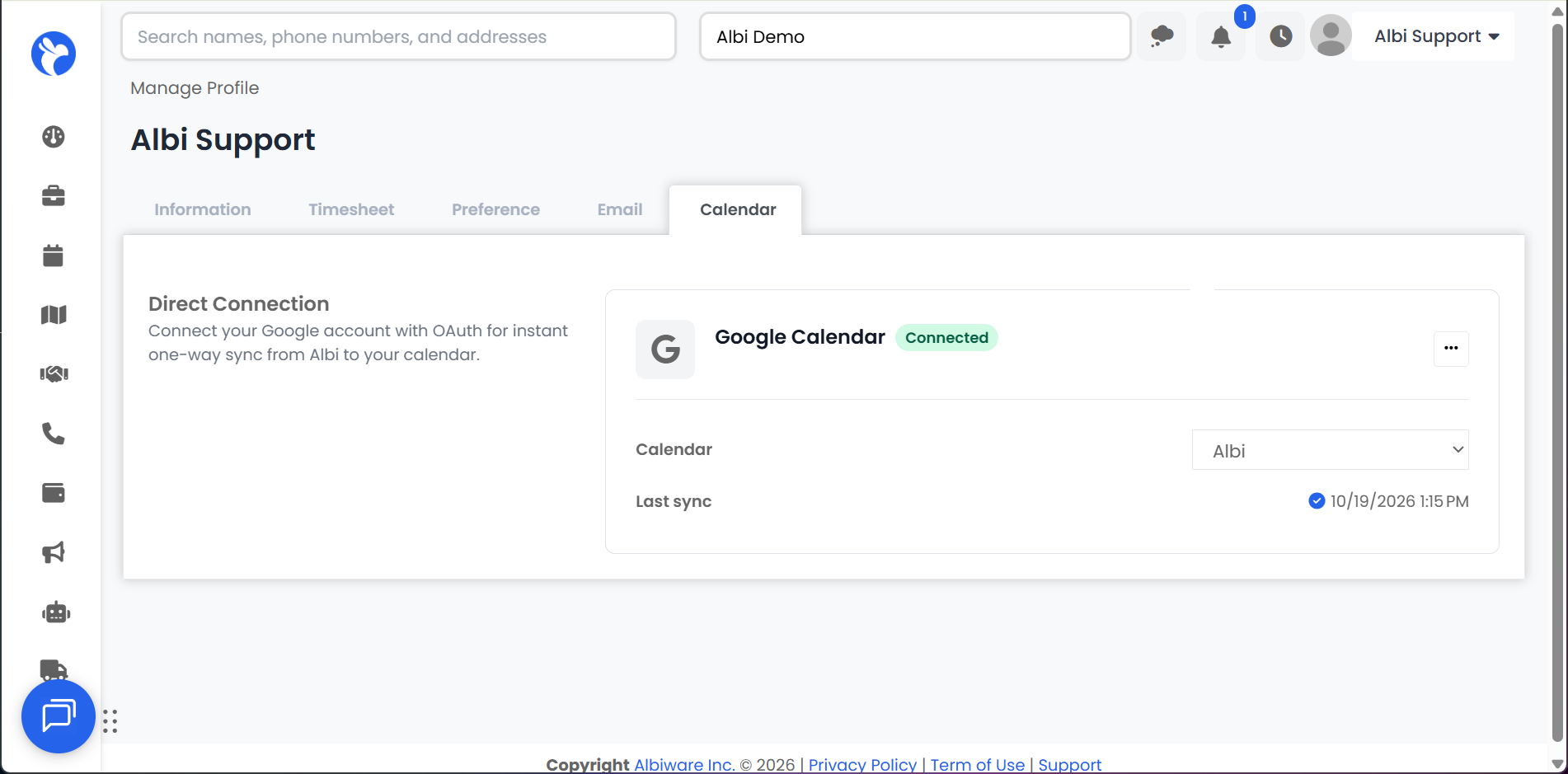
- You're brought back to Albi. The Google Calendar row now shows Connected with your Google email address.
Connecting from the Scheduler
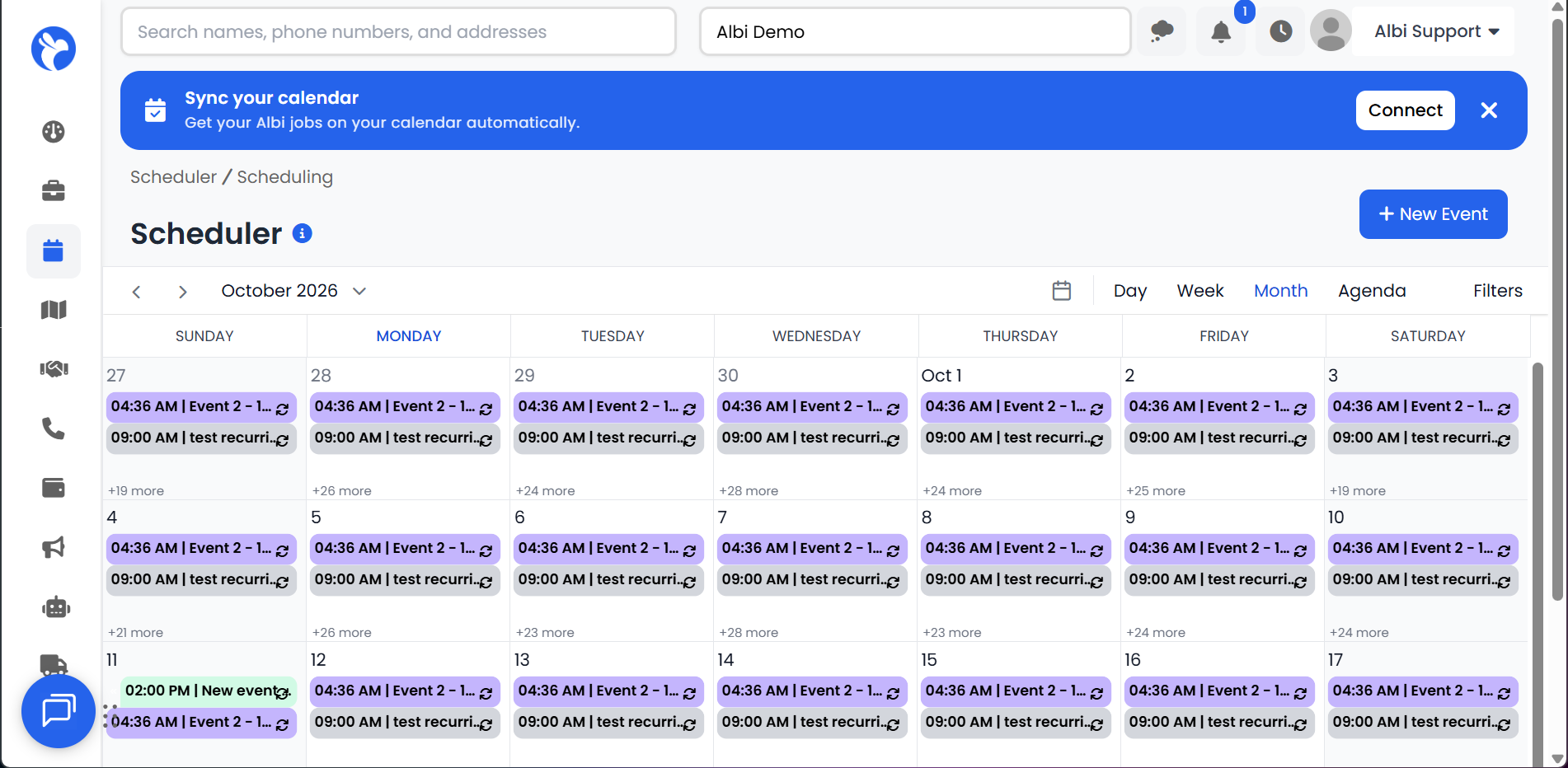
If you haven't connected yet, a Sync your calendar banner appears at the top of the Scheduler page. Click Connect on the banner, then follow steps 3 to 5 above. You can close the banner with the X if you'd rather connect later.
After you connect
- A new calendar named Albi: Albi creates a calendar called Albi in your Google account and adds your jobs there, so work stays separate from personal events.
- Upcoming and repeating jobs: Albi adds your upcoming jobs and repeating jobs. Jobs that already happened are not added.
- A few minutes to finish: The first sync takes a few minutes. While it runs, the Calendar tab shows Sync In Progress.
Tip: If you don't see your jobs, make sure the Albi calendar is checked in the calendar list on the left side of Google Calendar.
If the connection doesn't work
|
What you see |
What it means |
What to do |
|---|---|---|
|
"Invalid or corrupt request" |
Not every checkbox was selected on Google's permissions screen |
Click Connect again and select every checkbox |
|
You're back on the Calendar tab and nothing changed |
Cancel was clicked on Google's screen |
Click Connect again |
|
"This email is already connected." |
Another Albi user has already connected this Google account |
See One Google account per user below |
What shows up in Google Calendar
|
Synced to Google |
Not synced to Google |
|---|---|
|
Jobs you're assigned to |
Jobs you created but are not assigned to |
|
Job title |
Job notes or description |
|
Date and time (or all-day) |
Other people assigned to the job |
|
Job address |
Photos, files, or project details |
|
Repeating jobs, as a repeating event |
Changes you make in Google |
- Shown as free: Albi events are marked as free, so they won't block your calendar when someone books a meeting with you.
- Your usual reminders: Google reminders work the way they normally do for that calendar.
When a job changes in Albi
Changes usually show up in Google within a minute. You don't need to keep Albi open.
|
When someone in Albi... |
In your Google Calendar... |
|---|---|
|
Creates a job and assigns you |
The event appears |
|
Adds you to an existing job |
The event appears |
|
Changes the title, date, time, or address |
The same event updates (no duplicate) |
|
Deletes the job |
The event is removed |
|
Removes you from the job |
The event is removed from your calendar only |
|
Changes one day of a repeating job |
That day shows as its own event; the rest of the series stays the same |
|
Deletes one day of a repeating job |
That day is removed; the rest of the series stays |
|
Deletes a repeating job from a certain day on |
The series in Google ends on that day too |
Choosing a different calendar
By default, your jobs go into the Albi calendar. You can send them to any Google calendar you have permission to edit instead.
- Go to Manage Profile, then the Calendar tab.
- Choose a calendar from the Calendar dropdown. Your main Google calendar is labeled (Default).
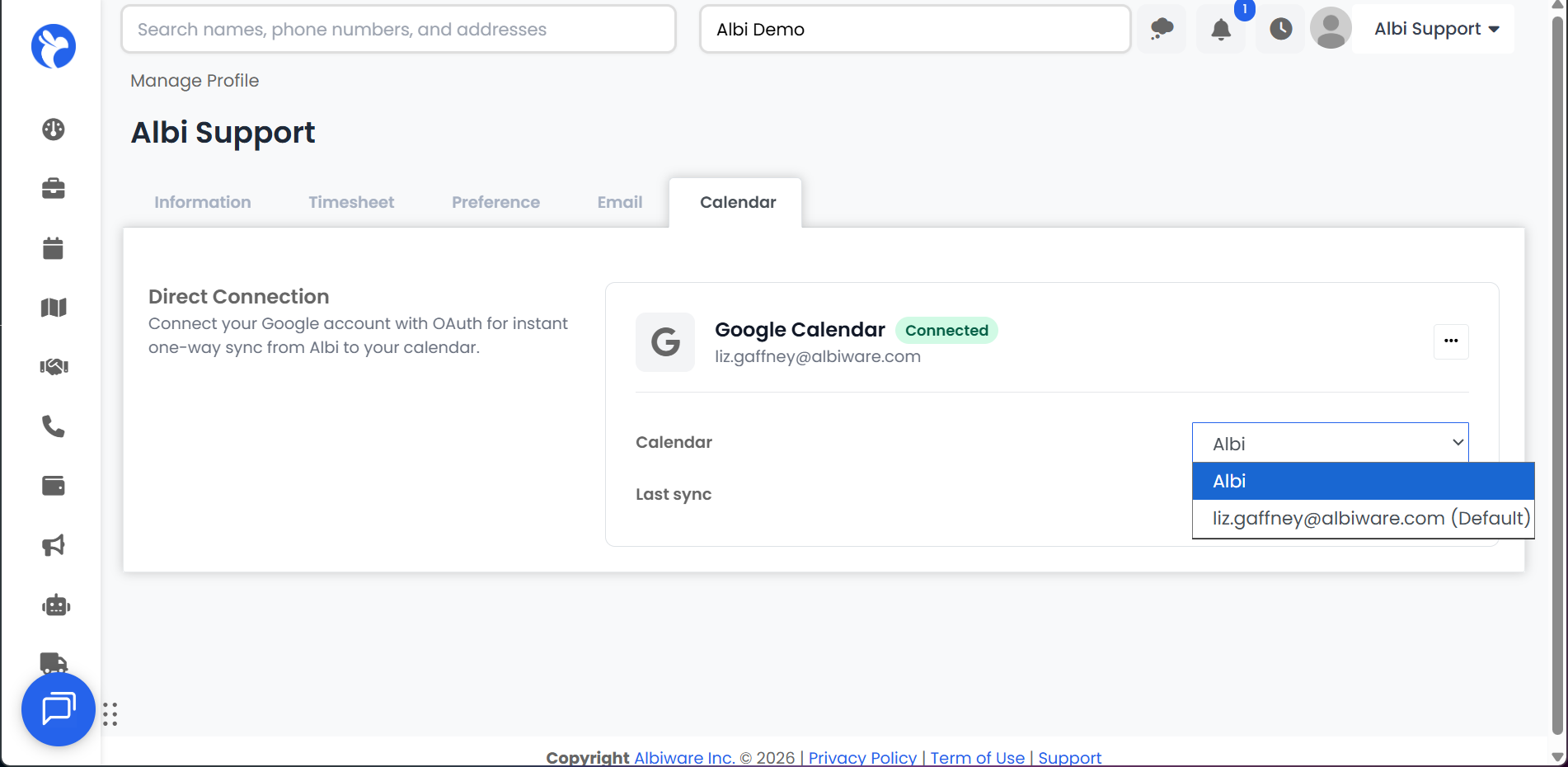
Existing events don't move right away. New jobs go into the calendar you picked immediately. Jobs already in Google move over the next time each job is changed in Albi. If you still see some jobs in the old calendar after switching, that's expected.
Syncing manually
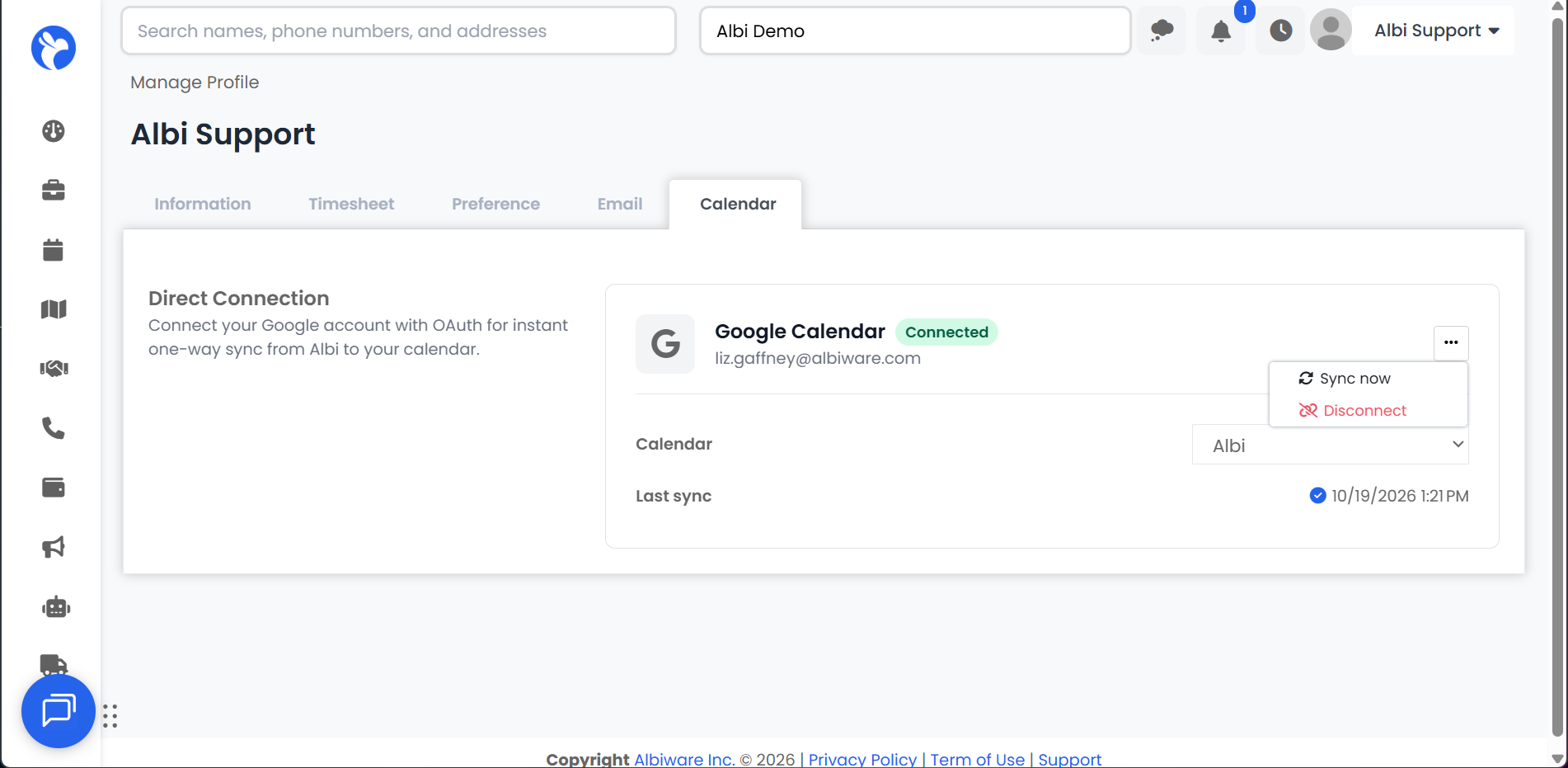
You'll find these options on the Google Calendar row of the Calendar tab.
- Sync now: In the ⋮ menu. Sends all of your upcoming jobs to Google again. Use it when your calendar looks out of date. If you click it twice within a minute, you'll see "A sync was just requested. Please wait a moment before trying again."
- Sync In Progress: A sync is still running. Give it a few minutes.
- Last sync: When Albi last updated your calendar. No Data Found means nothing has been sent yet.
Reconnecting your calendar
If the Google Calendar row shows Reconnect required, or you see a Calendar sync expired banner on the Scheduler page, Google has stopped letting Albi update your calendar. This usually happens when Albi's access was removed in your Google account settings. Nothing updates in Google until you reconnect.
- Click Reconnect, either in the ⋮ menu on the Calendar tab or on the Scheduler banner.
- Sign in with the same Google account you used before.
- Select every checkbox on Google's permissions screen.
Your existing events are kept and brought up to date. You won't get duplicates.
Disconnecting Google Calendar
- Go to Manage Profile, then the Calendar tab.
- On the Google Calendar row, open the ⋮ menu and click Disconnect.
- Confirm when Albi asks.
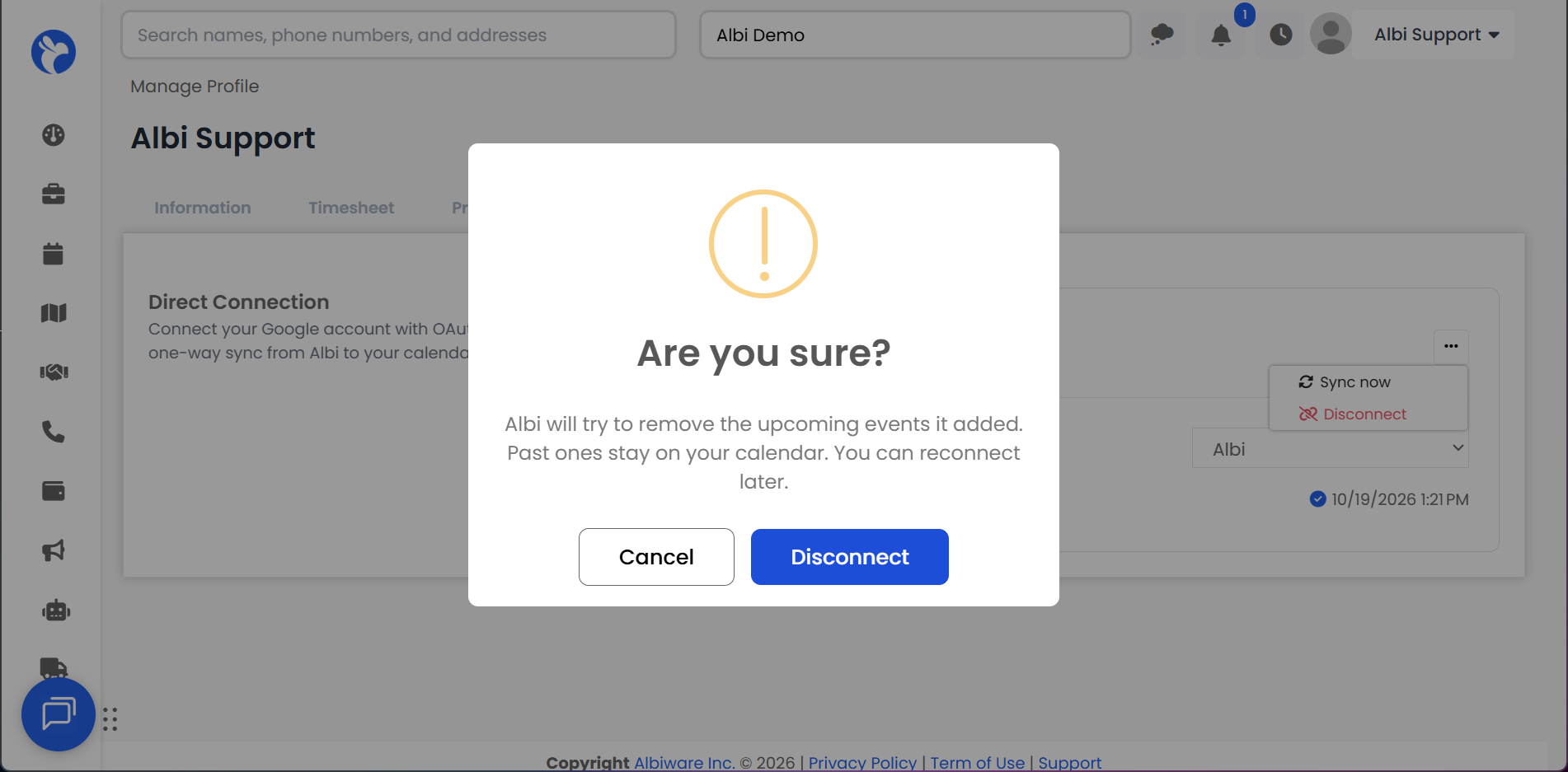
- Upcoming jobs are removed: Albi removes your upcoming jobs from Google Calendar. This can take a minute or two.
- Past jobs stay: Jobs that already happened stay on your calendar, so you keep a record of your work.
- The Albi calendar stays: The empty Albi calendar stays in your Google account. You can delete it in Google if you don't want it.
If you see a message that Albi could not start removing the events it added, you're still disconnected, but the upcoming events were left in your calendar. You can delete them directly in Google Calendar.
Switching to a different Google account
Disconnect your current Google account first, then click Connect and sign in with the other account.
One Google account per user
A Google account can only be connected to one Albi user at a time. This keeps the same job from showing up twice in one calendar.
- "This email is already connected.": Another Albi user is already using that Google account, and nothing was connected.
- To use that account: The other user needs to disconnect it first. This applies even if their connection shows Reconnect required.
- Not sure who it is? Contact Albi Support.
Want your team to share a calendar? Each person connects their own Google account, then picks the same shared calendar from the Calendar dropdown. Everyone needs permission to edit that calendar in Google.
For admins
- Turning it on: Google Calendar Sync is turned on per company. Afterward, ask your team to log out of Albi and log back in so the Calendar tab appears.
- When someone leaves: If a user is disabled or leaves your company, their Albi events are removed from their Google Calendar the next time each of those jobs is changed.
Frequently Asked Questions
Calendar Sync was turned on, but I don't see the Calendar tab.
Log out of Albi and log back in. If you still don't see it, contact Albi Support so we can confirm it's fully turned on for your company.
I connected, but I don't see any jobs.
- Check the Albi calendar, not your main calendar. Make sure Albi is checked in the calendar list on the left side of Google Calendar.
- Make sure you're assigned to upcoming jobs. Jobs you created but aren't assigned to don't sync.
- Give the first sync a few minutes.
- Still nothing? Click Sync now, wait a minute, and contact Albi Support if it's still empty.
A job is wrong or missing in Google.
Click Sync now and wait a minute. If it's still wrong, contact Albi Support.
I changed an event in Google, and Albi didn't update.
That's expected. Sync only goes from Albi to Google. Make the change in Albi, and Google will update to match.
I picked a different calendar, but my old jobs are still in the old one.
That's expected. New jobs go to the new calendar right away. Existing jobs move the next time each one is changed in Albi.
Will Albi send an invite to my customer or crew?
No. Google Calendar Sync never sends invites or emails to anyone.
I disconnected, but jobs are still in my calendar.
Wait a couple of minutes. If they're still there, connect and disconnect again, or delete the events directly in Google Calendar. Past jobs are kept on purpose.
Does it work with Outlook or Apple Calendar?
Not right now. If you use Apple Calendar, you can add your Google Calendar to it so your Albi jobs show up there too.
Does it work with the mobile app?
Yes. Jobs you create or change in the mobile app sync to Google Calendar. To connect your Google account, use the web app.