
How It Works
Floor Plans uses LiDAR (Light Detection and Ranging) technology to capture the spatial geometry of a room in real time as you walk around it. Here's the basic flow:
- Open the Albi mobile app on a LiDAR-capable device
- Navigate to a project and open the Floor Plans section
- Walk around the room perimeter — the app traces the geometry as you move
- Tap Complete Scan when finished
- Your floor plan is generated automatically in under 10 seconds
- Refine it with the built-in editing tools, then export as a JPEG
Step 1: Check Your Device
Floor Plans requires a device with a built-in LiDAR sensor. Not all iPhones have LiDAR — only Pro models include the hardware.
| Requirement | Specification |
|---|---|
| iPhone | iPhone 12 Pro / Pro Max or newer (Pro models only) |
| iPad | iPad Pro 11-inch (2nd gen+) or iPad Pro 12.9-inch (4th gen+) — 2020 or newer |
| iOS / iPadOS | Version 16 or later |
| Storage | At least 5GB available recommended |
| Battery | At least 20% recommended — scanning is processor-intensive |
| Internet | Required for cloud sync; scanning and editing work fully offline |
Standard (non-Pro) iPhone models do not have LiDAR and cannot be used to create floor plans. However, users on these devices can still view existing floor plans in the mobile app.
Tip: Not sure if your device has LiDAR? Check the back — LiDAR devices have a small black dot next to the camera lenses. You can also go to Settings > General > About to verify your model number, or try Portrait mode in the Camera app — LiDAR devices show improved depth sensing.
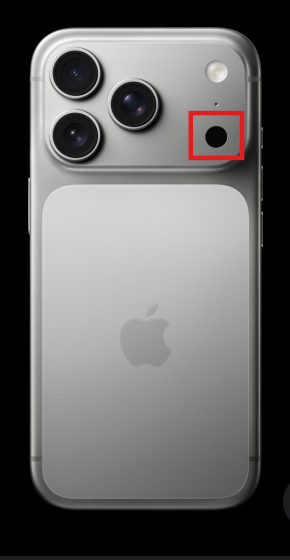
Compatible iPhone models
iPhone 12 Pro / Pro Max, 13 Pro / Pro Max, 14 Pro / Pro Max, 15 Pro / Pro Max, 16 Pro / Pro Max, and all future Pro models.
Compatible iPad models
iPad Pro 11-inch (2nd generation and newer) and iPad Pro 12.9-inch (4th generation and newer) — 2020 or later.
iOS Only
Floor Plans is currently available on iOS only. Android devices do not have the LiDAR hardware or AR frameworks required for professional floor plan generation.
Step 2: Before You Scan
Taking a few minutes to prepare will make a significant difference in scan accuracy. Review these best practices before starting.
| Best Practice | Why It Matters |
|---|---|
| Use adequate lighting | Poor lighting reduces LiDAR accuracy |
| Close all doors | Defines clear room boundaries |
| Hold device parallel to walls | Improves dimensional accuracy |
| Walk slowly and steadily | Smooth movement produces better results |
| Scan one room at a time | Creates clean, enclosed shapes |
| Stay in the app | Leaving the app or locking your device will end the scan session |
| Large spaces (2,000+ sq ft) | Break into multiple sessions for best results |
⚠️ Important: Do not leave the Albi app or lock your screen while scanning. The app requires continuous camera and sensor access — switching away will interrupt your session and any unsaved scan data will be lost. If you need to pause, tap End Room to save the current room first.
Battery note: LiDAR scanning uses approximately 15–20% battery per 30-minute session. For longer scanning days, bring a portable charger.