
Sort and View Equipment Dashboard
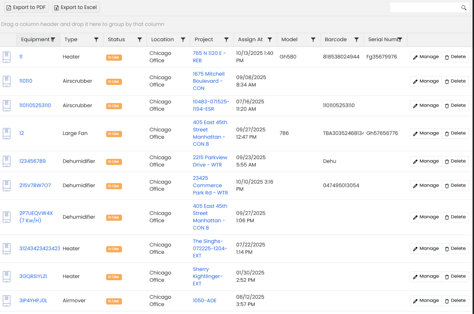
After you add your equipment, it appears in the Equipment Dashboard. This dashboard works much like an Excel sheet — each row represents a single piece of equipment, and the columns display important details such as Equipment Name, Equipment ID, Type, Model, Serial Number, Status, Location, Project, etc.
You can:
- Sort columns by filtering them. For example, you can sort by Equipment Name A–Z, or sort by Status to group all “Available” or “In-Use” items together.
- Filter columns to quickly find what you’re looking for. For instance, you can filter by Type to only view Heaters or Air Scrubbers, or filter by Location to see equipment assigned to a specific office or job site.
- Search across columns to narrow down your results even further. You can search by Equipment ID, Model, or Serial Number to instantly locate a specific piece of equipment.
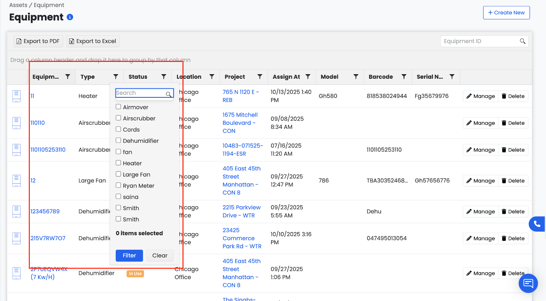
Example:
If you want to see only Air Movers added that are currently In-Use, you can filter the Type column to “Air Mover,” set the Status column to “In-Use,” and filter to show entries.
Export to Excel
The Export to Excel option allows you to download your Equipment Dashboard data into an Excel (.xlsx) file. This is especially helpful if you want to:
- Perform more advanced sorting and filtering
- Analyze or track usage trends
- Share your equipment information with others who prefer working in spreadsheets
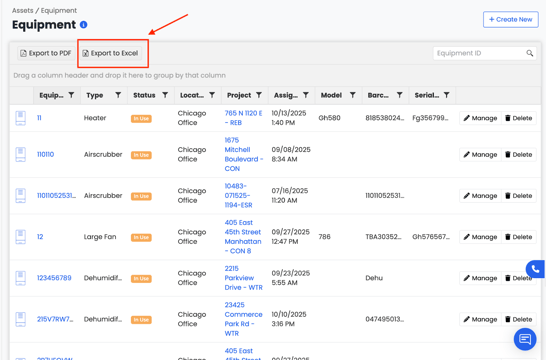
When you click Export to Excel, Albiware will generate an Excel file containing all the equipment currently visible in your dashboard view. If you’ve applied filters (for example, showing only Dehumidifiers or equipment In Use at the Chicago Office), only those filtered results will appear in your export.
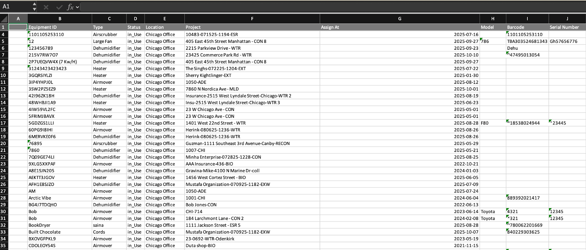
Your exported file will include key columns such as:
Equipment ID, Equipment Type, Status, Location, Project, Assign At (Date/Time), Model, Barcode, Serial Number, and more — mirroring the information in your Equipment Dashboard.
The exported Excel document will appear as shown below:
💡 Tip: Before exporting, apply filters or sort your dashboard by fields like Type, Status, or Location to get the most relevant data in your report. This helps ensure your export includes exactly what you need — and nothing extra.
Export to PDF
The Export to PDF option lets you download and save your Equipment Dashboard data as a PDF file. This is useful when you need to:
- Share your equipment list with someone who doesn’t have access to Albiware
- Print physical records for meetings or field use
- Keep a quick backup of your current dashboard data
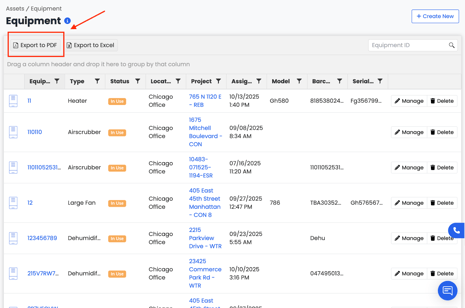
When you click Export to PDF, the system will create a file containing the same details you see in your dashboard view. If you’re using filters or custom views, only those filtered results will be included in the PDF.
Each entry will show essential information such as Equipment Name, Type, Status, Location, Project, Assigned Date, Model, Barcode, and Serial Number, giving you a clear, formatted summary of your equipment list.
The exported PDF document will appear as shown below:
💡 Tip: Before exporting, apply filters or sort your dashboard by fields like Type, Status, or Location to get the most relevant data in your report. This helps ensure your export includes exactly what you need — and nothing extra.