
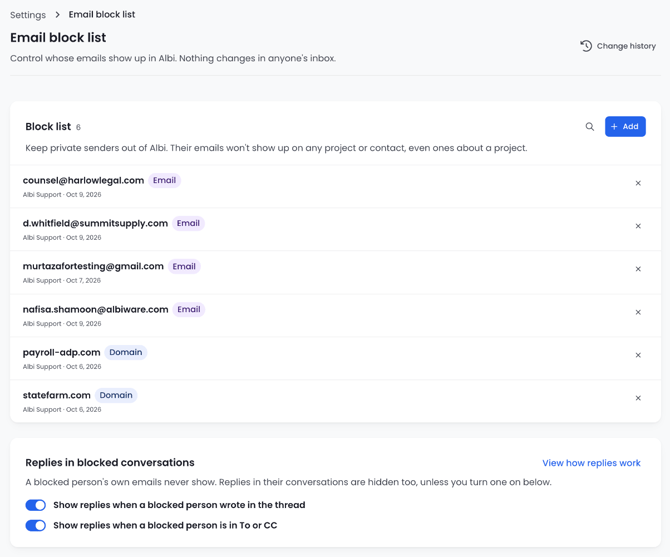
Albi automatically pulls incoming email onto project timelines and into contact and organization activities. That's great for project communication, but some senders should never show up there, like an owner or executive, HR, payroll, or legal counsel.
The Email block list lets an admin list those senders once. From then on, their emails are kept out of Albi everywhere, even emails that mention a project. A blocked person also never gets an activity on their contact or organization, even for emails sent to them.
Nothing changes in anyone's actual inbox. Your email account is not touched. The block list only controls what Albi shows.
Before you start
- Permission: You need permission to manage company settings, the same permission used for the other Settings pages.
- Availability: The Email block list must be enabled for your company. If you don't see Email block list in Settings, contact Albi Support.
- Web only: The block list is managed in the Albi web app. There is no block list screen in the mobile app, but the rules still apply to what the mobile app shows on projects.
What the block list does (and doesn't do)
| What it affects | Project timelines, contact activities, organization activities, and the project's Emails folder |
|---|---|
| What it doesn't affect | Your own mailbox, sending email from Albi (see Emailing a blocked person from Albi), and anything already in Albi before the sender was blocked |
| Starts from now | Only emails sent after you add a sender are kept out. Albi goes by the email’s own date, so an email sent before you added the sender still comes in, even if it arrives later. |
| Can't be undone for past mail | Blocked emails aren't shown anywhere in Albi. If you remove a sender later, the emails that arrived while they were blocked do not come back. |
| Limit | Up to 500 senders per company. When you reach the limit, a message appears on the page and Add is turned off until you remove a sender. |
| Emails sent to a blocked person | New emails still show up on the project and on everyone else’s activities. Only the blocked person’s contact or organization gets nothing. Replies sent to or CCing a blocked person follow the reply options; when a reply is kept out, no one gets an activity from it. |
What you can block
- A single email address, like
name@company.com. Only that person is blocked. - A whole domain, like
company.com. Everyone at that domain is blocked, including subdomains (for example,mail.company.com). It does not block look-alike domains such asnotcompany.com. - A staff member by name. Type a name or the start of a staff email address and pick the person from the list. Their email address fills in for you. Name search only finds your staff, not contacts.
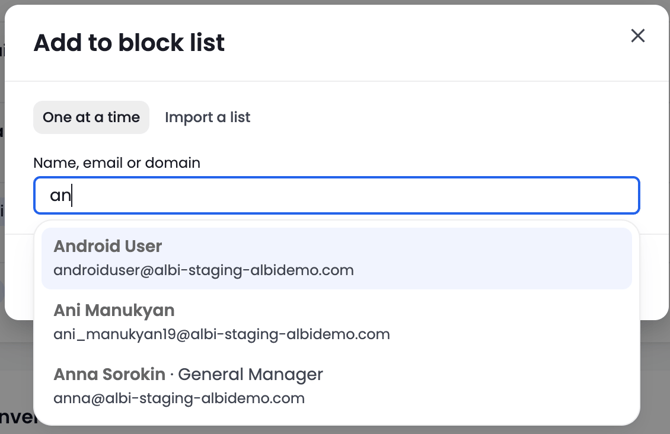
You can type a domain with or without a leading @. @company.com and company.com are the same rule.
What you can't block
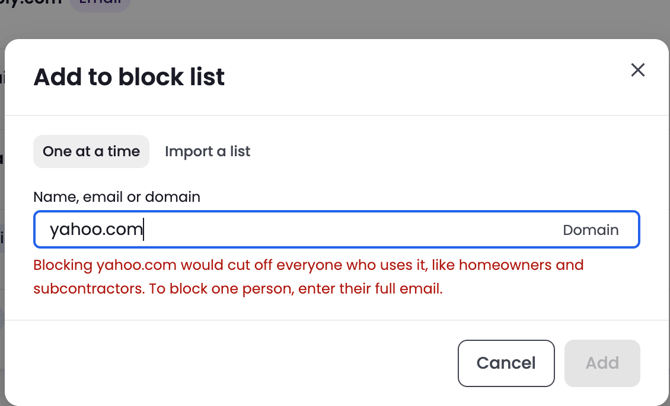
- Public email providers as a whole domain. You can't block the domain of a free, public email service, because it would cut off every homeowner and subcontractor who uses it. To block one person who uses a public provider, enter their full email address instead.
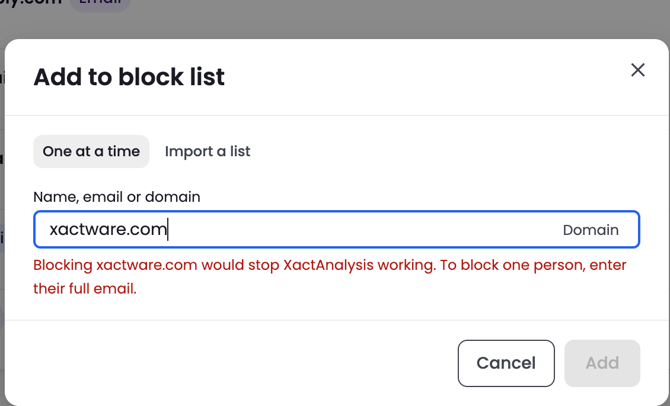
- Addresses your integrations send from. If an address (or its domain) is used by one of your connected integrations, Albi won't let you block it, because doing so would stop that integration from working. If you no longer use that integration, disconnect it first.
Adding a sender to the block list
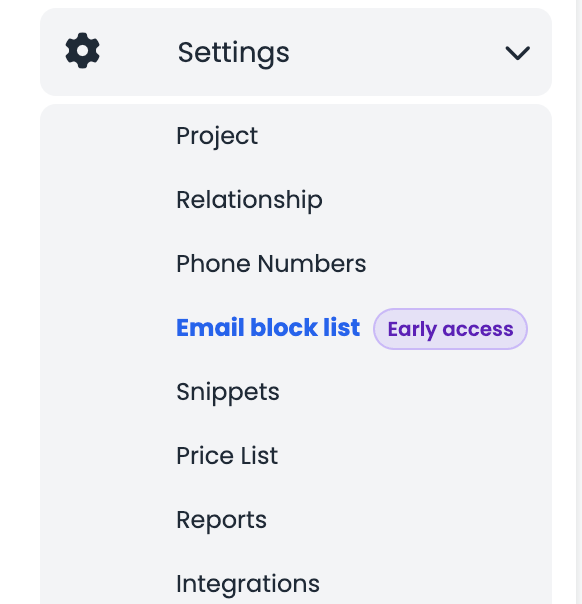
- Go to Settings > Email block list.
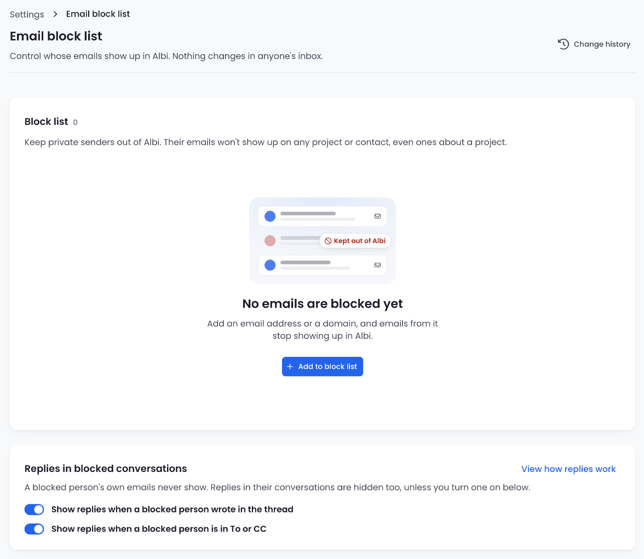
- Click Add at the top right of the card. If your list is empty, you can also click Add to block list in the middle of the page.
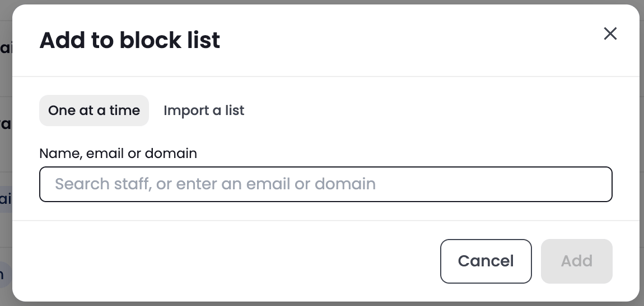
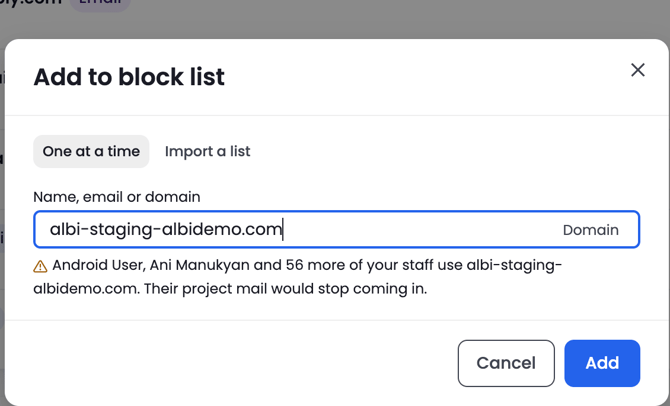
- The Add to block list window opens on the One at a time tab. In the Name, email or domain field, enter one of the following:
- A full email address
- A domain
- A staff member's name or the start of their email address, then pick them from the list
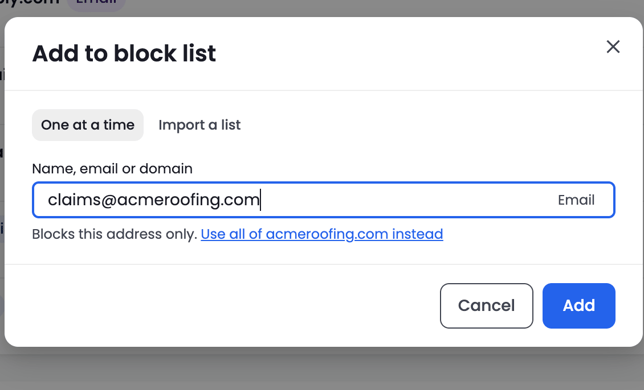
- Read the message under the field (see Messages you might see below). If you entered an address and want to block everyone at that domain instead, click Use all of [domain] instead.
- Click Add.
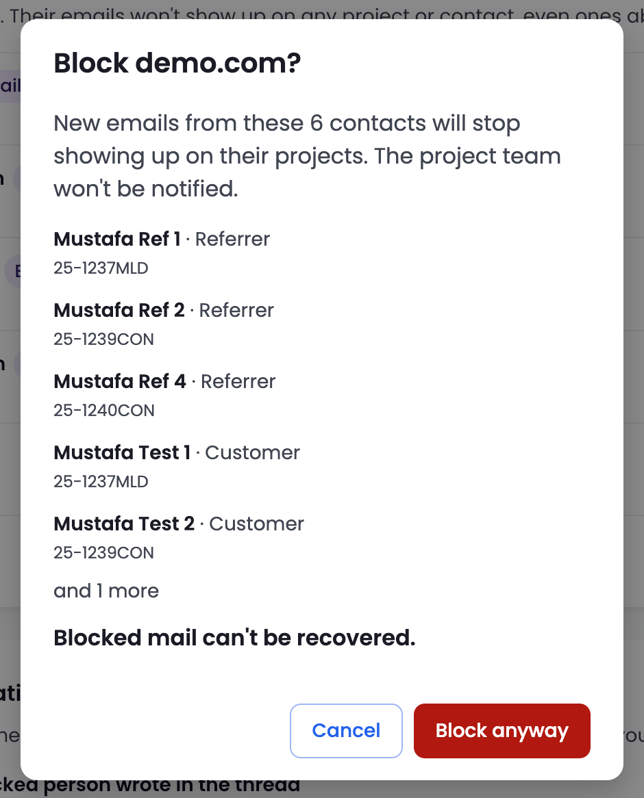
- If the block would affect any contacts or staff, a confirmation window opens explaining who. Review it, then click Block anyway to finish. If no one is affected, the sender is added right away.
Messages you might see
Only one message shows under the field at a time. Red messages are errors and must be fixed before you can add. A warning still lets you continue.
| What you entered | What you'll see | What to do |
|---|---|---|
| Nothing | "Enter an email address or a domain." | Type an address, domain, or staff name |
| A name no staff member has | "No staff member matches…" | Enter a full email address or domain instead |
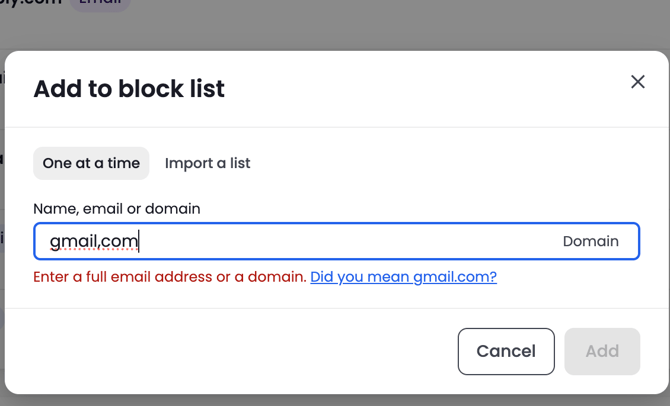
A value with invalid characters (for example, summit/supply) |
"Enter a full email address or a domain." | Fix the value |
| A small typo, like a comma instead of a dot | The error, plus a Did you mean…? link | Click the suggestion to fix it |
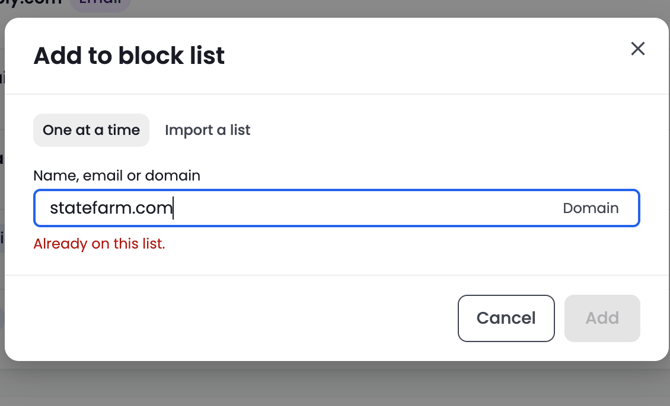
| A sender already on the list | "Already on this list." | Nothing to do |
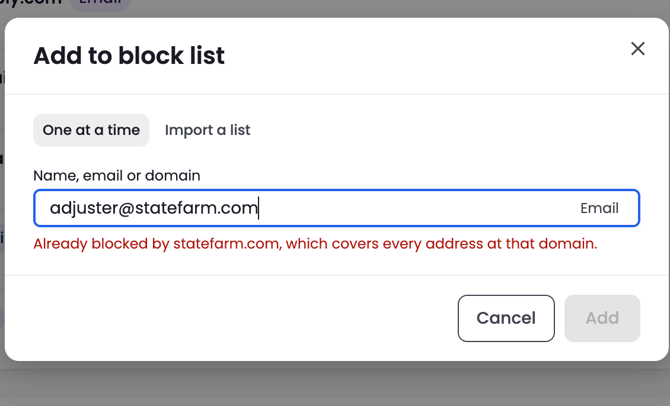
| An address whose domain is already blocked | "Already blocked by [domain]…" | Nothing to do; the domain rule already covers it |
| An address or domain used by a connected integration | "Blocking this would stop [integration] working…" | Disconnect the integration first if you really want to block it |
| A public email provider's domain | "Blocking [domain] would cut off everyone who uses it…" | Enter the one person's full email address instead |
| Your own company's domain | A warning naming staff who use that domain | You can continue, but you'll be asked to confirm (see below) |
| A valid address | "Blocks this address only." with a Use all of [domain] instead link | Click Add, or widen it to the whole domain |
Why you might be asked to confirm
Before adding a sender, Albi checks who the block would affect. If it affects anyone, you'll see a confirmation window. Every confirmation ends with "Blocked mail can't be recovered."
| Situation | What the confirmation tells you |
|---|---|
| Contacts on open projects use that address or domain | New emails from those contacts will stop showing up on their projects, and the project team won't be notified. Up to five contacts are listed by name, each with one of their projects. |
| One contact (when blocking a single address) | That person's new emails will stop showing up on their project. |
| Your company's own domain | How many staff members use that domain, with the first few names and a Show all button. It also reminds you that to keep out one person, like an owner, you can enter their full email address instead. |
| One staff member (when blocking a single address) | That person is on your staff, and their emails will stop showing up in Albi, including emails that mention a project. |
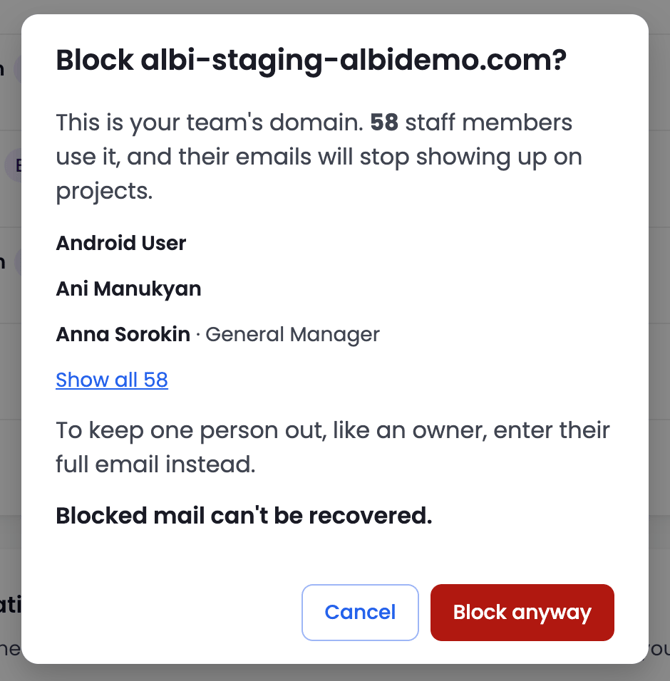
Tip: To keep one owner or executive out, block their full email address, not your company's domain. Blocking your company's domain stops project email from all of your staff.
Import a list of senders
If you have several senders to block, you can paste them all at once.
- Go to Settings > Email block list and click Add.
- Select the Import a list tab.
- Paste your list, one email address or domain per line. Commas and semicolons also work as separators.
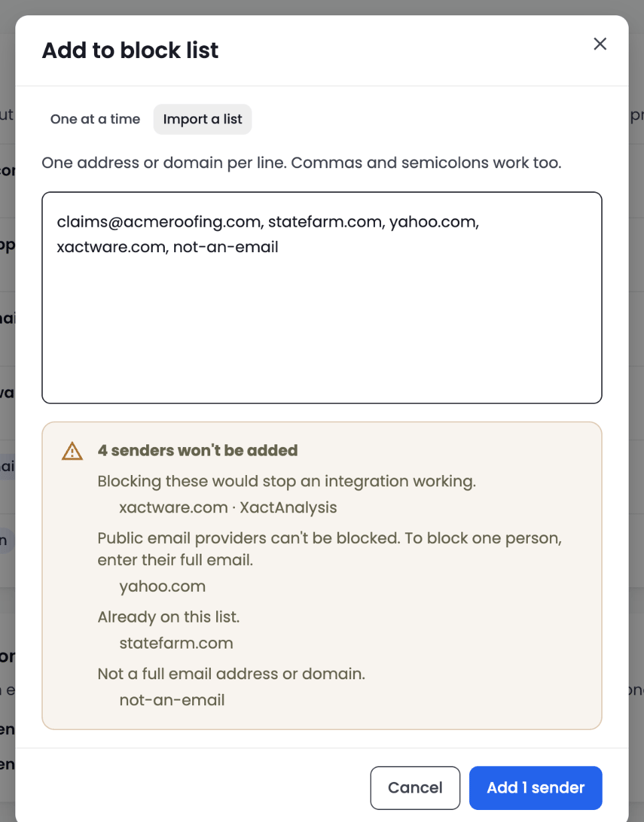
- Review the summary under the paste box. Before anything is saved, Albi lists every line it will skip and why.
- Click the Add button. It shows how many senders will be added (for example, Add 2 senders).
What happens to each line
| Line | What happens |
|---|---|
| A valid, new address or domain | Added |
| Already on the list | Skipped |
| Not a full email address or domain | Skipped. Fix the line and paste it again (typo suggestions are not offered during import). |
| An address used by a connected integration | Skipped, with the integration named |
| A public email provider's domain | Skipped |
| Your company's own domain | Held back. Add it from the One at a time tab so you can review who it affects. Individual staff addresses are still imported. |
| Lines past the 500-sender limit | Not added. The first lines in your paste are added; the rest are listed as over the limit. |
Checking the block list
- On the Email block list page, click the magnifying glass at the top right.
- Type an email address or domain.
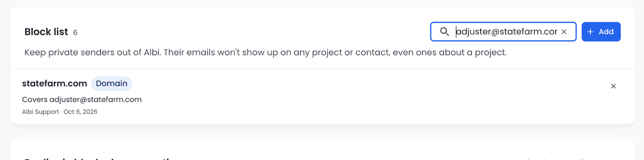
If you search for a full email address that's covered by a blocked domain, the domain appears in the results with a line such as "Covers adjuster@insurer.com." That tells you the person is blocked, even though their own address isn't on the list.
Once your list has 15 or more senders, a sort menu appears (A to Z or Recently added) and the list starts using pages.
Remove a sender
- On the Email block list page, find the sender.
- Click the × at the right of the sender’s row. The sender is removed right away, and a message confirms it.
Removing a sender only affects email received from then on. Emails that arrived while they were blocked do not come back. If you add the same sender again later, blocking starts over from that moment.
Replies in blocked conversations
Email conversations are where private messages most often slip through. For example, an owner emails a technician, and the technician replies with the owner's message quoted underneath. The Replies in blocked conversations card on the Email block list page controls how Albi handles those replies.
By default, these replies are hidden, so a blocked person's words can't reach a project through someone else's reply. Two options let you show replies in specific situations:
- Show replies when a blocked person wrote in the thread
- Show replies when a blocked person is in To or CC
Both options are off by default, which is the most private setting. Turning an option on lets more email through. Each option applies to everyone on your list.
The options only decide whether other people's replies come in. A blocked person's own emails, and forwards of their emails, always stay out.
| Option | When it's off (default) | When it's on |
|---|---|---|
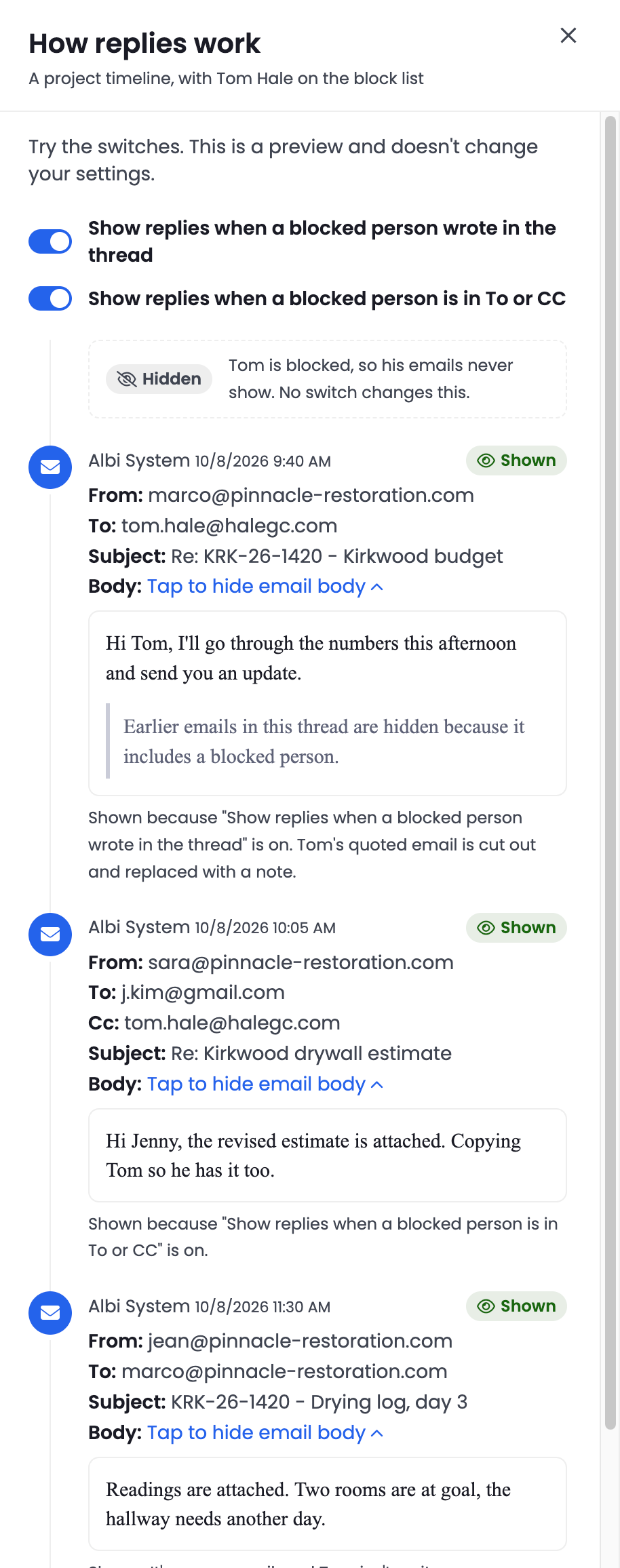
| Show replies when a blocked person wrote in the thread | Once a blocked person has sent an email in a conversation on a project, no one's replies in that conversation show up in Albi. | Other people's replies in that conversation show up, with the blocked person's quoted messages hidden (see below). The blocked person's own emails still stay out. |
| Show replies when a blocked person is in To or CC | A reply sent to or CCing a blocked person is kept out, even if Albi never received an email from them. | Those replies show up, with the blocked person's quoted messages hidden. The blocked person still doesn't get an activity. |
Which option does a reply need?
When someone who isn't blocked replies:
| Did the blocked person write earlier in the conversation? | Is the blocked person in To or CC? | Options needed for the reply to show up |
|---|---|---|
| No | No | None. It always shows up. |
| Yes | No | Show replies when a blocked person wrote in the thread |
| No | Yes | Show replies when a blocked person is in To or CC |
| Yes | Yes | Both |
How Albi decides what counts:
- A reply is an email whose subject starts with "Re:" (or a similar reply prefix).
- Wrote in the thread means the blocked person sent an email on the same project with the same subject, ignoring "Re:". This includes their emails that were kept out. Being CC'd on an earlier email doesn't count, and if Albi can't match the email to a project, this check doesn't apply.
- A new email (not a reply) that's sent to or CCs a blocked person isn't affected by these options. It shows up, and the blocked person doesn't get an activity.
- Quoted text is never used to decide whether a reply is kept out. It's only used to hide a blocked person's words once a reply comes in.
Preview how replies work
Click View how replies work on the card to open a preview. It shows a sample project timeline with one blocked person and two preview switches. Turn the switches on and off to see which emails would be Shown or Hidden, and why. The preview doesn't change your settings.
What hidden messages look like
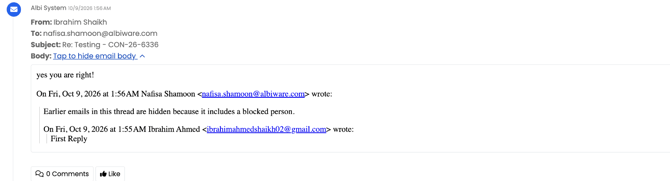
Replies and forwards carry earlier emails quoted underneath them. If any of those earlier emails were written by a blocked person, Albi hides them before the email is saved. Each of the blocked person's quoted messages is replaced with this sentence:
"Earlier emails in this thread are hidden because it includes a blocked person."
Everything else stays: the sender's own message, the "On … wrote:" lines, and quoted messages from everyone else. The timeline entry and activities all show this version, and Albi never saves the original.
A few things to know:
- Every message from the blocked person is hidden, including ones they wrote before they were blocked.
- When Albi can't tell who wrote which part, it hides everything under the sender's own message, using the same sentence. This can happen when someone replied between quoted lines, when quoted text isn't formatted as a quote, or when an earlier email shows a name but no email address. Albi hides too much rather than risk showing a blocked person's words.
- Some email apps put a separate "From:" and "Sent:" header above each earlier email in a reply. If one of those headers is the blocked person, the whole reply is kept out, even with the reply options on.
- New emails are never changed. Only replies and forwards include quoted history.
- Older emails may show [BLOCKED CONTENT] instead of the sentence. It means the same thing.
- The full original email is still in the recipient's own mailbox.
Forwarded emails
If someone forwards a blocked person's email, the forward is kept out entirely, no matter how the reply options are set. Albi checks every "From:" line in the forwarded part, so a forward of a forward is kept out too.
If someone forwards another person's email and it only quotes the blocked person (under an "On … wrote:" line), the forward comes in with the blocked person's part hidden.
View change history
Click Change history at the top of the page to see every change to the block list and its options, newest first.
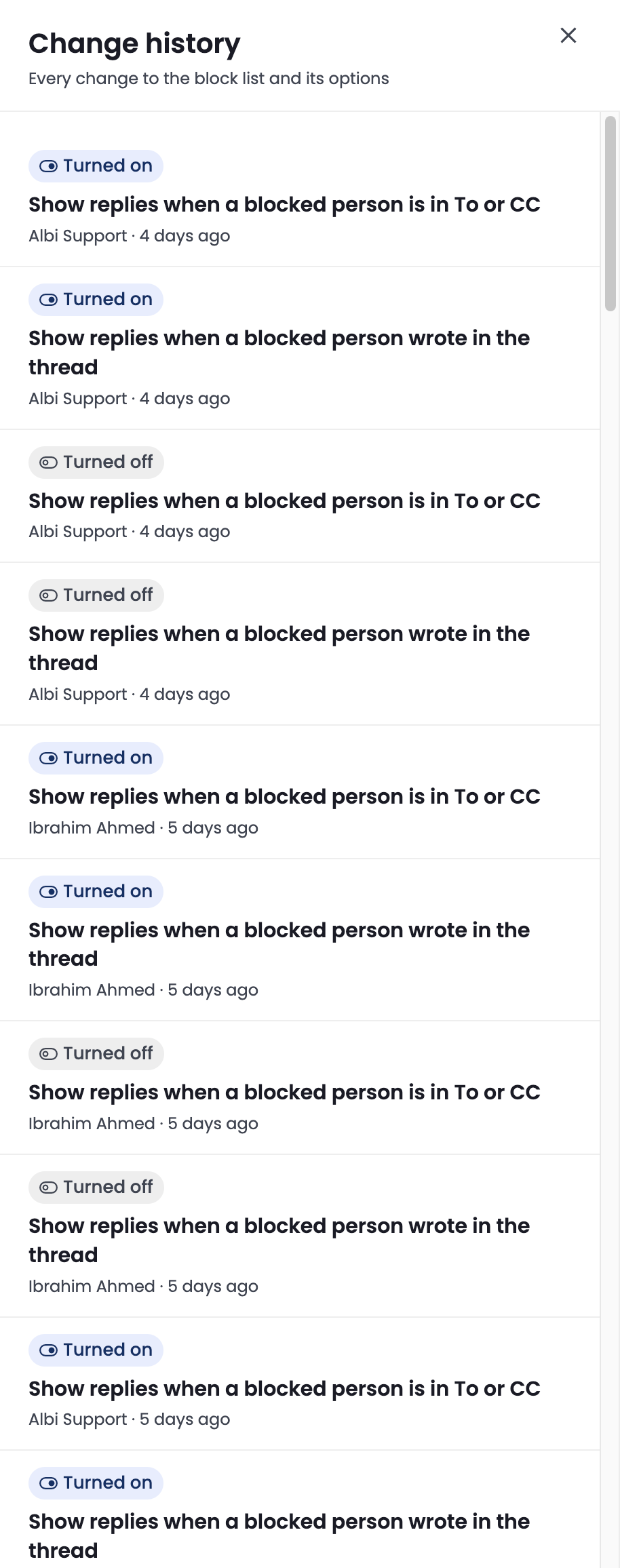
Each entry shows:
- What happened: Blocked, Unblocked, Turned on, or Turned off
- The sender or option it applies to
- A note when there's more detail (for example, "Imported in bulk")
- Who made the change and when
Changes to the reply options show the option's name: "Show replies when a blocked person wrote in the thread" or "Show replies when a blocked person is in To or CC."
Known limits
- Emails sent from Albi. Albi never stops your staff emailing a blocked person. An email sent from a project's timeline is still logged on the project, like any project email.
- Master and child companies. Blocking a person on the master company keeps their own emails out of child company projects. If a child company has its own contact for that person, that contact still gets an activity when they receive an email.
- If the block list is turned off for your company. The blocks stop applying, and email comes in as if the list were empty. Your list is saved, and the blocks apply again if the block list is turned back on.
Emailing a blocked person from Albi
If you email a blocked contact or organization from their page (Add activity > Email) with their address in To, the email is still sent, but no activity is saved on them and attachments aren't added to their files. You'll see: "The email was sent, but the activity wasn't recorded." The same applies in the mobile app. If the blocked person is only in CC, the activity is saved.
Frequently asked questions
We blocked someone, but their old emails are still on the project. Why?
Blocking only affects emails sent after the sender was added. Anything already in Albi stays where it is.
We emailed the owner. It's on the project, but not on the owner's contact.
That's expected. A blocked person never gets an activity, even for emails sent to them. Everyone else on the email gets their activity, and the project still shows the email on its timeline.
I emailed the owner from their contact page and it said the activity wasn't recorded.
That's expected. The owner is on the block list, so the email went out but nothing was saved on their contact. Emails you send them from a project are still logged on the project.
We blocked a domain, and now emails from a subcontractor stopped too.
A domain block covers every address at that domain and its subdomains. Remove the domain and block the specific addresses instead. Emails that arrived while the domain was blocked can't be recovered in Albi.
Can we see which emails were blocked?
No. Blocked emails aren’t shown anywhere in Albi, so there’s no list of them and no way to release one. The original email is still in the recipient’s own mailbox.
We removed a sender. Why didn't their blocked emails appear?
Removing a sender only affects emails received from then on. Emails received while they were blocked stay out.
Why can't I block a public email domain?
Blocking a public provider's domain would cut off every homeowner and subcontractor who uses it. Block the person's full email address instead.
Why can't I block this address?
If the message names an integration, that address is how the integration communicates with Albi, and blocking it would break the integration. If you no longer use that integration, disconnect it first.
Albi warned me about our own company's domain.
Blocking your own domain would stop project email from all of your staff, so Albi shows who would be affected and asks you to confirm. To keep one owner or executive out, block their full email address instead.
I typed a name and it won't add.
Typing a name searches your staff. Pick the person from the list and their address fills in. Contacts aren't searched, so for a contact, enter their full email address.
It says an address is already blocked, but I don't see it on the list.
Its domain is on the list. The message names the domain that covers it, and searching for the address will show that domain.
A technician's reply to the owner is missing from the project.
That's expected while the reply options are off. Because the owner is blocked, replies in their conversations, and replies sent to or CCing them, are kept out. To let those replies in, turn on the matching option on the Replies in blocked conversations card. The replies will then come in with the owner's quoted messages hidden. Click View how replies work to preview the effect before changing anything.
Someone replied all with the owner in CC. It isn’t on the project or on the customer’s contact.
That’s expected while Show replies when a blocked person is in To or CC is off. The reply is kept out entirely, so no one gets an activity from it, not just the owner. Turn that option on to let these replies in. The reply then shows on the project and the customer’s contact, the owner gets no activity, and their quoted words are hidden.
The owner was CC’d on the first email, but a reply still came in.
That’s expected when someone uses Reply instead of Reply all. The option checks the reply’s own To and CC, and a plain Reply leaves the owner off. Being CC’d on an earlier email doesn’t count as writing in the conversation.
A timeline entry says "Earlier emails in this thread are hidden because it includes a blocked person."
That's expected. The reply or forward quoted a message from a blocked person, so that message was hidden. Everything else is as it was sent. Older emails show [BLOCKED CONTENT] for the same reason. The full email is still in the recipient's mailbox.
The reply lost all of the earlier back-and-forth, not just the owner's email.
This happens when Albi can't tell who wrote which quoted part, for example when someone replied between quoted lines or an earlier email shows a name but no email address. Rather than risk showing the blocked person's words, Albi hides the whole quoted history. The earlier emails are still on the timeline as their own entries.
A reply never showed up, even with the reply options on.
Some email apps quote each earlier email under its own "From:" header. If one of those headers is the blocked person, the reply contains their whole email, so it's kept out, just like a forward of their email.
A technician forwarded the owner's email to a project and it never showed up.
That's expected. A forwarded email from a blocked sender is still their email, so it's kept out entirely.
Someone forwarded a conversation and part of it is hidden.
That's expected. The forward quoted the blocked person, so their part was hidden. The rest of the forward is as it was sent.
What happens to attachments on blocked emails?
Attachments on a blocked email aren't saved in Albi. On emails that do come in, attachments go to the project's Emails folder and onto the activities of people who aren't blocked.
The import only added some of my lines.
Check the summary under the paste box. It lists each skipped line and why. Your company's own domain is held back on purpose; add it from the One at a time tab.
I don't see Email block list in Settings.
You need permission to manage company settings, and the feature must be enabled for your company. Check with your admin, or contact Albi Support.
Can we export the block list or manage it through the API?
Not at this time. The block list is managed only on the Settings page.
Does the block list apply to the mobile app?
Yes. The block list controls which emails Albi brings in, so the mobile app shows the same thing on projects. The list itself can only be managed in the web app.
When to contact support
Contact Albi Support if:
- New emails from a sender on your list still appear on a project after you blocked them.
- A reply or forward still shows a blocked person's quoted message.
- You see "Could not save the block list options" when turning an option on or off.
- You see "Could not check who this would affect" when adding a sender.
- A blocked person’s contact or organization gets a new activity after you blocked them, from an incoming email or from an email sent to them from their contact page.