
The mobile version covers the essentials — a few fields can only be set from the web app (see What's different on mobile below). For a full breakdown of what copies over, what starts fresh, and what each option does, see Duplicating a Project.
How to duplicate a project on the mobile app
- Open the project you want to duplicate.
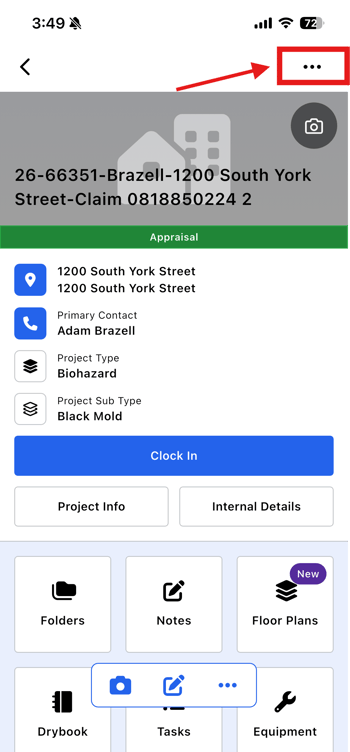
- Tap the ⋯ (ellipsis) menu in the top-right of the Project info screen.
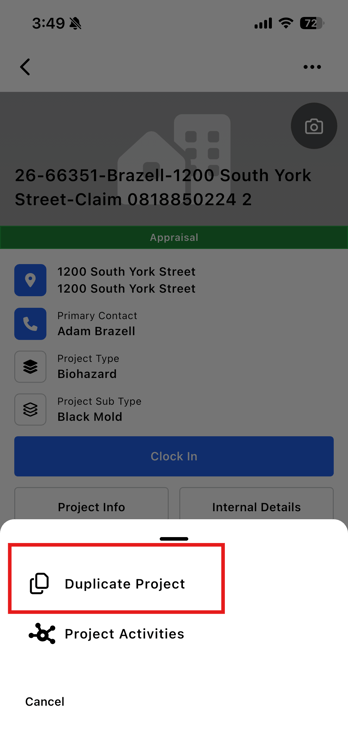
- Tap Duplicate project.
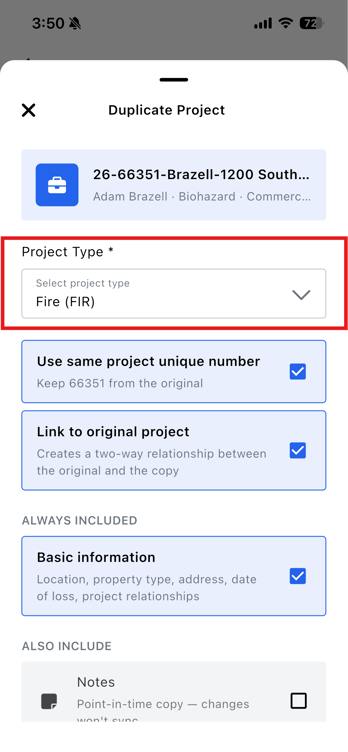
- Select a Project type (required). The Duplicate project button stays inactive until you choose one.
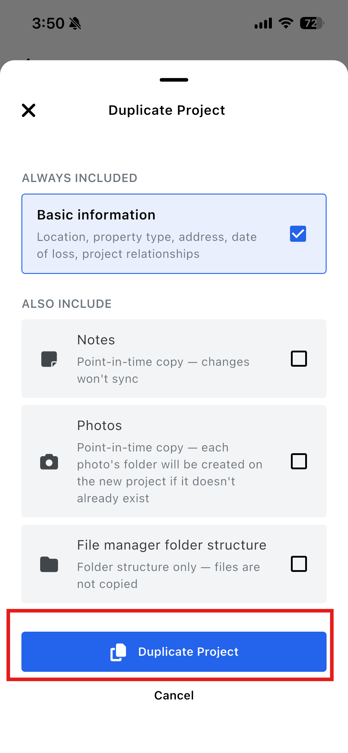
- Set the duplication options: toggle Use same project unique number, toggle Link to original project (on by default), and turn on any optional items you want to copy — Notes, Photos, or File manager folders.
- Tap Duplicate project at the bottom of the sheet.
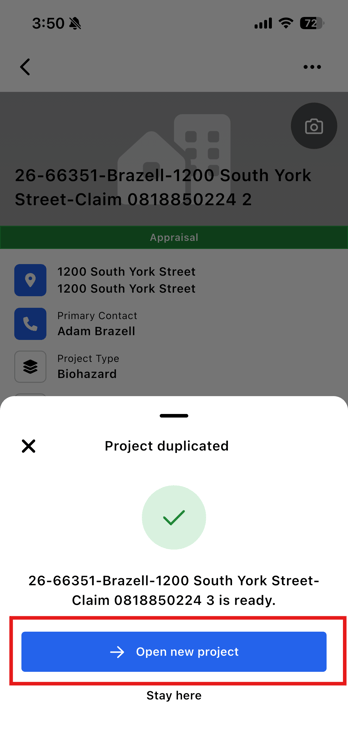
- On the success screen, tap Open new project to go to it right away, or Stay here to remain on the original.
If you turned on Photos or File manager folders, they may take a few moments to appear on the new project.
What's different on mobile
The mobile duplicate form is more streamlined than the web version. During duplication on mobile, you cannot:
- Change the project sub-type or location — these carry over from the original project.
- Add, remove, or change assigned staff.
- See a live preview of the new project name as you make your selections.
To set the sub-type, location, or assigned staff, open the new project after it is created and edit it there, or use the web app, which offers the full set of options during duplication.
The Use same project unique number option is still available on mobile and controls whether the duplicate keeps the original's number or is assigned a new one — you just won't see the resulting name previewed in the form before the project is created.