
After you create a contact, it appears in the Contacts dashboard. This works much like an Excel sheet—each row represents a contact, and each column displays key details such as Name, Type, Job Title, Mobile Number, Email, Organization, Address, and more.
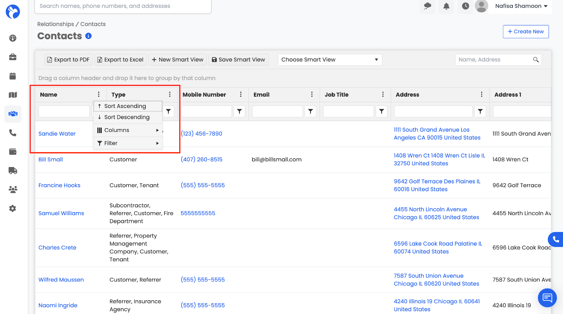
You can:
- Sort columns in ascending or descending order (for example, sort by name
A–Z). - Filter columns to quickly find what you need. For instance, you can filter by Type to only see Referrers,Organization or Address etc to view contacts linked to a specific company.
- Search across columns to show only certain values, such as emails from a particular domain or contacts with phone numbers from a specific area code.
- Scroll left to right to view all available information for each contact.
Example:
If you want to see only adjusters you added in the past month, you can filter the Type column to “Adjuster” and the Created Date column to the last 30 days.
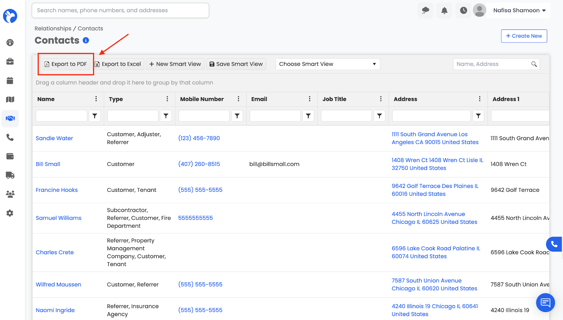
Export to PDF
The Export to PDF option lets you download and save all the information displayed in the Contacts database into a PDF file. This is useful if you need a copy of your contact data outside of Albi—for example, to share with someone who doesn’t have access to the system, to print records, or to keep a backup.
When you click Export to PDF, the system will generate a file with the details of the contacts currently shown in your view. If you’re using filters or Smart Views, only those filtered results will be included in the export.
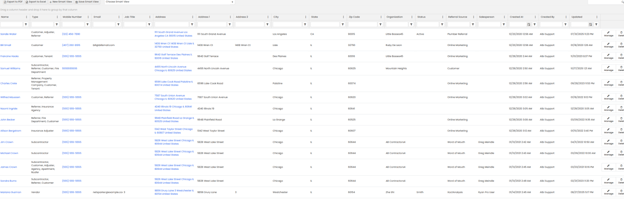
The exported PDF document will appear as shown below:
Export to Excel
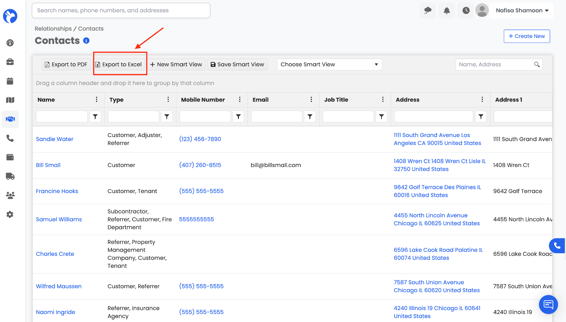
The Export to Excel option allows you to download your Contacts data into an Excel (.xlsx) file. This is especially useful if you want to perform additional analysis, sort and filter data in more detail, or share the information with someone who prefers working in spreadsheets.
When you click Export to Excel, the system will generate a file with the details of the contacts currently visible in your view. If you’re using filters or Smart Views, only those filtered results will be included in the export.
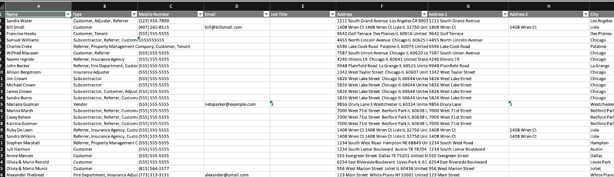
The exported Excel document will appear as shown below:
Smart Views
Smart Views are saved filters you create so you can quickly jump to just the groups of organizations you want to focus on. Once you set it up, you don’t have to recreate the filters each time.You can create Smart Views for yourself, for specific staff, or share them company-wide.
How to Create a Smart View
- Go to Relationships → Contacts
- Apply filters to show the set of contacts you want (for example: choosing a “Type”, setting a “Created Date”, or any other criteria).
- When you’ve got your filtered list ready, click Save Smart View or New Smart View.
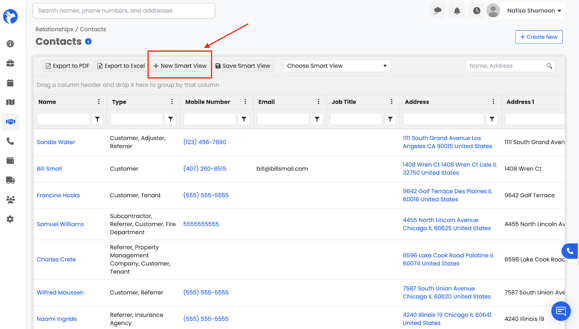
4. In the pop-up:
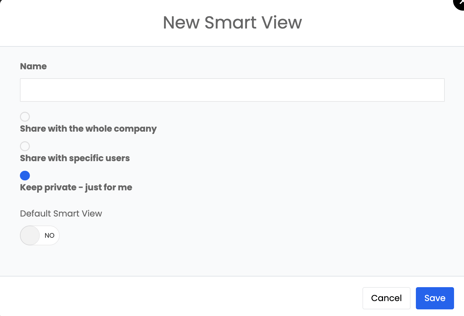
- Enter a Name for your new view.
- Choose who can see the view:
- Keep private – just for me
- Share with specific users
- Share with the whole company - Optionally mark it as your Default Smart View so it loads when you open the screen.
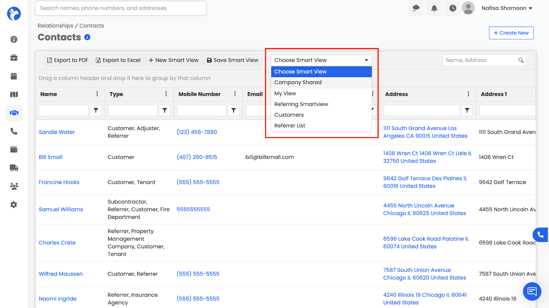
5. Click Save. Your new Smart View will now appear in the drop-down list of views.
6. After saving, your Smart View will appear in the drop-down list. You can switch between different views anytime without reapplying filters.
Editing and Deleting Smart Views
You can edit or delete any Smart Views that you have created:
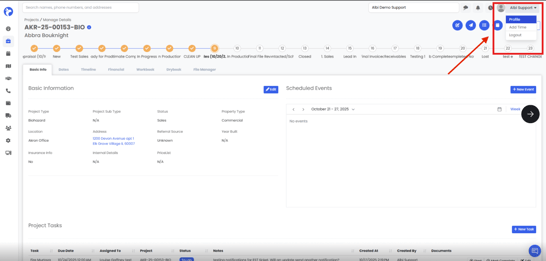
- Go to your Profile → Preferences tab.
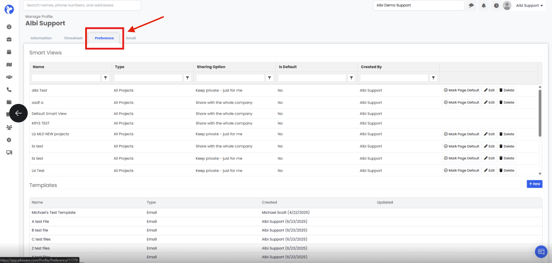
- Under Smart Views, you’ll see a list of all the Smart Views you’ve created, as well as any that have been shared with you by other team members.
- From here, you can edit, rename, or delete your own Smart Views.
- Shared Smart Views that were created by others will be visible but cannot be modified unless you’re the creator