
Before You Start
You'll be working in both systems, and each one has its own requirements.
In Albi
- An Admin or Manager role. If you don't have one, ask an Admin on your account to grant it.
- Access to Settings under your staff role
In CompanyCam
- An Admin or Manager permission role. Standard Users can't create the credential this integration needs.
- A CompanyCam plan that includes Access Tokens. CompanyCam limits this feature to select plans — if you don't see it, contact CompanyCam.
In Both Systems
- The same admin email address in Albi and CompanyCam, matching exactly. A different email in either system will cause the connection to fail.
Step 1: Create Your CompanyCam Credential
Albi connects using a credential you generate in CompanyCam. You'll paste it into Albi in Step 2.
- Log in to CompanyCam in a web browser.
- Click Integrations in the left-hand navigation, then click Access Tokens.
- Click New Application Key.
- Select the specified application (e.g., Albiware).
- Under permission level, select Read & Write or Full Access.
- New credentials default to Read only. A read-only credential will connect successfully but won't be able to create projects, so don't skip this step.
- Under expiration, select No expiry.
- The default is 30 days. If your credential expires, Albi stops creating CompanyCam projects and you'll need to generate a new one and reconnect.
- Click Create token, then copy the credential immediately. You won't be able to view it again after you leave the page.
If you land on an Access Tokens page under your profile icon instead, that's CompanyCam's older page, which is being phased out. Credentials you already created there keep working, but create new ones from Integrations → Access Tokens.
Step 2: Connect CompanyCam in Albi
- Log in to Albi.
- Go to Settings → Integrations.
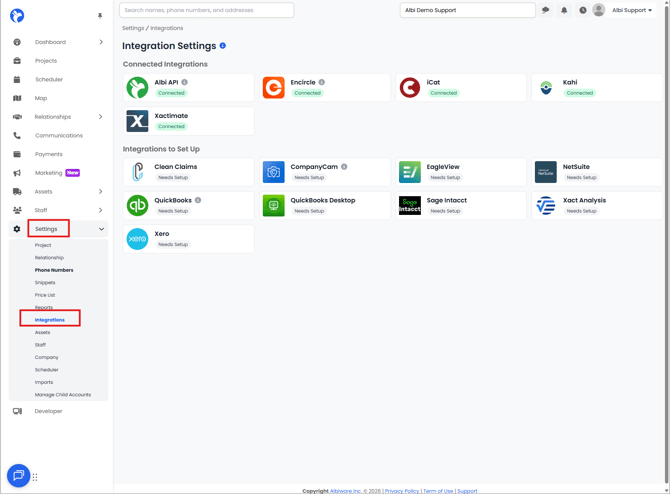
- Find CompanyCam and click Connect. A sidebar opens.
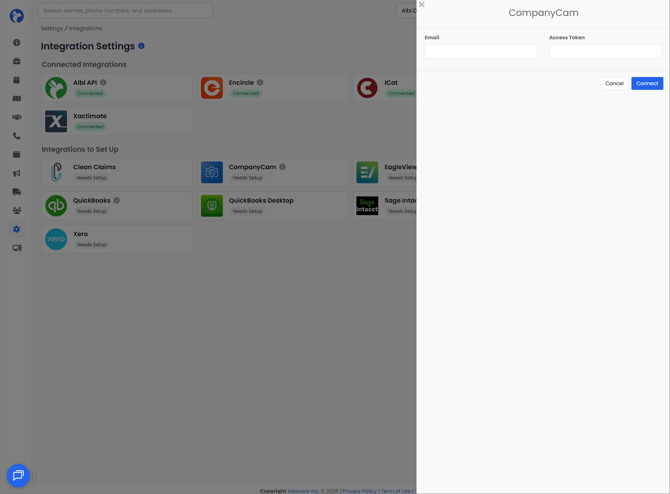
- Enter the admin email address that matches in both systems.
- Paste the credential you copied from CompanyCam.

- Click Connect.
A blue confirmation appears in the upper right corner of your screen when the integration is active.

Depending on where you generated it, CompanyCam may call your credential an Access Token or an Application Key. Albi accepts the credential you created in Step 1 either way.
Step 3: Choose When Projects Are Created
You decide which Albi projects get a CompanyCam project, and when. This setting is worth a minute of thought — most of the confusion we see comes from a trigger that doesn't match how a team actually works.
- Go back to Settings → Integrations.
- Click Configure on the CompanyCam tile.
- Click Settings.
- Choose one of the three options below, then click Save.
Changing this setting affects projects going forward. It doesn't create CompanyCam projects for Albi projects that already passed the trigger.
Option 1: Every Time a Project Is Created
Creates a CompanyCam project as soon as a project is created in Albi.
Best for: Teams that document every job from first contact, and teams whose techs shoot photos before a job is scoped.
Trade-off: Projects that never turn into real work still create CompanyCam projects, which can clutter your CompanyCam project list.
Option 2: Certain Statuses
Creates a CompanyCam project when an Albi project reaches a status you select. You can select more than one.
Example: Project 123 moves to In Production → a CompanyCam project is created.
Best for: Teams that only want CompanyCam projects once a job is sold or production has started.
Note: You will need to ensure that the status is applied to each project type under Settings -> Project -> Types.
Option 3: Certain Dates
Creates a CompanyCam project when a project date you select is completed. You can select more than one.
Example: Project 123's Arrived on Site date is completed → a CompanyCam project is created.
Best for: Teams that key documentation to operational milestones rather than pipeline status.
Note: You will need to ensure that the date is applied to each project type under Settings -> Project -> Types
What Syncs After Setup
- Albi creates the CompanyCam project using the Albi project's name and address, so the two line up.
- Photos your team takes in CompanyCam for that project appear in the Albi project's File Manager.
- Because photos flow back into Albi, technicians and subcontractors who only capture photos can work in CompanyCam without an Albi license.
Keeping the Integration Working
A few things will break this integration quietly, so they're worth knowing up front.
- Credential expiration. If you set an expiration date, the integration stops working when that date passes. Choosing No expiry avoids this. If you'd rather rotate credentials on a schedule, set a calendar reminder a week ahead so you can create a new one and reconnect before the old one lapses.
- The person who created the credential. The credential acts as the CompanyCam user who created it. If that user is deactivated, the credential stops working. Before you offboard someone in CompanyCam, check whether they created the Albi credential — if so, have another Admin or Manager create a replacement and reconnect.
- Email changes. If the admin email changes in either system, the two no longer match and the connection fails. Update both, then reconnect.
- Revoking access. You can revoke a credential any time from CompanyCam's Access Tokens page. Treat it like a password: if it's exposed, revoke it and create a new one. Revoking the credential Albi is using will disconnect the integration.
Troubleshooting
| What you're seeing | Likely cause | What to do |
|---|---|---|
| The connection fails when you click Connect | The email doesn't match exactly in both systems | Compare both, character for character, then try again |
| Connection succeeds, but no CompanyCam projects are created | The credential was created as Read only | Create a new credential with Read & Write, then reconnect |
| It worked for a while, then stopped | The credential expired, or the CompanyCam user who created it was deactivated | Create a new credential with No expiry and reconnect |
| Only some projects appear in CompanyCam | Your project creation trigger is limited to certain statuses or dates | Check Settings → Integrations → CompanyCam → Configure → Settings |
| You can't find Access Tokens in CompanyCam | Your role isn't Admin or Manager, or your CompanyCam plan doesn't include the feature | Ask a CompanyCam Admin, or contact CompanyCam about your plan |
| You don't see the integration in Albi at all | Your Albi plan doesn't include integrations, or your role is too limited | Ask an Admin on your Albi account |
Need More Help?
Reach out to Albi Support through live chat and we'll take a look at the connection on our side.