
How to Access Analytics → Sales
- Navigate to the left-side navigation bar.
- Click Dashboard Analytics.
- Select Sales.
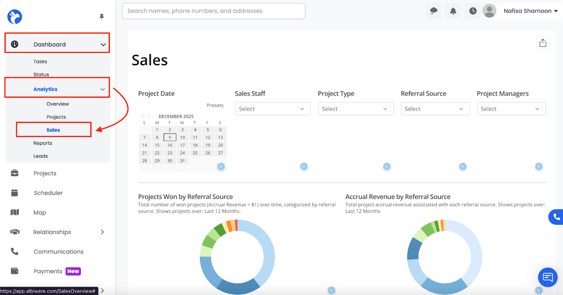
Your Sales Dashboard will open, displaying all sales-related charts, tables, and analytics.
1. Filters & Date Selection
At the top of the Sales Dashboard, you will see the global filters used to customize your dataset.
Project Date
You can filter your sales data using:
A. Calendar Selection
- Click the calendar.
- Choose a start and end date.
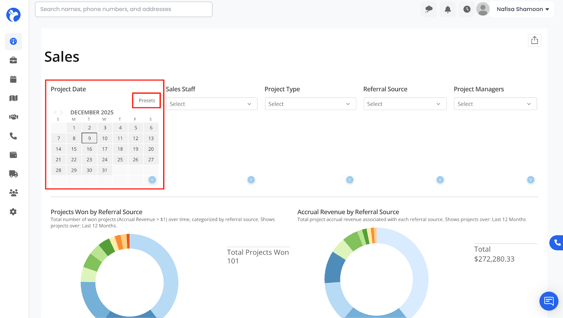
B. Preset Date Ranges
You can quickly select:
- Today, Yesterday, Last 7 Days, Last 30 / 60 / 90 Days, This Month, This Week, This Year
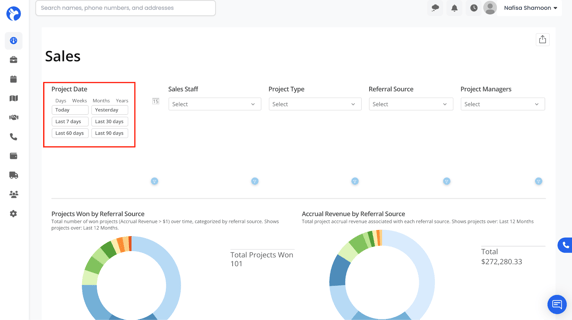
All charts and tables will instantly refresh based on your selected timeframe.
Additional Filters
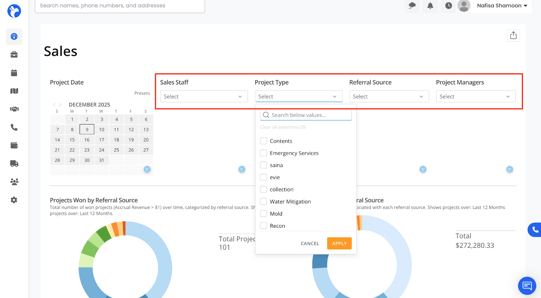
You can refine the entire dashboard using:
- Sales Staff
- Project Type
- Referral Source
- Project Managers
Selecting one or more filters will update all cards and tables across the dashboard.
2. Projects Won by Referral Source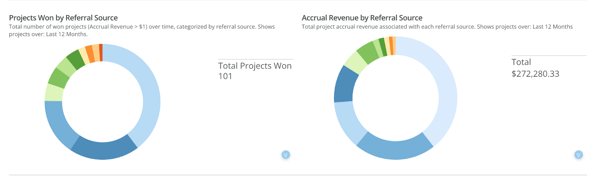
Shows the total number of won projects (Accrual Revenue > $1) categorized by Referral Source, displayed as a donut/pie chart.
- Covers projects over the last 12 months.
- Hovering over each slice displays:
- Number of won projects
-
- Percentage share
- This helps you identify which referral sources convert the most projects.
3. Accrual Revenue by Referral Source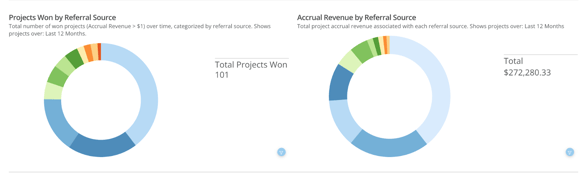
Displays the total accrued revenue generated from each Referral Source over the last 12 months.
- Shows how much revenue each source brings, not just the number of projects.
- Hover for exact dollar amounts.
- Cards can be expanded or switched to table view.
4. Sales by Referral Source
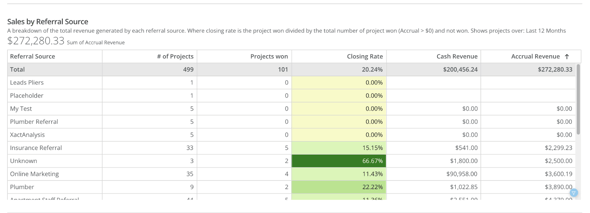
Provides a breakdown of revenue generated by each referral source.
Columns include:
- Referral Source
- Number of Projects
- Projects Won
- Closing Rate
- Cash Revenue
- Accrual Revenue
Heat Map Colors
This table uses a heat map for quick visual interpretation:
- Lighter colors = better performance
- Darker colors = weaker performance
Note:
Time values are calculated down to the second, meaning entries with the same value (e.g., “0 days”) may still appear in slightly different shades.
5. Projects by Referral Source
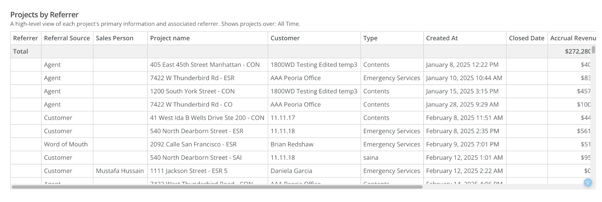
Shows all projects associated with each referral source, including:
- Referrer
- Sales Person
- Project Name
- Customer
- Project Manager
- Project Type
- Created Date
- Closed Date
- Accrued Revenue
This gives a detailed view of what specific projects came from each referral channel.
6. Projects Won by Referrer
Shows the total number of won projects grouped by Referrer (the actual person or entity).
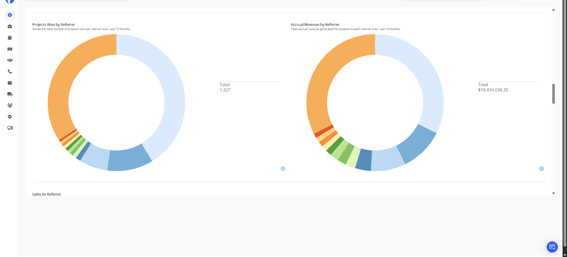
Important Difference
- Referrer = actual individual/company (e.g., John the Plumber, Google Ad).
- Referral Source = category they belong to (e.g., Plumber, Online Marketing).
This chart helps you understand which specific referrers bring in the most closed jobs.
7. Accrual Revenue by Referrer
Shows total revenue generated by each Referrer (not referral category).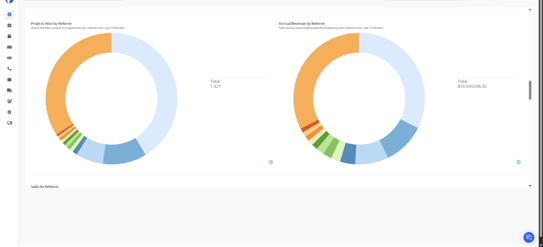
- Helps identify high-value referrers even if they send fewer projects.
- Hover over chart segments for details.
- Fully expandable and exportable.
8. Sales by Referrer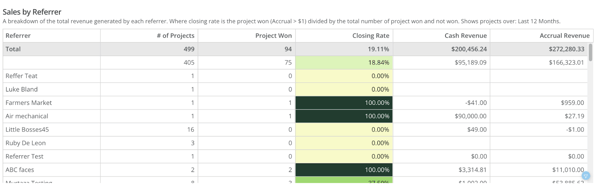
A detailed financial table showing:
- Referrer
- Number of Projects
- Projects Won
- Closing Rate
- Cash Revenue
- Accrual Revenue
This includes heat map coloring for quick visual understanding of performance.
9. Projects by Referrer
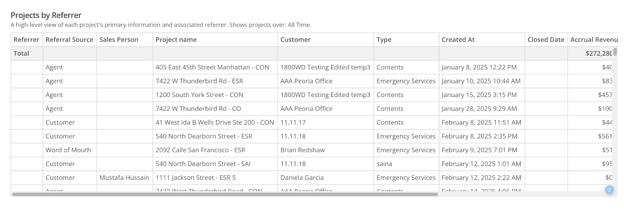
A high-level overview of all projects sent by each referrer.
Includes:
- Referrer
- Referral Source
- Salesperson
- Project Name
- Customer
- Project Manager
- Type
- Dates
- Revenue
This table is helpful for tracing all project activity linked to a specific referrer.
10. Sales Team Productivity Overview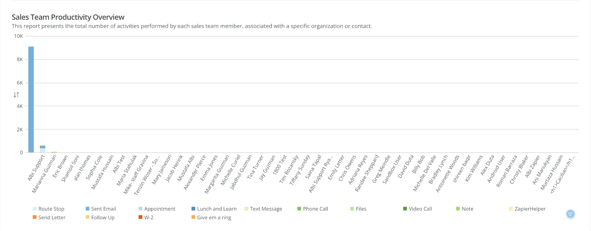
This report displays all logged sales activities for each sales team member, such as:
- Emails Sent
- Phone Calls
- Route Stops
- Appointments
- Follow-Ups
- Text Messages
- Notes
- Files Uploaded
- Video Calls
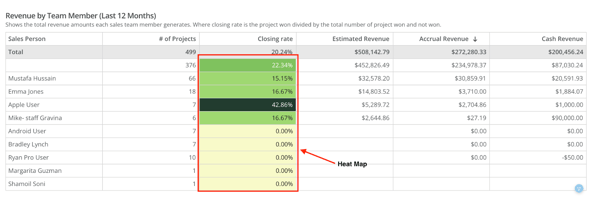
11. Revenue by Team Member 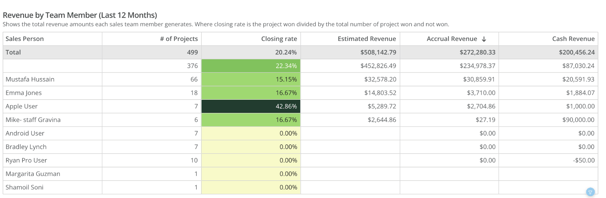
Shows financial performance for each sales team member:
- Number of Projects
- Closing Rate
- Estimated Revenue
- Accrued Revenue
- Cash Revenue
Features:
- Heat map color indicators
- Expandable view
- Export functionality
This section is essential for evaluating sales performance across the team.
12. Interaction Tools (For ALL Analytics Cards)
All analytics cards share the same interaction tools:
A. Expand
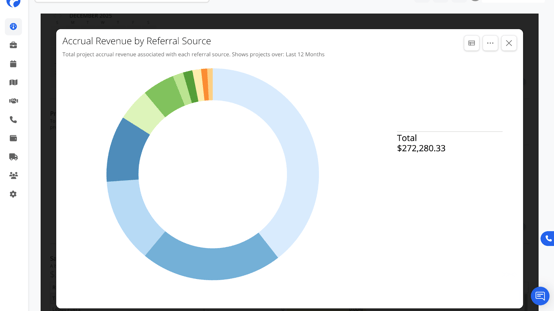
Click the card title to open a larger, detailed view.
B. Convert to Table View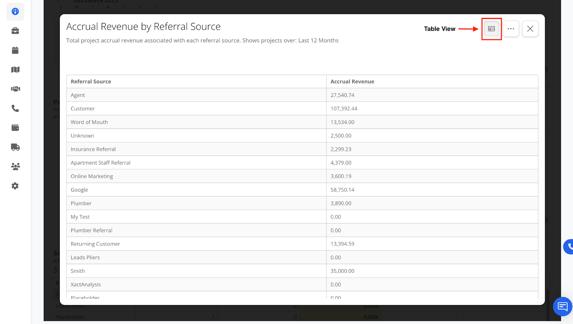
Click the table icon to switch the chart into a structured table.
C. Export
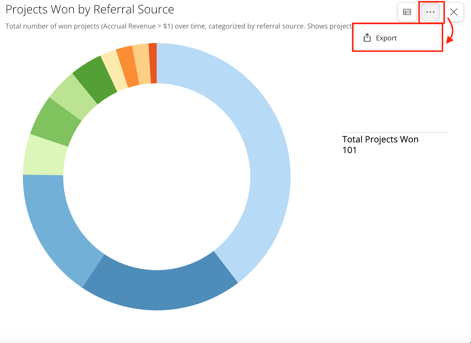
Click the three dots (...) to:
- Export the data
- Download charts/tables
- Reset filters
D. Hover for Details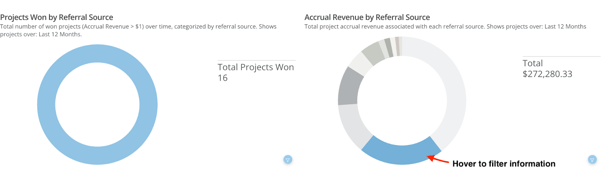
Hover to view:
- Dollar amounts
- Percentages
- Project counts
E. Blue Filter Button
Each card has a mini blue filter icon allowing you to filter only that card.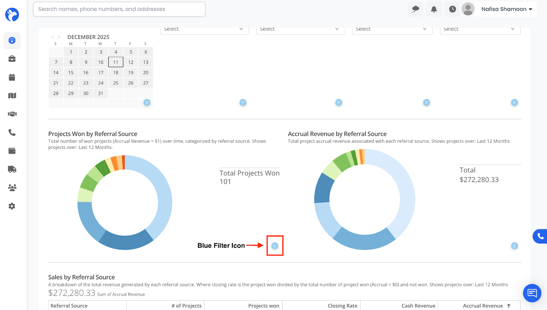
You can also:
- Hover a category → click the blue filter icon → filter all dashboard data based on that selection.
F. Filtering Activity Types (Click / Unclick Interaction)
At the bottom of the Sales Team Productivity Overview chart, you will see a row of colored activity types (such as Route Stop, Sent Email, Appointment, Phone Call, Lunch & Learn, Text Message, etc.).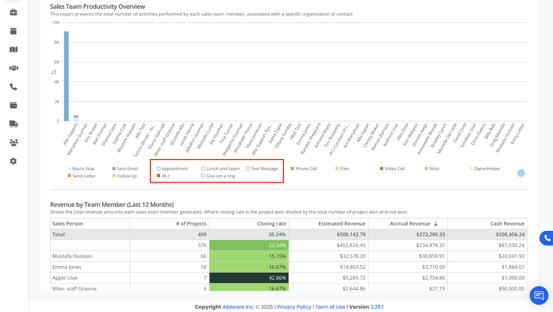
These act as interactive filters.
How It Works
- Click any activity type to hide it from the graph.
- Click it again to show it back on the graph.
- You can click multiple activity types at once to isolate only the categories you want to focus on.
What This Helps With
This feature allows you to:
- Remove clutter from the graph
- Focus on specific sales activities
- Compare activity types between team members
- Analyze productivity more accurately