
How to Access the Projects Analytics Dashboard
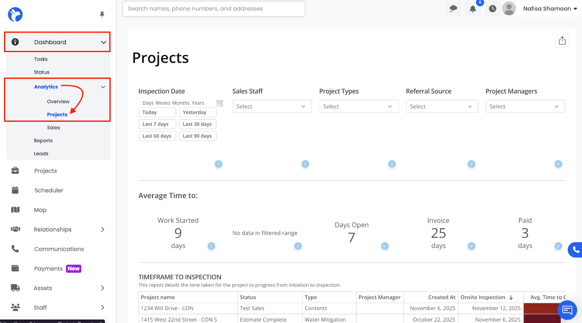
- Navigate to the left-hand sidebar.
- Click Analytics.
- Select Projects from the dropdown menu.
The Projects Analytics dashboard will open with all project performance reports visible.
Using Filters & Date Controls
At the top of the dashboard, you will see multiple filter options. These allow you to refine all reports on the page.
Project Filters
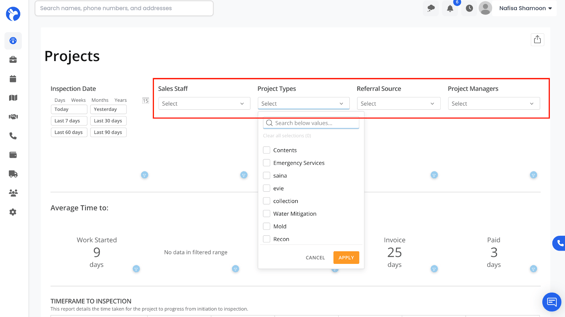
You can filter by:
- Sales Staff
- Project Type
- Referral Source
- Project Manager
These filters apply to every card and table on the dashboard.
Inspection Date Filters
You can filter inspection-related data by:
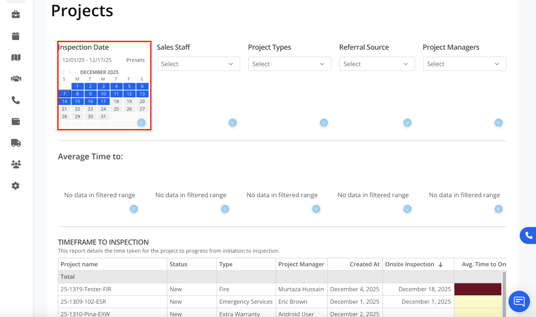
Manual Date Selection
Use the calendar to pick a custom start and end date.
Preset Options
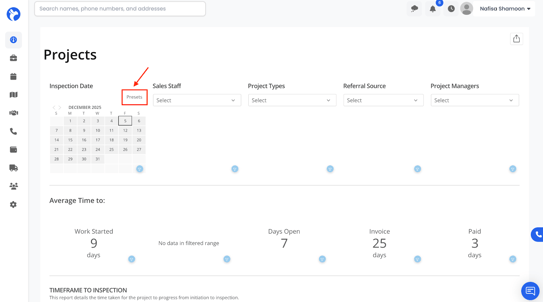
Choose from:
- Last 7 Days, Last 30 Days, Last 60 Days, Last 90 Days, This Month, This Year, Yesterday
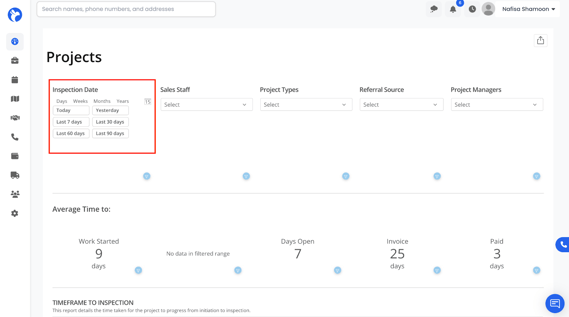
If no date range is selected, Albi displays the entire last 12 months of project data by default.
Understanding the Timing Averages
Across the top panels, you will see average time metrics such as:
- Average Time to Work Started (ex: 9 days)
- Average Completion Time (ex: 6–7 days)
- Average Days Open (ex: 25 days)
- Average Invoice Time
- Average Payment Time
These averages update based on your selected filters.
How These Averages Are Calculated
Albi uses Common Dates from Project Settings to calculate these values.
Formulas
- Work Started = Inspection Date → Work Start Date
The average amount of time between when an inspection starts and when work begins. - Completed = Work start → work complete
The average amount of time between when work starts and when work is completed. - Days Open = Created at → Closed (and/or Lost)
The total number of days a project remains open, from creation to closure. - Invoice = work start → Invoiced
The average amount of time between when work is completed and when the invoice is issued. - Paid = Invoiced → Final Paid Date
The average amount of time between when an invoice is issued and when payment is received.
Note:
If a company does not use these Common Dates in Project Settings, the metrics will show blank or incomplete data.
Color Coding (Heat Map)
Many timing columns use a heat map to help you quickly identify performance:
- Lighter colors = faster / better
- Darker colors = slower / needs attention
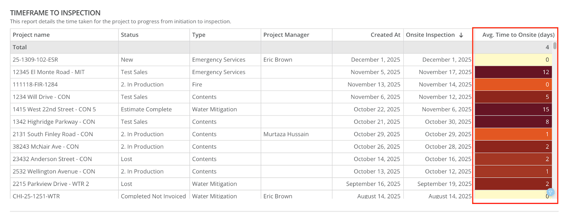
Because timing is calculated down to the second, two rows that both display “0 days” may still show different colors.
Card Interactions
Each analytics card includes several interactive features that help you view and analyze data more easily:
- Expand the Card
Click the card title to open a larger, more detailed version of the report. - Switch to Table View
Use the table icon in the top-right corner to convert the graph into a sortable data table.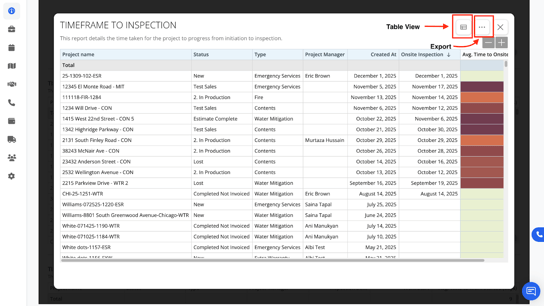
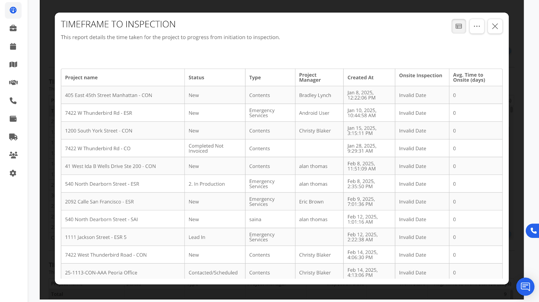
- Export to Excel
Click the three dots (⋯) to download the chart or table as an Excel file for external reporting.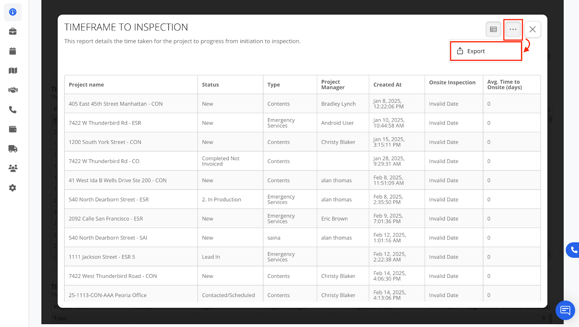
- Card-Specific Filters (Blue Filter Icon)
Use the small blue filter button to apply filters only to that card without changing the filters for the entire dashboard.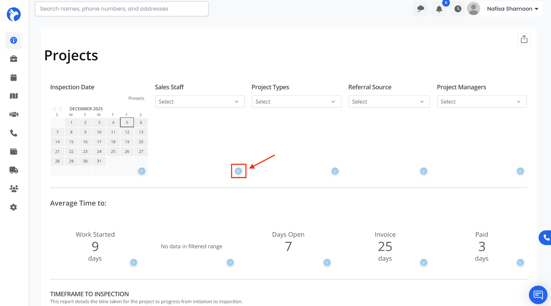
These features make it easy to isolate data, compare results, export information, and review reports in more detail.
Detailed Breakdown of Each Report
Below is a complete overview of every card and table within Analytics → Projects.
1. Timeframe to Inspection
This report shows the time it takes for a project to move from creation to inspection.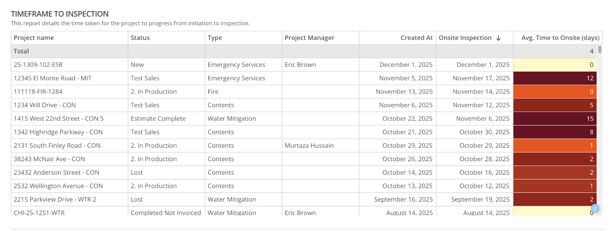
Columns include:
- Project Name
- Status
- Type
- Project Manager
- Created Date
- Inspection Date
- Timeframe to Inspection (heat mapped)
This helps you evaluate scheduling efficiency and responsiveness after receiving a new project.
2. Time to Start Work
Shows how long it takes to begin work after the inspection is completed.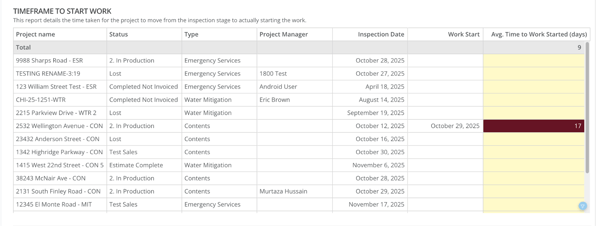
Columns include:
- Project Name
- Status
- Type
- Project Manager
- Inspection Date
- Work Started Date
- Average Time to Start Work
This identifies delays between inspection and actual field work.
3. Time to Close
Displays how long it takes for a project to go from work completed to officially closed.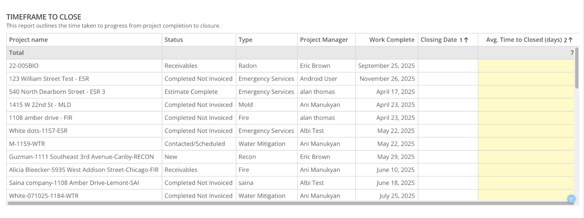
Columns include:
- Project Name
- Status
- Type
- Project Manager
- Work Completed Date
- Closed Date
- Average Close Time
This highlights administrative bottlenecks, file review delays, or final billing issues.
4. Project Milestones Over Time
This report compiles major project milestones in a single table.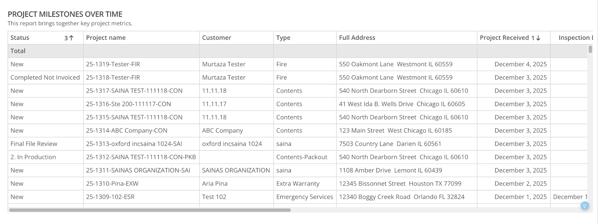
Includes:
- Project Status
- Project Name
- Customer
- Project Type
- Address
- Project Received Date
- Additional milestone dates (scrollable left → right)
Key Features:
- Scroll horizontally to view extended data
- Click the card to expand
- Switch to table view
- Export full milestone data
This section provides the most comprehensive lifecycle view of each project.
5. Project Manager Leaderboard
A ranking of Project Managers based on revenue.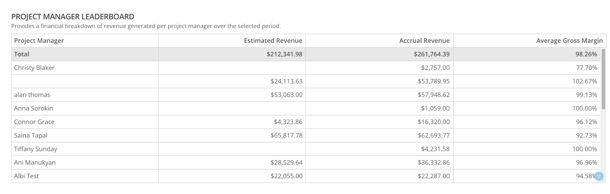
Displays:
- Project Manager Name
- Total Accrued Revenue
- Number of Projects
- Average Job Size
- Performance metrics based on filters
Note:
Only staff who have been assigned the Project Manager role in Staff Settings will appear here.
Useful for evaluating team performance and distributing workload.
6. Financial Report
A full financial breakdown of each project, pulled directly from the project's Financial tab.
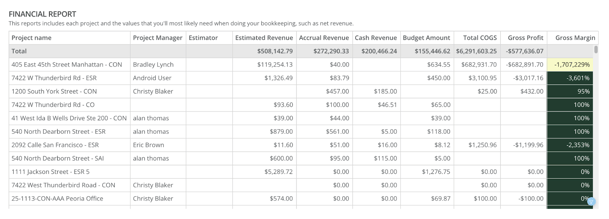
Includes:
- Project Name
- Project Manager
- Estimator
- Estimated Revenue
- Accrued Revenue
- Net Revenue
- Other key financial data
This report is essential for accounting, bookkeeping, and leadership review meetings.
Again, you can:
- Expand the card
- Export the report
- Filter for more specific analysis
7. Projects in New Status
Shows all projects currently marked as New.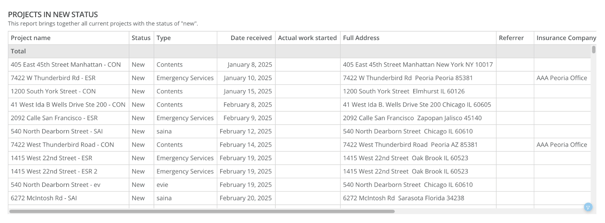
Includes:
- Project Name
- Created Date
- Project Type
- Assigned Staff
- Other metadata
This section helps ensure new leads or incoming jobs are not overlooked
8. Projects in Receivables Status
Displays all projects currently in Receivables, meaning payment is owed.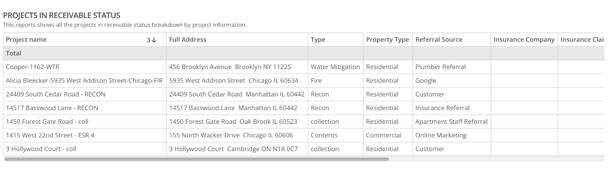
Includes:
- Project Name
- Amount Owed
- Invoice Details
- Customer Information
This is especially useful for teams tracking outstanding balances.
Common Dates Dependency
If your organization has not set up Common Dates in Project Settings, several reports may show incomplete or missing information.