
3. Detailed Breakdown of Each Analytics Card
Below is a full deep-dive into every analytics card on the page — what it shows, what it’s used for, and how to interact with it.
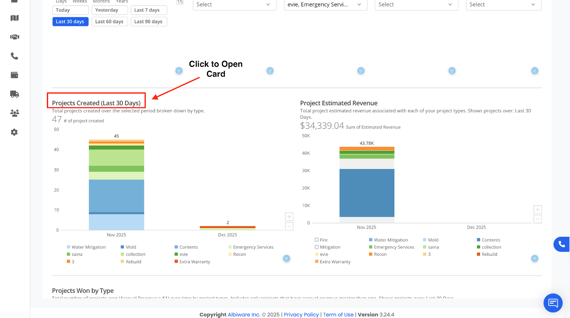
A. Projects Created (Last 12 Months)
This graph shows the total number of projects created within the selected time frame.
Data is broken down by project type, such as: Water Mitigation, Mold, Fire, Contents, Construction, Emergency Services, Roofing etc.
What This Graph Tells You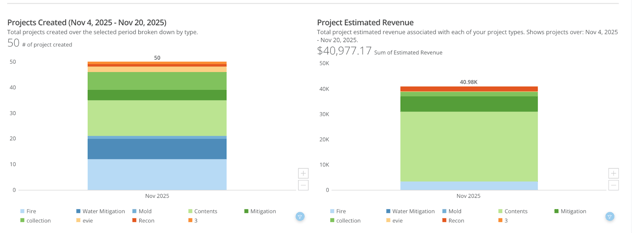
- How many projects were created month-by-month
- Which services your company performs most often
- Seasonal demand trends
- How project volume changes over time
Example:
If “484 projects” were created in the selected period:
- The graph will show how many of those 484 were created in each month
- Each bar is broken down by type
- You can toggle each type to isolate it
- ex: only show Water Mitigation projects
-
- ex: hide Mold and Fire for cleaner view
- ex: hide Mold and Fire for cleaner view
B. Project Estimated Revenue
Shows the estimated revenue amount associated with projects created during the period.
Estimated revenue includes:
- Estimates created
- Workbook pricing
- Expected job totals from estimators
What This Graph Tells You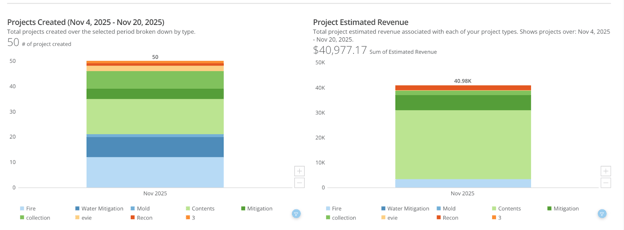
- Financial value of projects created
- Which project types bring the most revenue
- Revenue trends across months
- Seasonal peaks and dips
You can expand the card, export data, or toggle categories.
C. Projects Won by Type
Shows the total number of projects won (accrual revenue > $1) over the last 12 months or selected date range.
What This Graph Tells You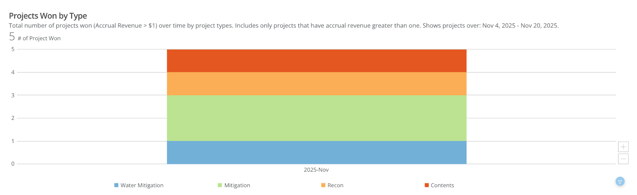
- Which project types your company closes most often
- Where you win vs. where you lose
- Workload distribution
- Sales team performance (depending on filters)
Example:
If 92 projects are marked “Won,” the graph shows how those 92 are distributed across the year and by project type.
D. Total Accrual Revenue
Accrual revenue means the actual amount earned from projects.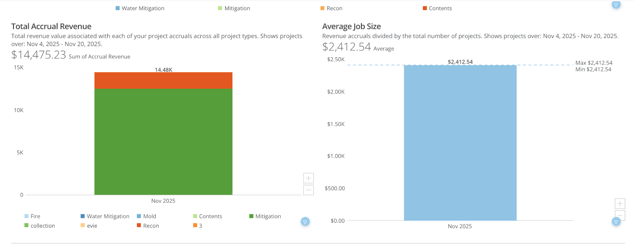
This card shows:
- Total accrued revenue for each project type
- Month-by-month earned revenue
- Which services generate the highest income
It reflects real generated revenue (not estimates).
E. Average Job Size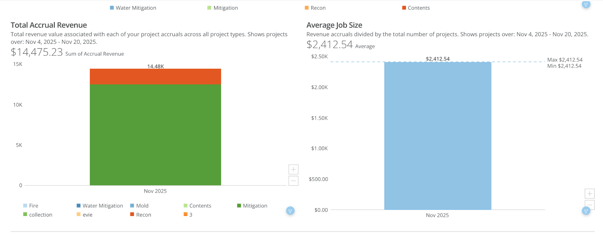
Formula:
Accrued Revenue ÷ Total Projects
Shows the average dollar value of projects taken on.
Example:
If the average job size in May is $2,220, the graph displays this as a point or bar.
Why This Matters
It tells you:
- How profitable your average job is
- Whether your pricing or job quality is improving
- Whether larger or smaller jobs are trending
F. Projects Won by Referral Source
Shows which referral channels produce won projects, i.e., projects that result in earned revenue.
Referral sources may include: Google, Agents, Insurance Carriers, Online Marketing, Repeat Customers, etc,
Pie Chart Interactions: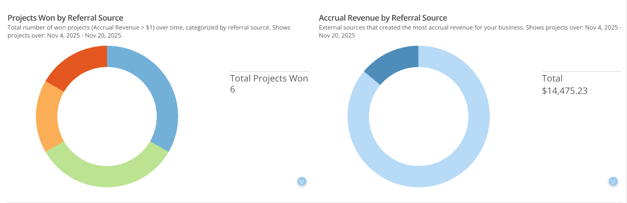
- Shows total number of won projects
- Hover to see percentages
- Click to isolate only one referral source
- Toggle to show/hide others
Example:
20 out of 99 projects came from Agents.
G. Accrual Revenue by Referral Source
Shows which referral sources generate the most revenue, not just the most projects.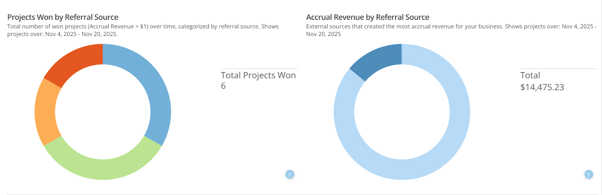
Example: Google might generate fewer jobs than Agents but may bring in higher-value jobs.
You can hover to see exact revenue numbers for each source.
H. Average Gross Margin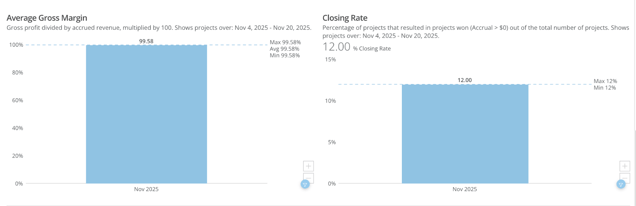
Formula:
(Gross Profit ÷ Accrued Revenue) × 100
Shows:
- Profitability percentage
- Financial efficiency
- How well jobs are estimated and executed
You can track gross margin over 12 months to spot operational or financial trends.
I. Closing Rate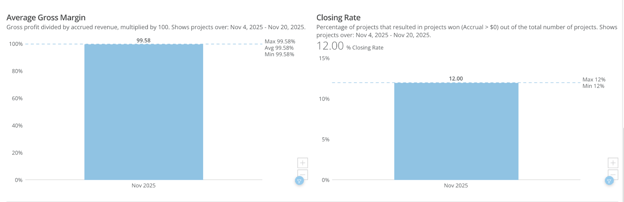
Formula:
Projects Won ÷ Total Projects × 100
Indicates:
- How many leads convert into jobs
- Sales team effectiveness
- Quality of referrals
Higher closing rates = strong sales flow.
Lower closing rates = poor lead quality or pricing issues.
J. Projects by Status
Displays active projects grouped by their current status, such as:
- In Production
- Testing
- Estimate Complete
- Receivables
- Final Review
- Closed
- Lost
What This Shows: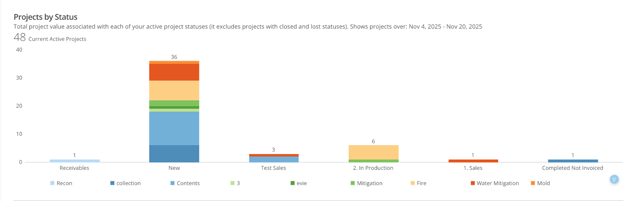
- Your current workload
- Production pipeline
- Job movement through workflow
You can toggle specific statuses on/off.
K. Total Referrers (Last Month)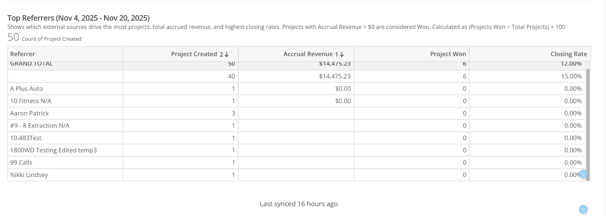
This table compiles:
- Number of projects
- Accrued revenue
- Closing rate
- Referral performance
It provides a summary of:
- Which referral sources bring the most work
- Which sources bring the highest revenue
- Which ones convert well and which don’t
This is essential for marketing and budget decisions.
Note: You can filter the information in this table by clicking the heading of each column.
How Do I Filter Analytics Data and Interact With Analytics Cards in Albi?
At the very top of the Overview page, you will see the global filter tools. These filters control every chart and table on the page.
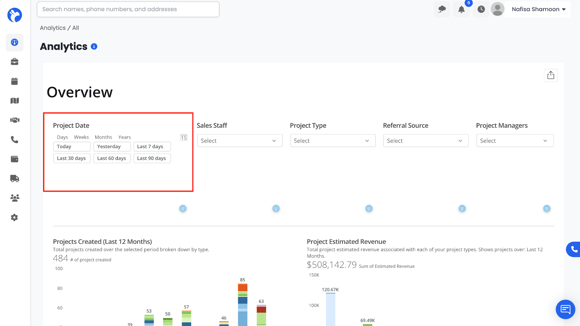
Date Range Selectors
You can filter data using:
- Presets:
- Last 7 Days, Last 30 Days, Last 60 Days, Last 90 Days,Yesterday, This Month, This Week, This Year
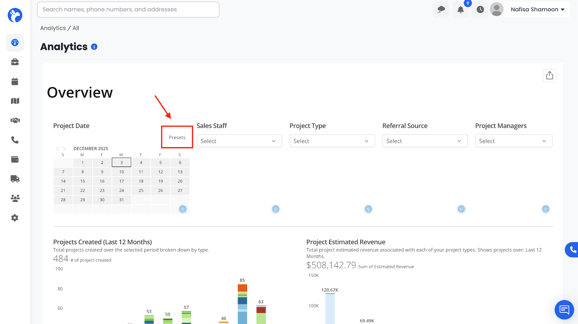
- Custom Date Range:
- Click the calendar field
- Select any start and end date
- Click the calendar field
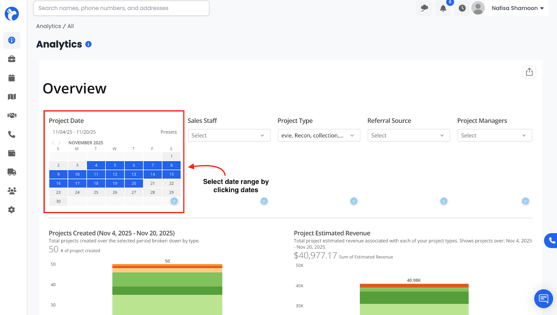
All analytics adjust instantly to reflect the chosen period.
Additional Filter Categories
You can refine data even more using dropdown filters for:
- Sales Staff – view performance per salesperson
- Project Type – e.g., Fire, Mold, Water Mitigation, Contents, Construction
- Referral Source – e.g., Google, Agents, Insurance Companies, Plumbers
- Project Manager – see performance per PM
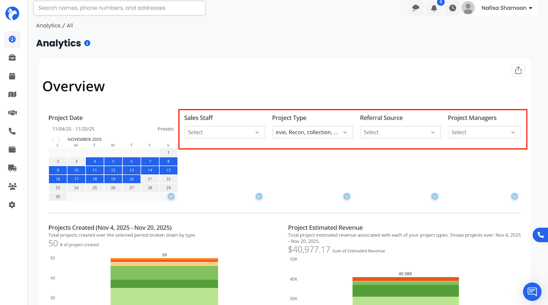
When you adjust one filter, all graphs regenerate to show only the matching records.
Interacting With Analytics Cards
Every analytics card supports advanced interaction:
Hover
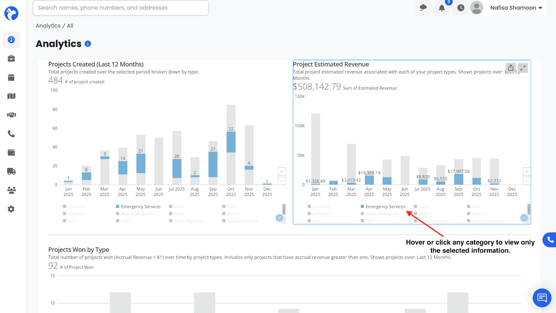
Hovering over any point, bar, line, or segment will show exact values, such as:
- Number of projects
- Revenue totals
- Percentages
- Accrual totals
- Month-by-month breakdown
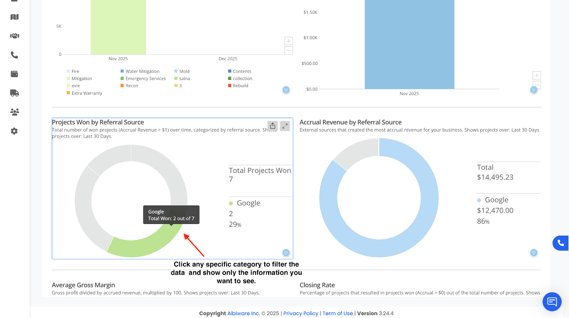
Toggle Project Types or Referral Sources
At the bottom of each chart, each project type or source is assigned a color.
You can:
- Click a color to turn a category on or off
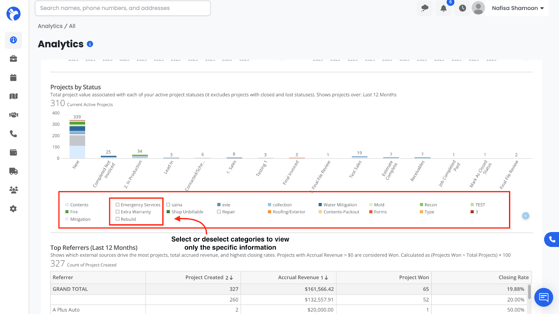
- Click multiple categories to isolate data
- Only show the types you care about
- Deselect cluttered categories to simplify the graph
Expand Card
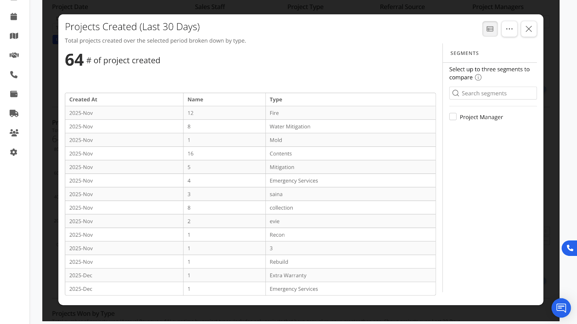
Click the title of the card (ex: “Projects Created (Last 12 Months)”) to expand the card in full screen.
Switch to View
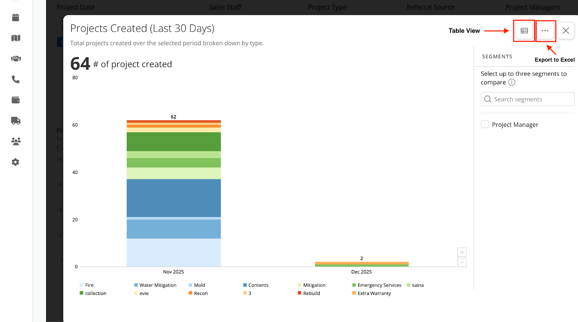
Table
Click the table icon on the top right of each card to switch from a chart to a table.
The table view will show:
- Month-by-month numbers
- Project counts
- Revenue values
- Totals
- Comparison lines
Export
Click the three dots (…) to:
- Export the graph/table to Excel
- Download datasets
- Reset card filters
Mini Filter Button
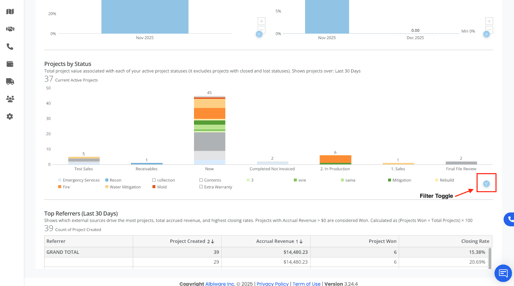
Each card has a blue filter button that lets you apply card-specific filters (project type, referral type, staff, etc.) without changing the global filters.