
Albi provides multiple ways to request payments so you can collect money at the right time, from the right place, and in the way that best fits your workflow. Payment requests can be sent from within a project, from invoices, from saved payment methods, or directly from the Payments module.
Each method creates a tracked payment request that stays linked to the project, contact, organization, and invoice (if applicable).
1. Requesting a Payment from the Project → Payment Requests Tab
The Payment Requests tab is the main place to view and manage all requested payments for a project.
Where to Find It
- Open the Project
- Navigate to the Payment Requests tab
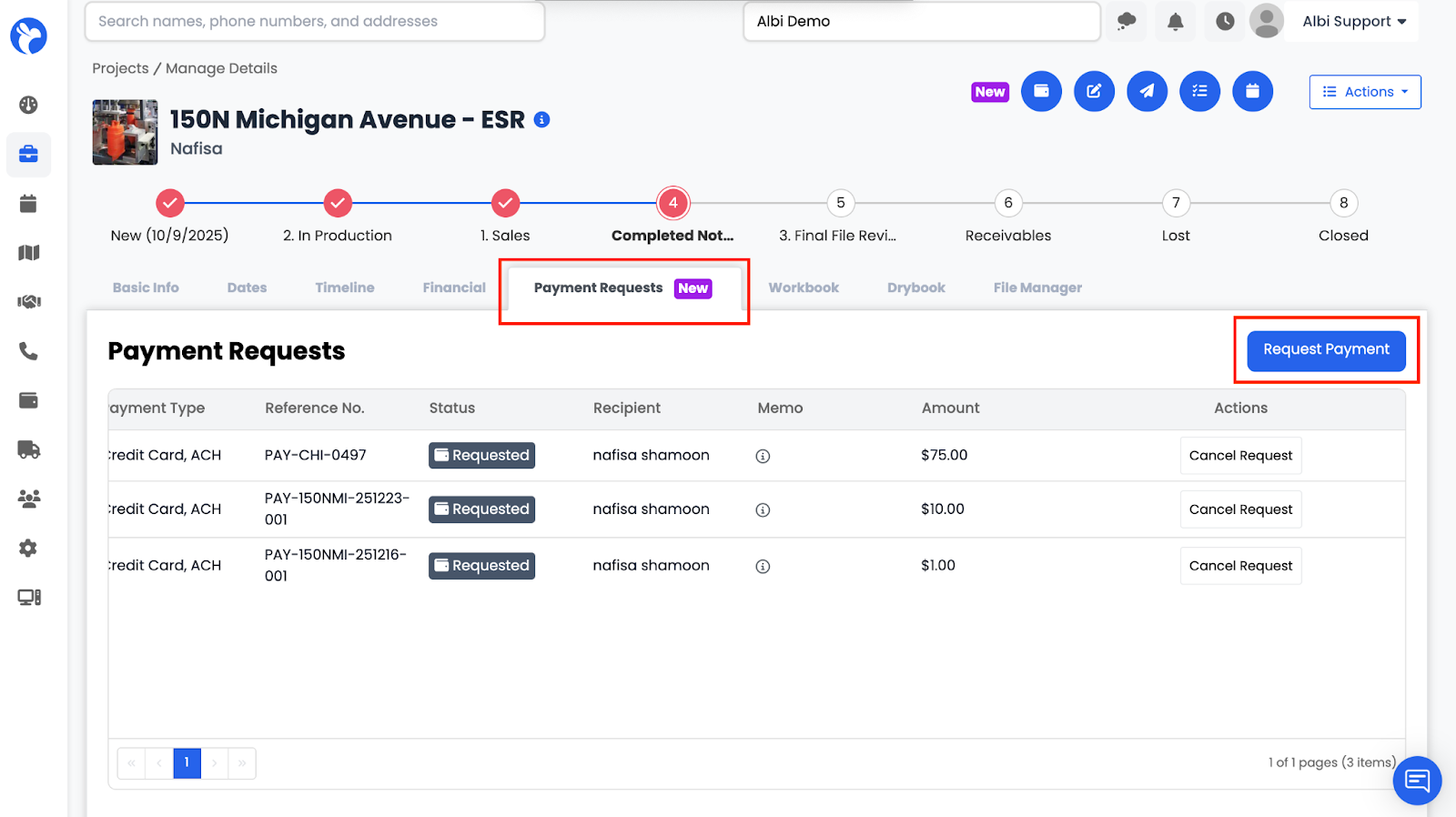
Here, you can see:
- All payment requests for the project
- Current payment statuses (Requested, Processing, Succeeded, Failed, etc.)
How to Request a Payment
- In the Payment Requests tab, click Request Payment
- A popup will appear with two options:
- Request Payment
- Request Check Deposit
- Request Payment
- Select the appropriate option and complete the request form
2. Requesting a Payment Method from the Project → Financials Tab
You can request a recipient’s preferred payment method before charging or requesting a payment.
Where to Find It
- Open the Project
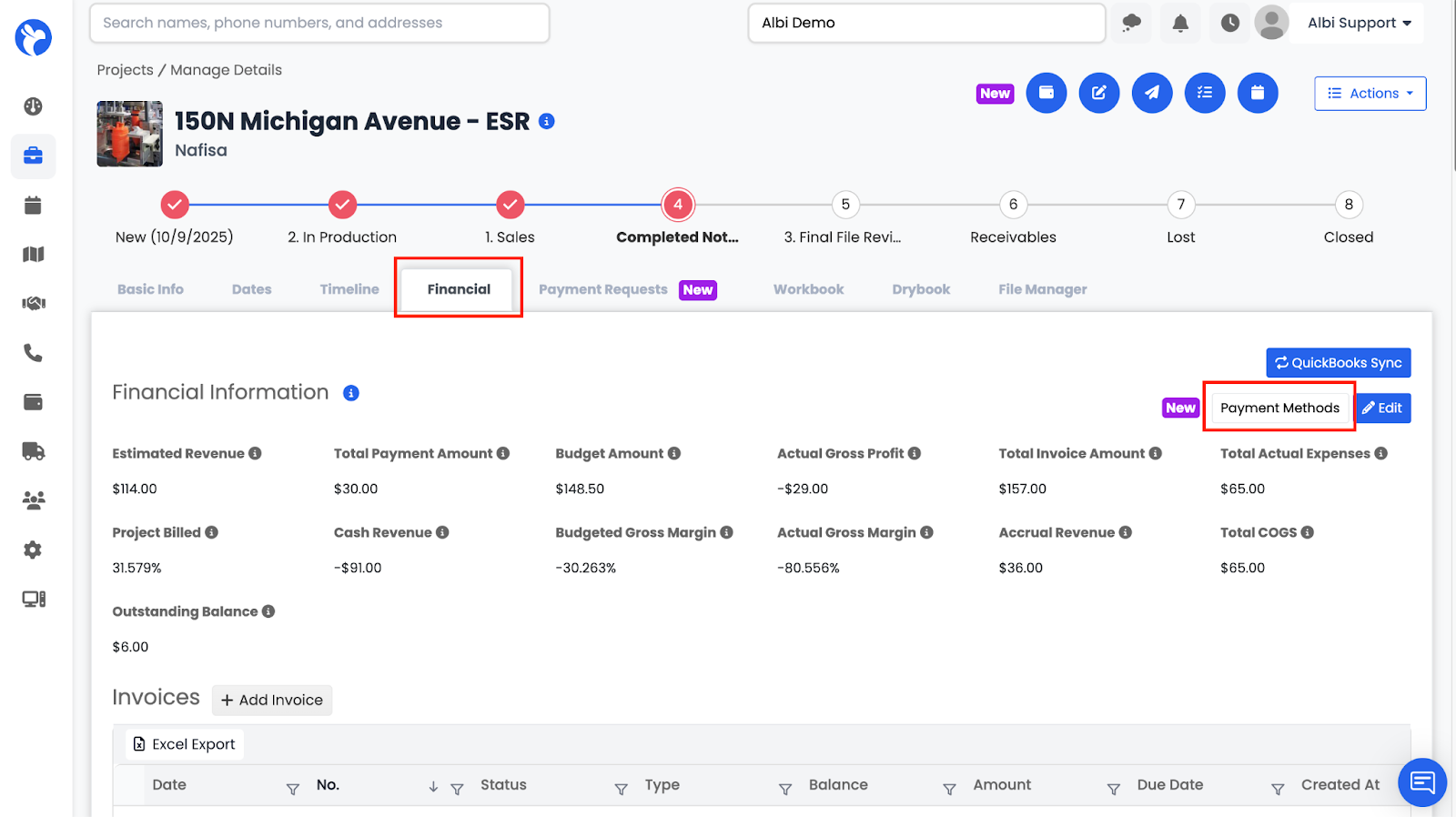
3. On the right-hand side, click Payment Methods
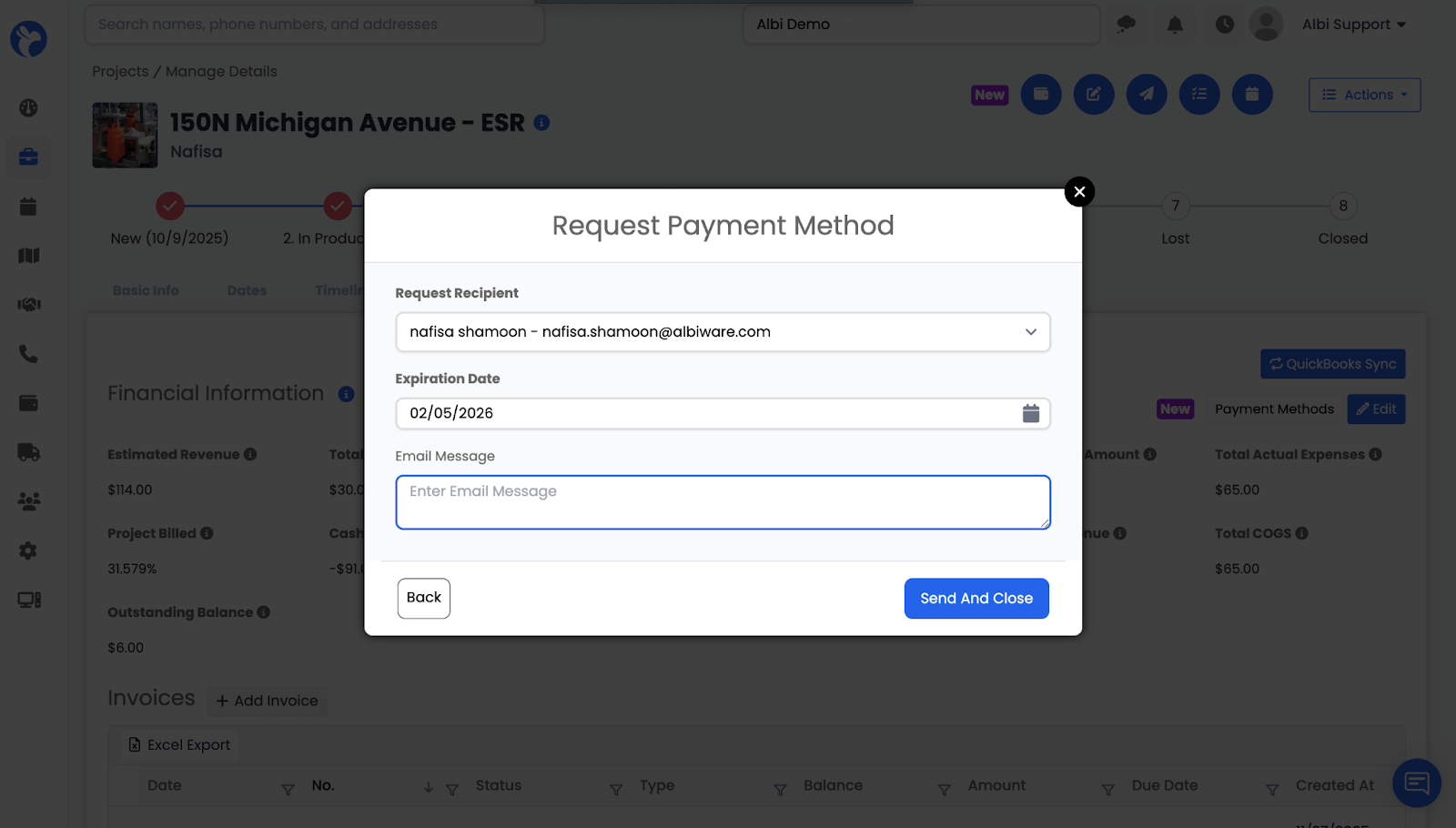
What This Does
When you request a payment method:
- Albi sends an email to the selected contact or organization
- The email asks the recipient to choose how they want to pay
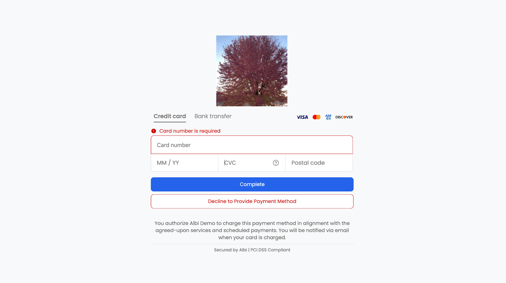
- The recipient can securely provide:
- ACH (bank transfer)
- Credit card
- ACH (bank transfer)
The recipient can then:
- Enter their payment details and submit the form, or
- Decline to provide a payment method
Recipient Experience
From the email sent by Albi:
- The recipient clicks the secure link
- They choose their preferred payment method
- They enter their payment information and submit it
If the recipient chooses to decline:
- The payment method request is marked as declined
- The project owner is notified that the request was declined
- No payment method is saved to the project
After the Payment Method Is Submitted
If the recipient completes the request:
- The payment method is securely saved to the project
- You can reuse it for:
- Future charges
-
- Future payment requests
- This makes future payments faster and easier
If the recipient declines the request:
- The request status updates to declined
- You are notified that the payment method was not provided
3. Requesting a Payment from an Invoice (Financials Tab)
You can request a payment directly while creating or editing an invoice.
How to Request a Payment from an Invoice
- Open the Project
- Go to the Financials tab
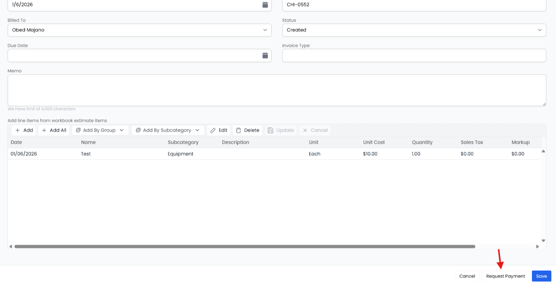
- Click Add Invoices
- Enter all invoice details
- At the bottom of the invoice:
- Next to Save, click Request Payment
-
- Be linked to the invoice
-
- Use the invoice’s open balance as the request amount
This ensures the payment is clearly tied to the invoice.
4. Requesting a Payment from the Payments Module
You can request a payment directly from the Payments section without starting inside a project tab.
Where to Find It
- Open Payments
- Click Add Payment
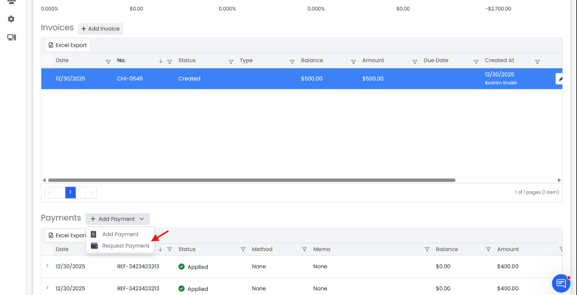
- Choose one of the following:
- Add Payment
- Request Payment
- Add Payment
How It Works
When requesting a payment from here, you can:
- Enter a payment reference number
- Enter a request amount
- Link an invoice (optional)
If an invoice is linked:
- The open balance will automatically populate as the request amount
5. Requesting a Payment from the Project Shortcut (Top Bar)
Albi provides a quick-access shortcut for requesting payments.
Where to Find It
- Open a Project
- At the top of the screen, click Request Payment Icon
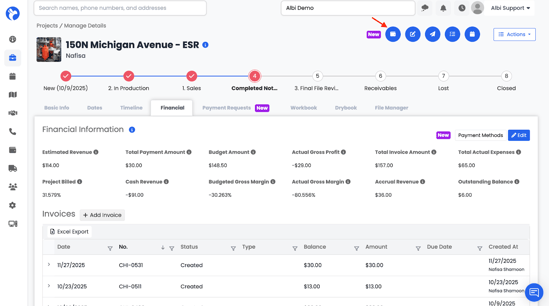
Available Options
- Request Payment
- Request Check Deposit
This shortcut is ideal for quickly sending a payment request without navigating through tabs.